 MailDirect Help
Add Custom Field
Add Custom Field
Click on this link new pop up to add Custom Field will appear as:
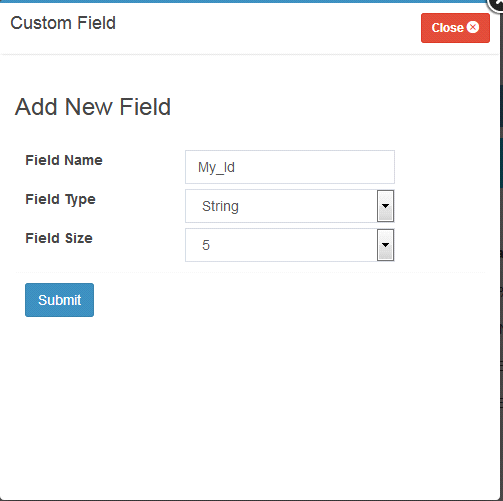
Figure : Add Custom Field
- While adding and editing custom field it's to be noted that for different types of fields different sizes are there and once you save the Custom field with some size you cannot make it change to value lower than that of size.
Custom Field Management
Table : Custom Field Management
|
Field |
Description |
|
Name |
This section displays the name of the field |
|
Type |
This field displays the input type for the corresponding field |
|
Size |
This field specifies the permissible number of characters for specified field |
|
Personalization code |
This section displays personalization code for corresponding field |
|
Option |
This section displays the option to modify the corresponding field. The available options are explained below:
Figure : Edit Custom Field
The available options to edit the fields are explained below
|
|
Create New Fields |
Select the appropriate number of fields added from the dropdown list, If submit button is pressed, MailDirect displays the Custom field Management screen with the respective number of fields aided in the custom field list -Add Note- There are only 50 Custom fields out of which 4 are default user can add 46 personalization fields |


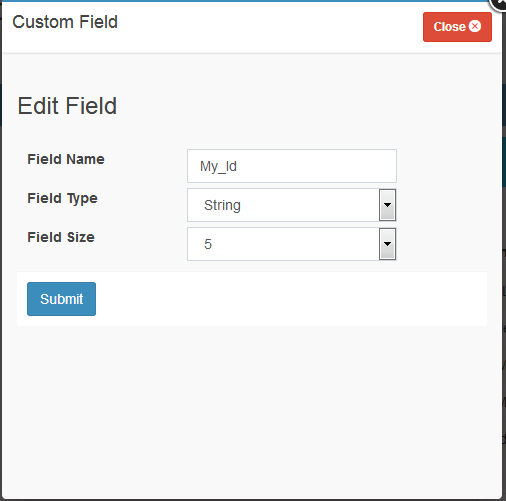
- Enter/Select the appropriate fields in the required field
- Click the Submit button to add the new custom fields or to save changes to the Existing one (if the Edit link was clicked for the corresponding field).
- MailDirect displays the Custom Field Management screen.
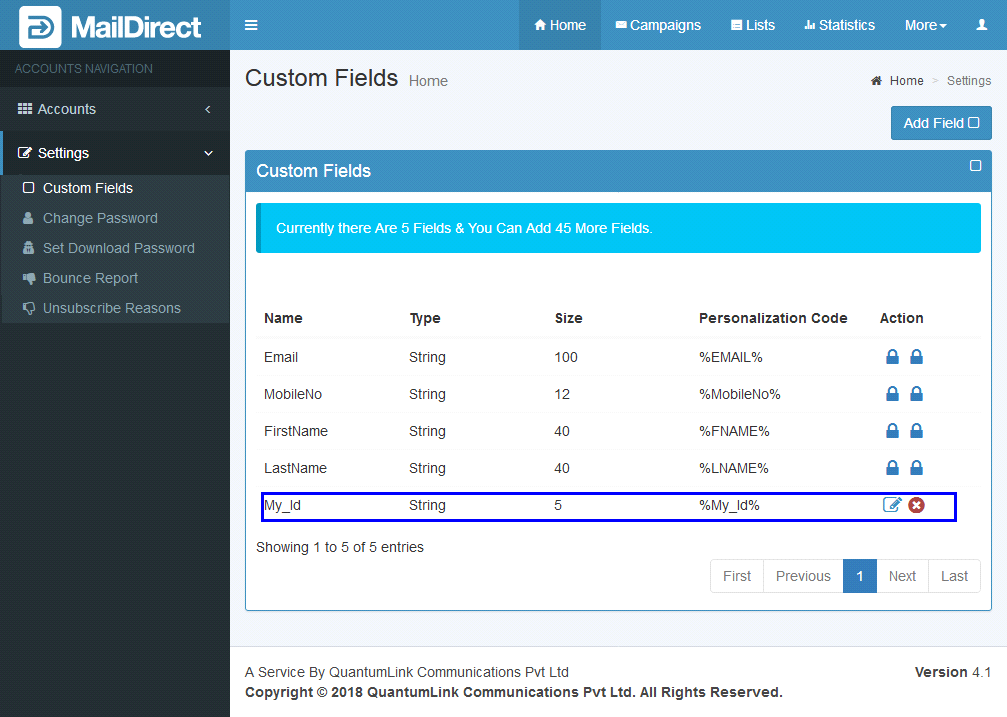
Figure : Custom Field Management with New Field Added