 MailDirect Help
Compose Message by HTML Text Editor Option
Compose Message by HTML Text Editor Option
Selecting HTML Text Editor Option will display as:
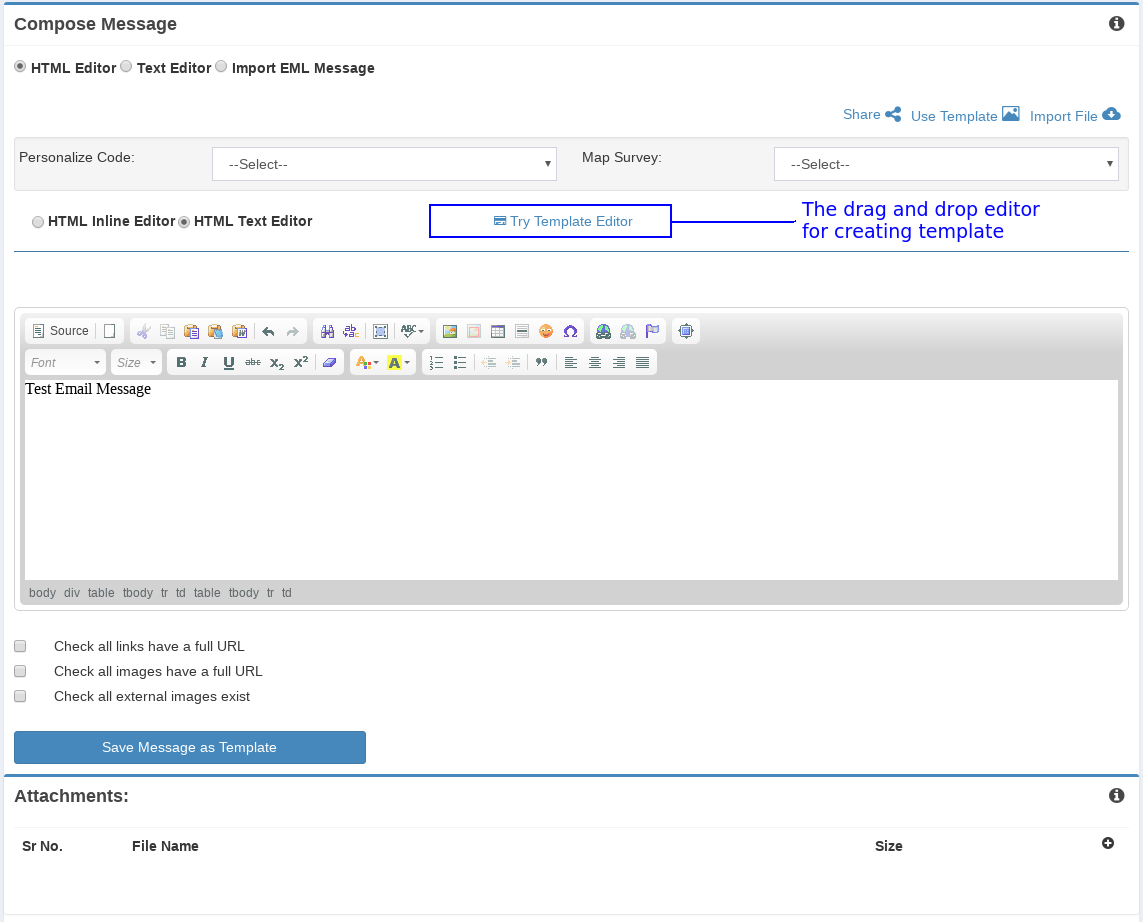
Figure : Creating Template - Html Text Editor
Table : Creating Template - Compose Email Message Using the Html Editor
|
Field |
Description |
|
Map Survey |
Select an appropriate survey to be mapped to the campaign. Note: On selecting the survey, a link f or the survey is added in the text area. |
|
Map Click Response |
Select an appropriate click response to be mapped to the campaign. Note: On selecting the click response, a link for the click response is added in the text area. |
|
Select Personalize Code |
Select an appropriate personalized code to be sent in the campaign message. The personalize code contains Template custom field and custom link generators for Unsubscribe and Report Spam. |
|
Share |
Select to share link in social media. |
|
Use Template |
Select default template provided. |
|
Import File |
Import URL contents from Import File. |
|
Add Logo |
Select Logo for Campaign created. |
|
Text Area |
Type an appropriate campaign message. |
|
Standard Format Options |
Select the appropriate format options to apply to the text entered in the Text Area. |
|
Try Template Editor |
Click this to create/edit template or compose messages. |
Share
This option provides share link in social media.
1. On Clicking Share link the pop up will be displayed. As shown in figure.
2. Select appropriate fields to share link.
3. Select field is mandatory.
4. Clicking Share button provides the link which allows the Email Content to Share with the Social Media.
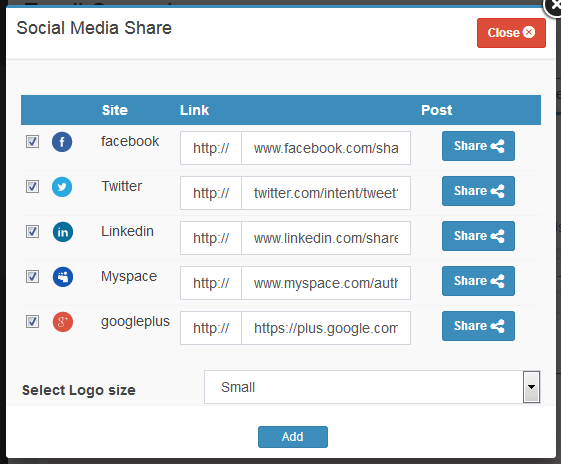
Figure : Template Wizard - Add Social Media
Use Template
Adds Predefined templates to Compose Message, including Custom Template.
1. On Clicking use template link the template pop up will be displayed.
2. Selection can be made based on Category.
3. Search can be done on the based on template name.
4. Template preview is available can view click on preview link.
5. The templates selected are inserted in the Compose Message.
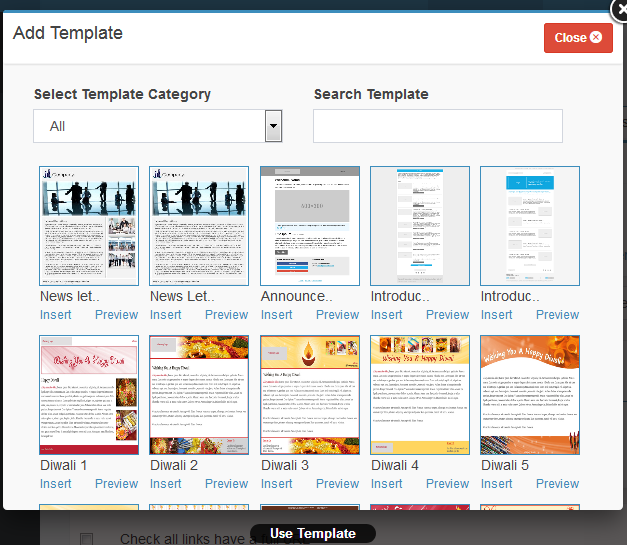
Figure : Template Wizard - Add Template as Content
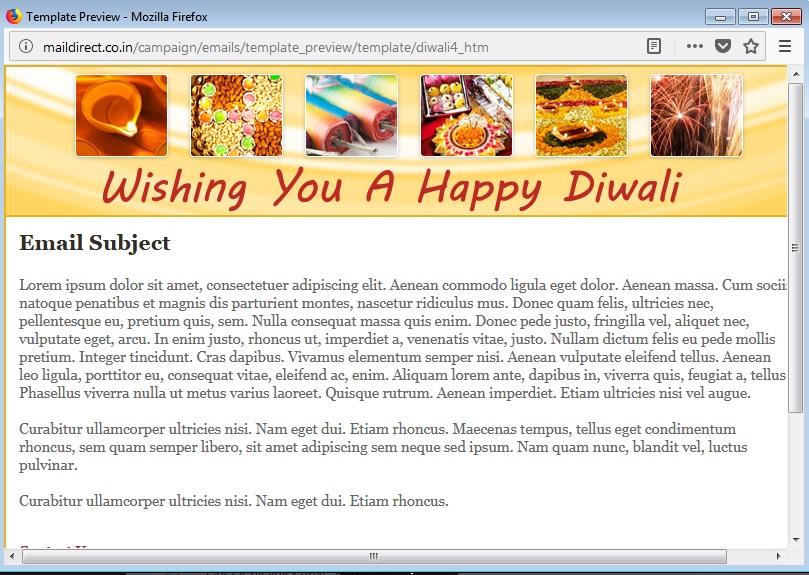
Figure : Template Wizard – Template preview
Import File
Import contents from an existing page of a site.
1. On Clicking import file link the import file pop up will be displayed.
2. Enter a valid url in text box and Click Import File to import the contents from url.
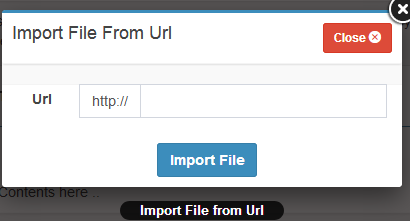
Figure : Template Wizard - Import Contents from Other Site
Add Logo
Add Logo inserts Logo (Created in Client Repository) in the Compose Message.
1. On Clicking add logo link the add logo pop up will be displayed.
2. Select an appropriate logo to be inserted.

Figure : Email Wizard - Add Logo in Contents
Check link
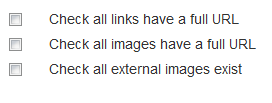
Figure : Check link option
- This option provides to validate check all links having full URL i.e. valid URL.
- Check all images having full url.
- Check all external images exists i.e. Image is available with valid url.
- This option is used only for HTML messages
- If images or links are found invalid, it will be displayed in the error message.
- On clicking the image link, the dialog box will be displayed to insert new image link.
- On clicking the link, the dialog box will be displayed to insert new link.
Save Message as Template

The details are explained in Save Message as Template Section
Attachment
Adding Attachment
Clicking Plus  Button opens windows browse directory to select the attachment as shown below.
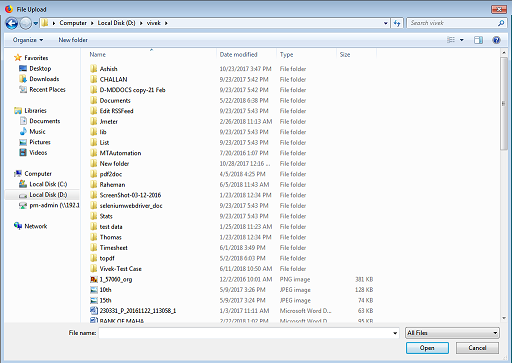
Figure : Create Email - Upload Attachment
On selecting file the attachment section will be shown as:
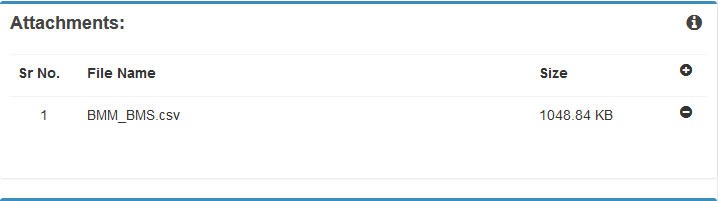
Figure : Create Template - Attachment Section
Removing Attachment
On clicking  the attachment will be removed.