 MailDirect Help
Creating Quick SMS Campaign
Creating Quick SMS Campaign
To create a Quick SMS Campaign:
- On the Campaign menu, click the SMS Campaign option.
- Click the Quick Create Campaign button.
- Mail Direct displays the SMS Direct.
- Quick SMS Campaign screen.
- Click the Quick Create Campaign button.
- Mail Direct displays the SMS Direct.
- Quick SMS Campaign screen.
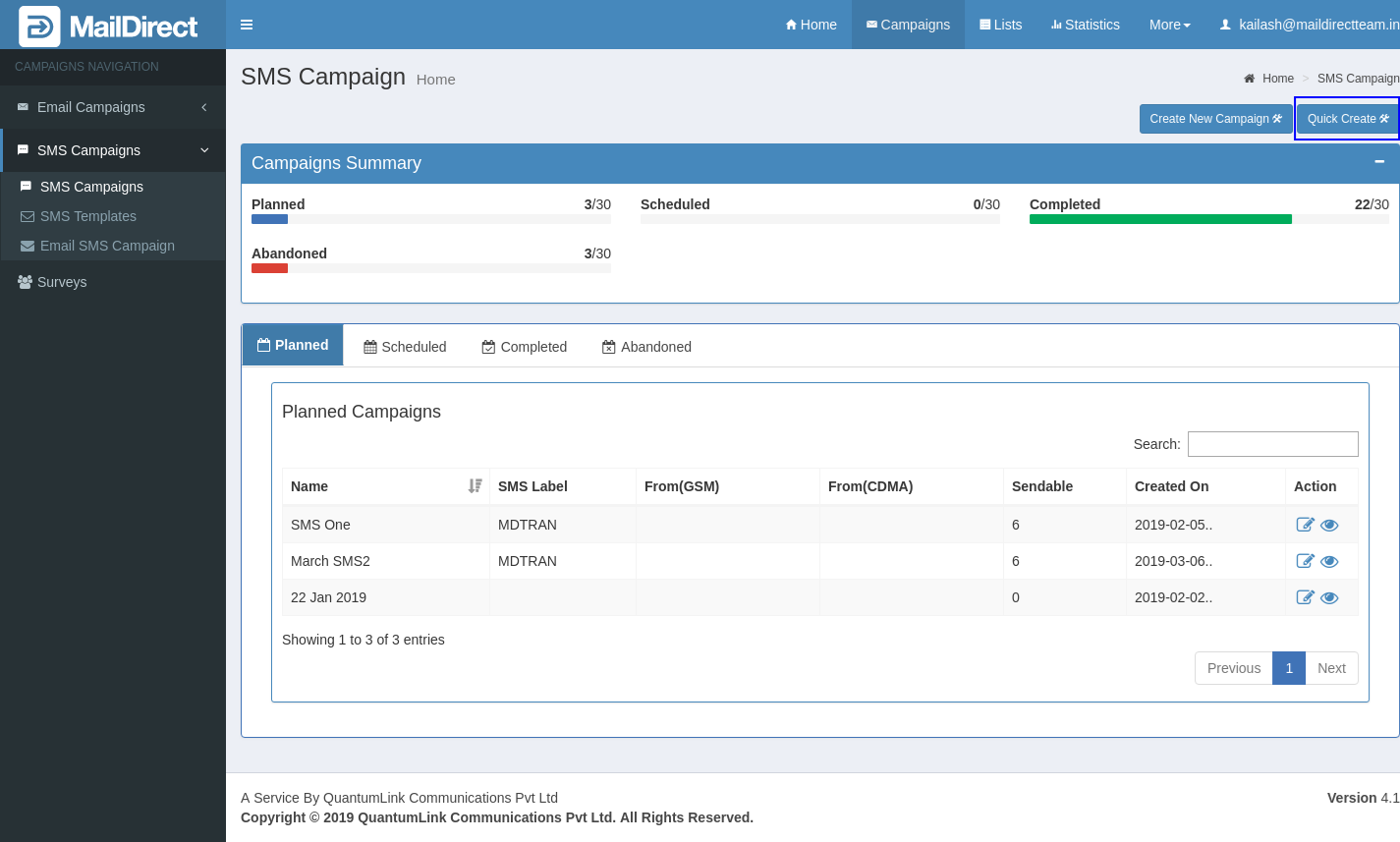
Figure : SMS Campaign - Home Page
- Click the Quick Create Campaign button.
- Mail Direct displays the SMS Direct.
- Quick SMS Campaign screen.
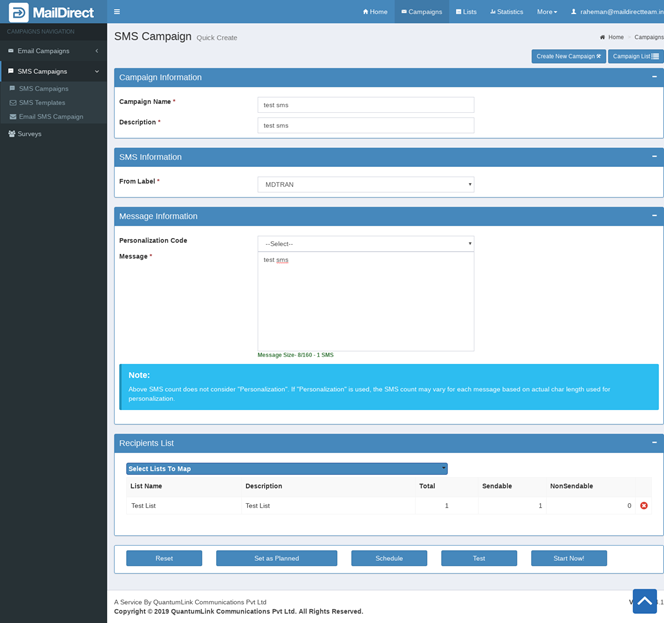
Figure : SMS Quick Create Campaign
Table : SMS Quick Create Campaign
|
Field |
Description |
|
SMS Campaign Information |
Type the appropriate details to be displayed as the campaign information. The available fields are explained below – Campaign Name: Type an appropriate name for the campaign. This field is mandatory. Description: Type an appropriate description for the campaign. This field is mandatory. |
|
SMS Information |
Type the appropriate details in the From fields to be displayed as the SMS Information .The available fields are explained below - [From Label]: Select Label (sender name) from which the campaign will be sent. |
|
Message Information |
Type/ Select the appropriate details to be displayed as the campaign message. The available fields are explained below - Select Personalize Code: Select an appropriate personalized code to be sent in the campaign message. Text Area: Type an appropriate campaign message. Note: The user can enter any number of characters for a campaign message. The campaign message will be divided over multiple SMS with each SMS containing 160 characters. The number of characters utilized in real - Time (when a message is sent to a recipient or tested by substitution of personalized fields as appropriate) may differ from that used at the time of creating a message due to varying length of personal details. This field is mandatory. |
|
Recipients List |
Select Lists To Map: Select the check boxes corresponding to the appropriate contact list/s to be mapped to the campaign. The campaign will be sent to all those who are included in these lists. List Name: This section displays the name of the contact list. Description: This section displays the description about the contact list. Total: This section displays total number of recipients in selected list. Send able: This section displays total number of Send able recipients in selected list. Non Send able : This section displays total number of Not Send able recipients in selected list. |
To launch a campaign:
Users can click any one of the following buttons:
- Reset: It reset all data inserted.
- Save as Draft: Save a campaign as a draft using the Save Draft button. (Planned)
- Schedule it for launch on a later date using the Schedule button. (Refer: Schedule SMS Campaign )
- Test it in real - time using the Test button. (Refer: Test SMS Campaign)
- Launch it immediately using the Start now button. (Refer: Start SMS Campaign)
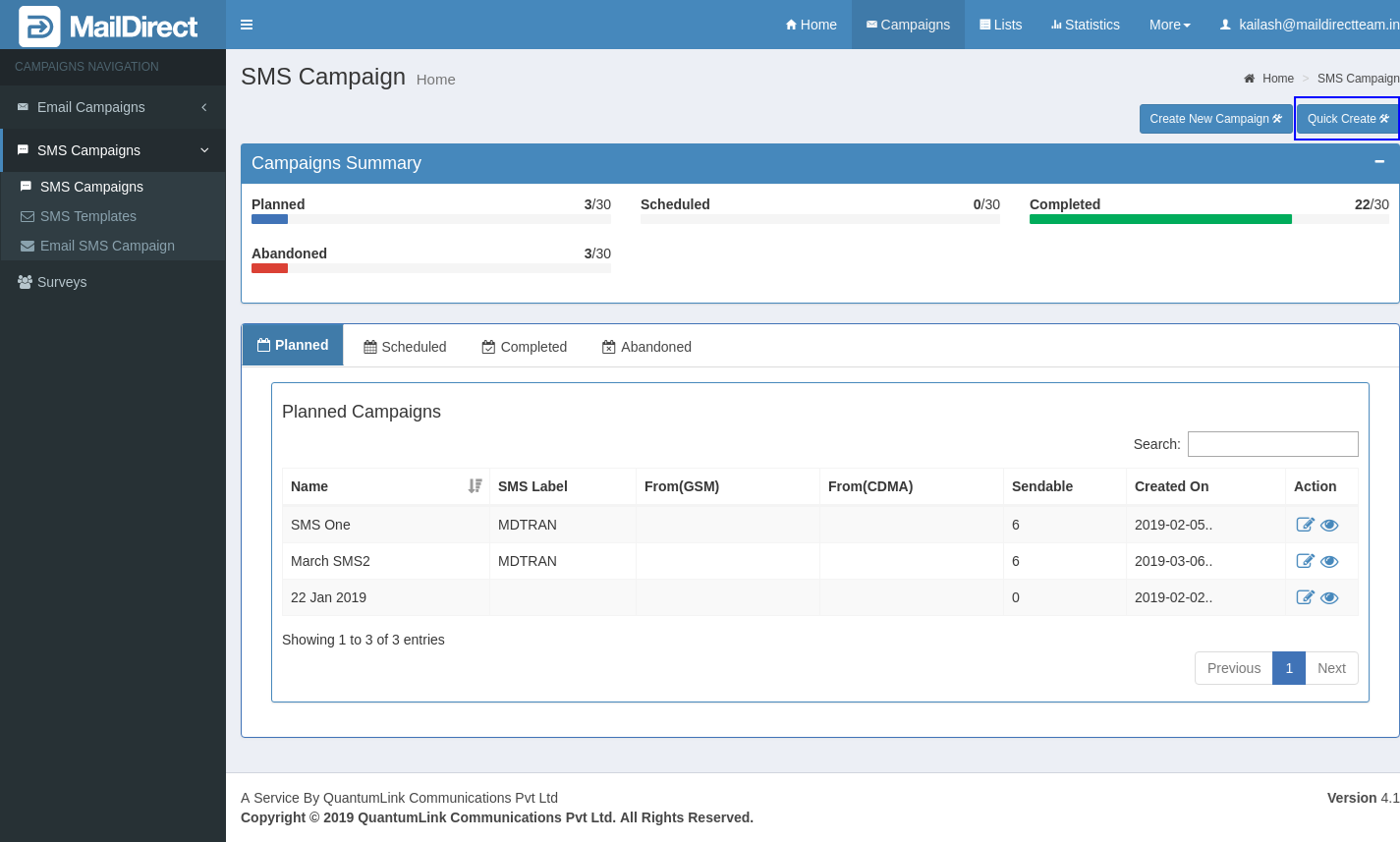
Figure : SMS Campaign List
- MailDirect displays the Create New Campaign screen with the campaign added to the Planned SMS Campaigns section.