 MailDirect Help
Custom Template
Custom Template
Custom Template allows User to add Custom Template, apart from the existing/ built-in- Templates which can be added while Composing Campaign. This page allows user to create, edit and delete Custom Templates.
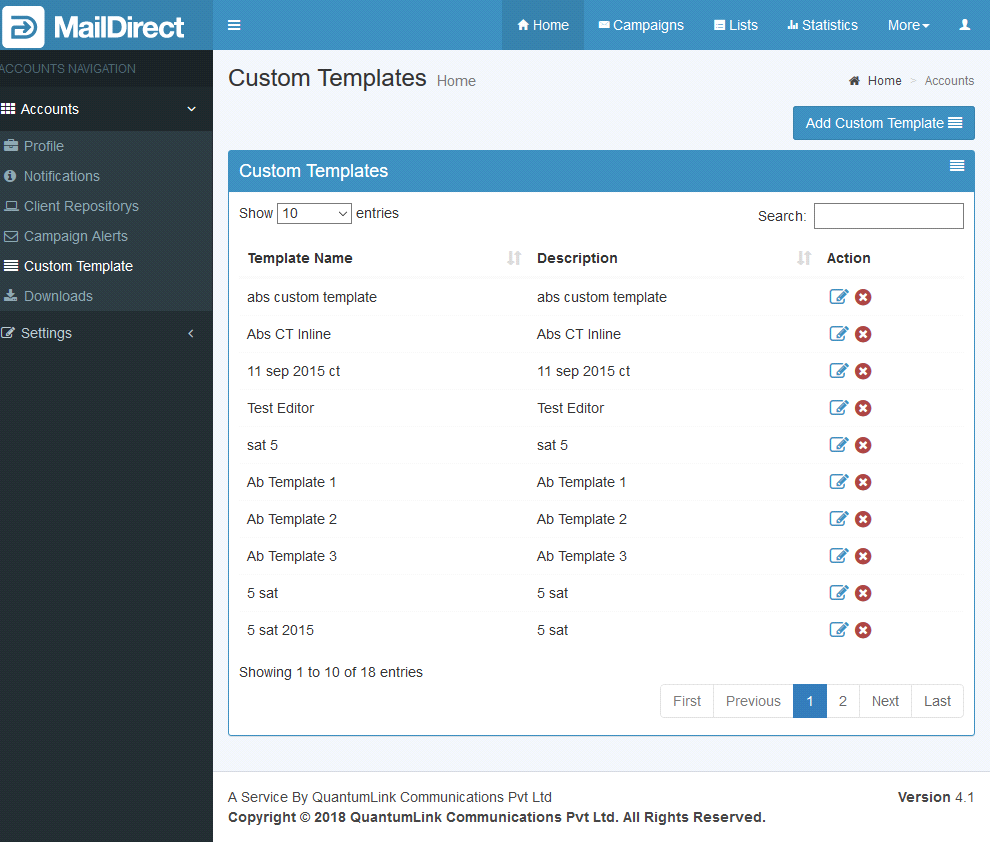
Figure : Custom Templates Management Page
Create/Add Custom template
- To add Custom template user have to click on Add New Custom Template.
- Custom template allows users to create personalized email marketing templates for campaigns.
- User can use HTML to create campaigns with graphics and images.
- User can create inline or import html files from any site.
- User can upload zip file which containing html as well image and it displayed in editor
- The Logo for identifying the Custom Template can be screen shot of the template or an uploaded image or can be selected from default images.
- User can add Custom Fields in the Custom Template.
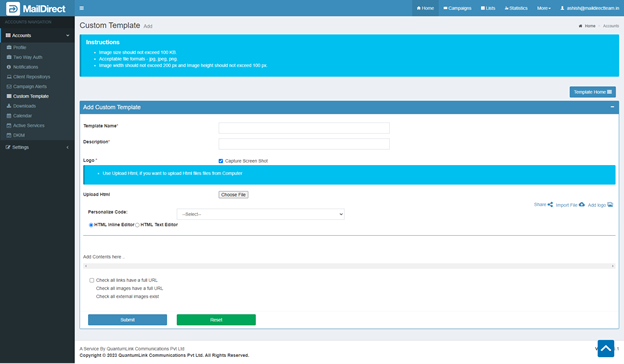
Figure : Create/Add Custom Template – HTML Inline Editor
User can create template using Try Template Editor, The template editor is drag drop editor
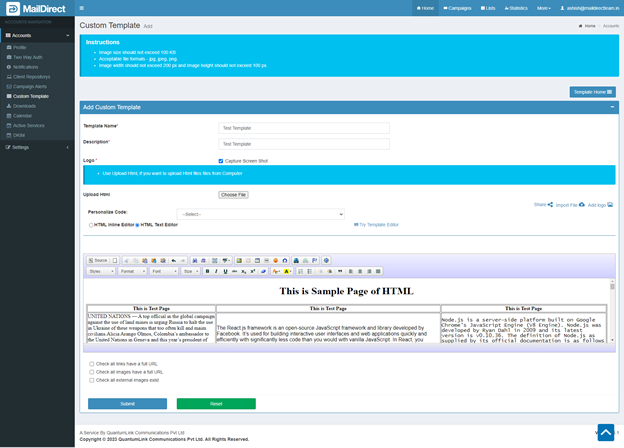
Figure : Create/Add Custom Template – HTML Text Editor
Table : Create/Add Custom Template
|
Field |
Description |
|
Name |
This field displays the name of the corresponding template for Campaign |
|
Description |
This field displays the Description of the template |
|
Logo |
This field adds the image for template. The Logo can be screen shot of template or uploaded image or can be selected from default images |
|
Upload Html |
This field for upload zip file which display the html with images to HTML inline or text editor |
|
Personalized Code |
Personalized fields can be added Template Content |
|
Template Contents |
Contents to be added for the Template |
|
Try Template Editor |
Click this to create/edit template or compose messages |
Note: Enter/Select the appropriate fields in the required field
Click the Submit button to capture the image of template data or to add the new custom template or to save changes to the existing one.
Check link
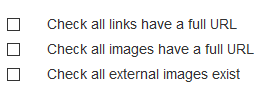
- This option provides to validate check all links having full URL i.e. valid URL.
- Check all images having full url.
- Check all external images exists i.e. Image is available with valid url.
- This option is used only for HTML messages
- If images or links are found invalid, it will be displayed in the error message.
- On clicking the image link, the dialog box will be displayed to insert new image link.
- On clicking the link, the dialog box will be displayed to insert new link.
Edit Custom template
To edit the existing Custom Template, Click on corresponding Edit button will edit the Custom Template.
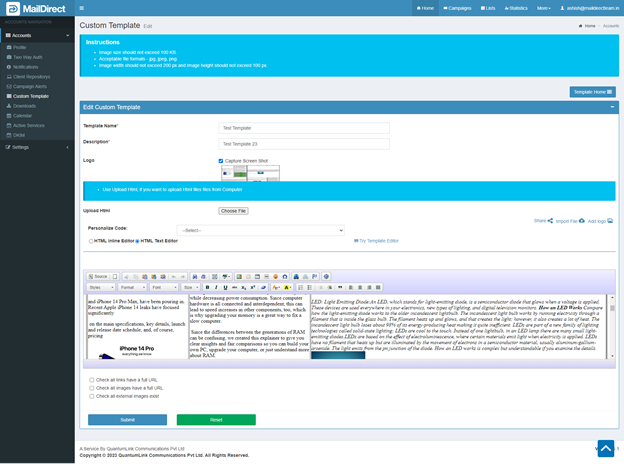
Figure : Edit Custom Template
Table : Edit Custom Template
|
Field |
Description |
|
Name |
This field displays the name of the corresponding template for Campaign |
|
Description |
This field displays the Description of the template |
|
Logo |
This field adds the image for template. The Logo can be screen shot of template or uploaded image or can be selected from default images |
|
Upload HTML |
This field for upload zip file which display the html with images to HTML inline or text editor |
|
Personalized Code |
Personalized fields can be added Template Content |
|
Template Contents |
Contents to be added for the Template |
Note: Enter/Select the appropriate fields in the required field
Click the Submit button to capture the image of template data or to add the new custom template or to save changes to the existing one.
Check link
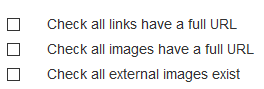
- This option provides to validate check all links having full URL i.e. valid URL.
- Check all images having full url.
- Check all external images exists i.e. Image is available with valid url.
- This option is used only for HTML messages
- If images or links are found invalid, it will be displayed in the error message.
- On clicking the image link, the dialog box will be displayed to insert new image link.
- On clicking the link, the dialog box will be displayed to insert new link.