 MailDirect Help
Engager Wizard – Finalize
Engager Wizard – Finalize
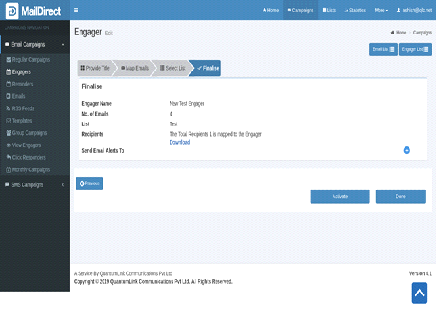
Figure : Create Engager-Finalize Page
The page displays Engager Name, Number of Emails mapped, List Name, Recipients along with option to download Recipients mapped with or Without Custom Fields and Send Email Alerts to.
In case the user want alert to be send after the email is send click  after Send Email Alerts.
The popup will appear as:
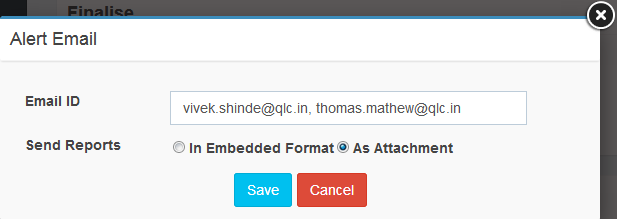
Figure : Creating New Campaign –Finalize Page - Alert Email
Enter Email Ids comma-separated.
There are two options to send Alerts:
- In Embedded format it send Engager Campaign summary as HTML format.
- In As attachment format it send Engager Campaign summary as download
Click Save Button to Save and Cancel to Discard.
On Save the Send Email Alerts To section will display as:

Table : Engager - Alert Email
|
Field |
Description |
|
Engager Name |
Displays name of Engager |
|
No. of Emails |
Displays Number of Emails Mapped to Engager |
|
List |
Displays Name of Lists selected |
|
Send Email Alerts |
Displays Email ID to be send engager created |
|
Active button |
If clicked on active, engager is active for send on day is selected and displays in active tab in engager |
|
Done |
If clicked on done, engager is planned and displays in planned tab in engager |
Note: Users who fail to configure DNS records, such as DMARC, SPF, and DKIM, will have an error message pop-up and won't be able to continue until DNS records are configured. At this stage the user is not allow to activate Engager when map emails with domains that do not have DNS records configured.
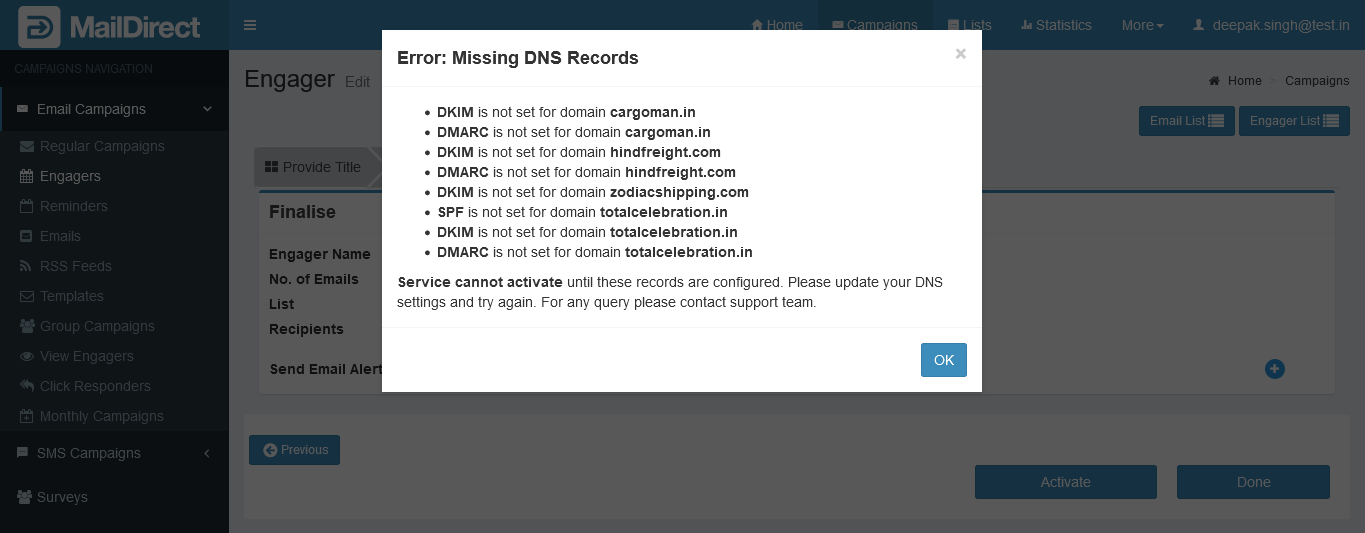
Figure : Engager - Error : Missing DNS Records