 MailDirect Help
Import Recipients From Gmail
Import Recipients From Gmail
In Import Recipients Home Page if user wants to import recipients from Gmail, click on Gmail icon, MailDirect will displays Import Recipients screen with only Gmail icon.
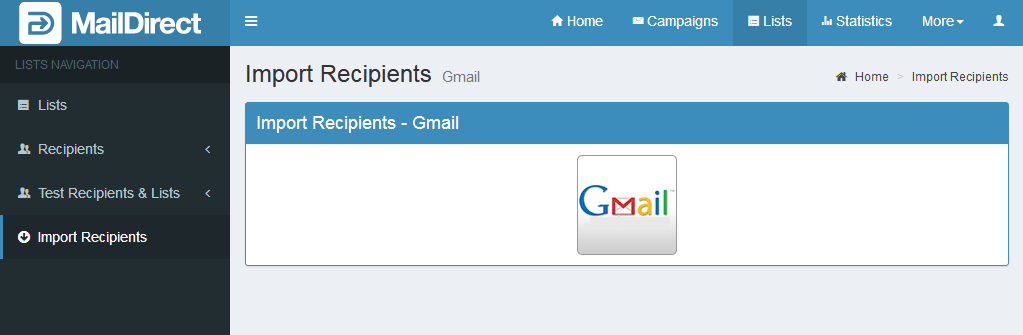
Figure : Import Gmail Recipients
When user clicks on Gmail icon, MailDirect will redirect you to the Gmail Sign in page for authorization to import recipients from users Gmail account.
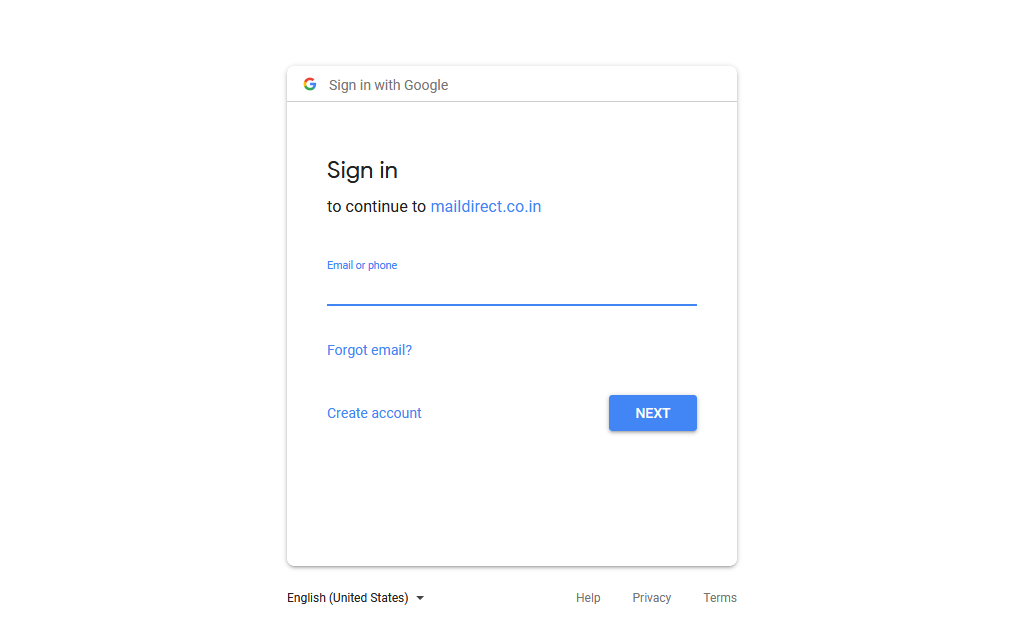
Figure : Gmail log in to Import Recipients
When user enters valid user name and password, after authentication by Gmail it will fetch all recipients from users account and redirect back to MailDirect Add Recipients page.
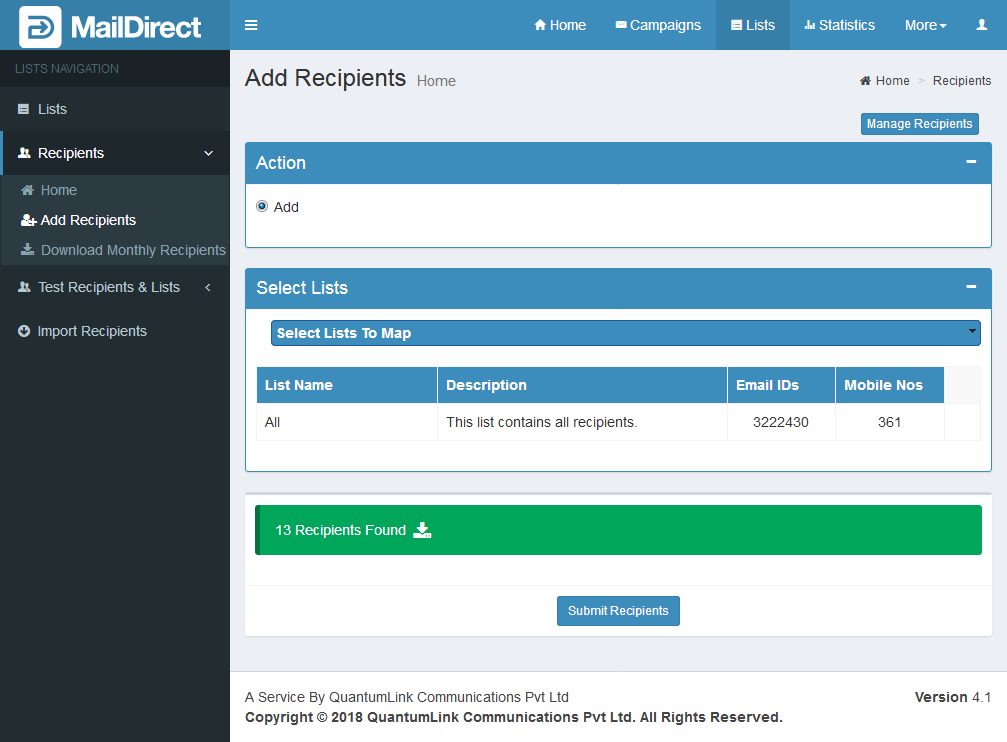
Figure : Map Recipients to the list After Import Recipients from Gmail
Select list from Select Lists drop-down to map recipients to list for the data imported from Gmail. At the bottom total number of recipients imported from Gmail is displayed. Download link provides options to download imported recipients, by clicking on the link.
Clicking Submit Recipients button MailDirect will map all the imported recipients from Gmail to the selected list.