 MailDirect Help
Pause Survey
Pause Survey
Once the Survey is active New Questions cannot be added. In order to Add Question, the Active or Expired Survey needs to be Paused.
- Go to Survey Home Page
- Click on
 the Corresponding row of Survey in Active or Expired Survey Section the Survey Wizard – Provide Details page will appear as:
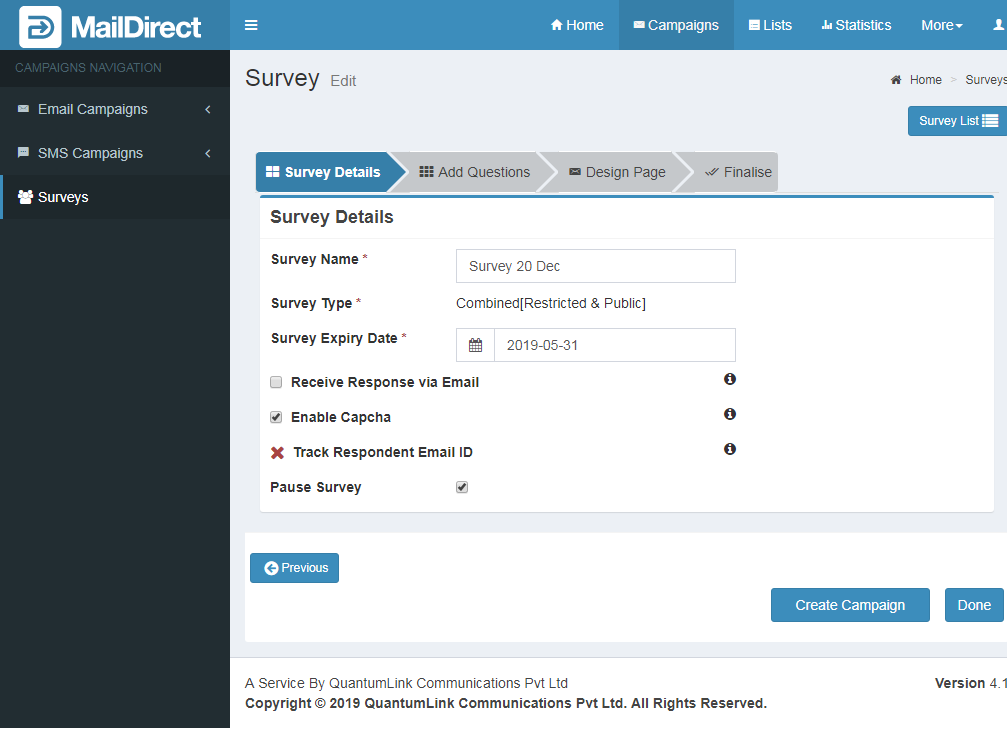
Figure : Edit Survey - Survey Details - Pause Survey
Check Pause Survey to Pause Survey and Click Next Button.
Edit Paused Survey – Add Questions
The Add Questions section will display as:
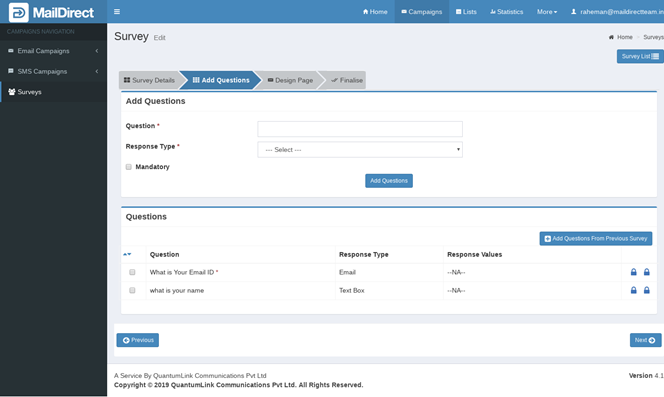
Figure : Edit Paused Survey – Add Questions Section
The existing questions cannot be added or deleted. However New Questions can be added, edited and deleted.
The questions can add from Add Questions Section and/or from Add Questions from Previous Survey Section.
After adding new questions, the page will be displayed as:
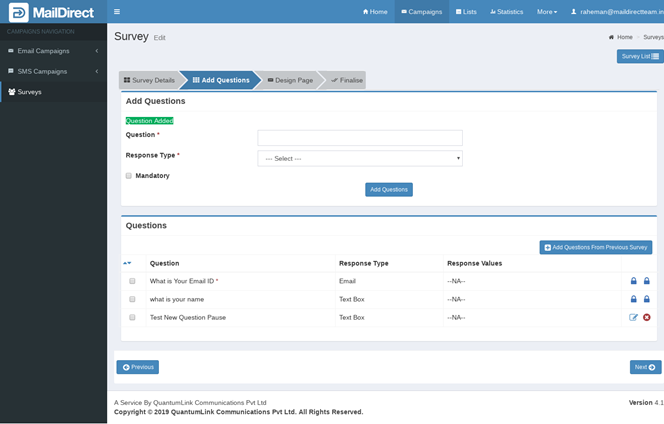
Figure : Edit Paused Survey – After Adding Questions
Paused Survey – Finalize Page
The Survey Wizard – Finalize Page will appear as:
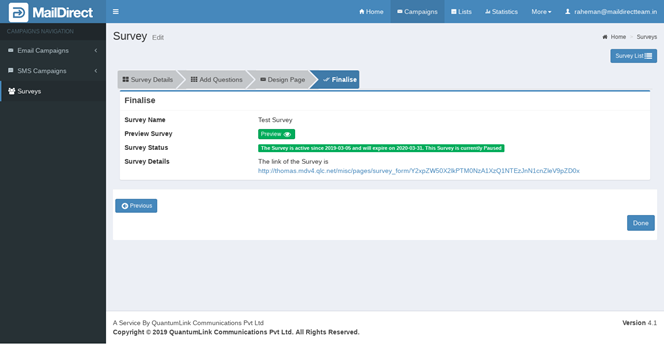
Figure : Survey Wizard – Finalize Page - Pause Survey