 MailDirect Help
Preview - Template Details
Preview - Template Details
To preview a template using the View button:
- Click the View button
 at Template Home Page to view created template details.
 - Mail Direct displays the Details screen.
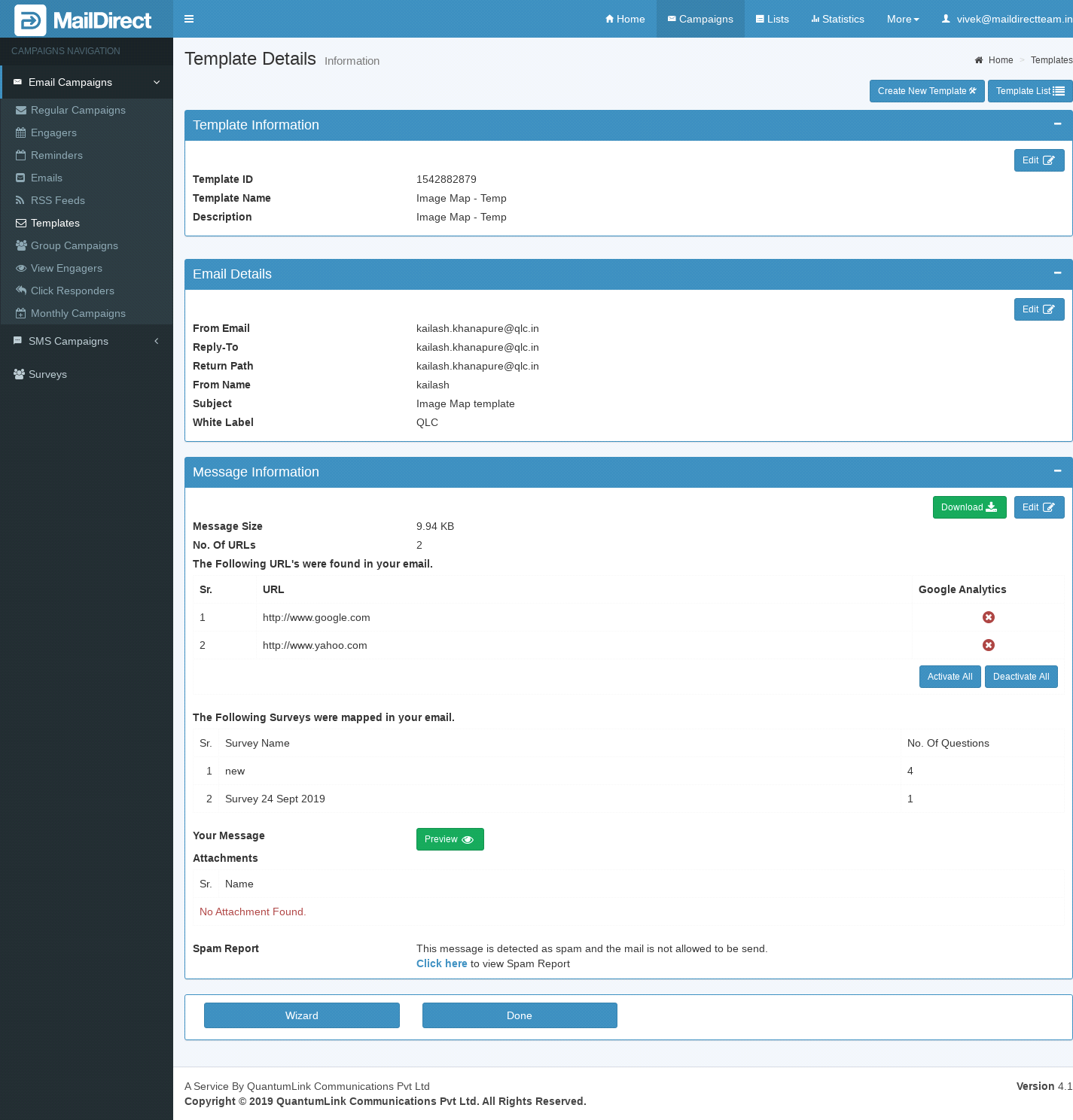
Figure : Preview Template Details
Template Information:
This section displays Template ID, Template Name and Description. When click on edit button it will displays wizard page where user can edit template information like template name and description.
Email Details:
This section displays From Email, Reply To, Return Path, From Name, Subject and White Label. When click on edit button it will displays wizard page where user can edit template details like From Email. Reply to, Return Path, From Name, Subject and White Label.
Message Information:
This section displays Message Size, Number of URLs found in message, surveys mapped in template, attachments, message preview, default salutation and spam report. When click on edit button it will displays wizard page compose message section, where user can edit message information like surveys mapped to template, attachments and default salutation.
Here user also can download message information by clicking on download button.
Google Analytics Details:
Google Analytics adds additional parameters to the link which helps the site owner to know that the page was reached by Clicking MailDirect Service Campaign link along with Email Campaign details.
When clicking  link in Template Wizard Finalise Section, the pop up appears with the links that exists in the message.
Clicking  of the corresponding link will enable Google Analytics and
  icon will be display. The Google Analytics will be disabled on clicking on
  and
and  will be displayed.
  icon is displayed, if the link is enabled and
  icon displayed, if the link is disabled.
Clicking  button enables all the links and clicking
  button disables all
the links from Google Analytics.
Table : Preview Template Links/ buttons Details
|
Field |
Description |
|
|
Click this icon corresponding to the appropriate section to edit the information displayed in that section. |
|
|
Click this icon corresponding to the appropriate section to download the information displayed in that section. |
|
|
Click this button to edit the template that is currently being viewed. Note: The user can edit the entire template. |
|
|
Click this button to go to Home page of Templates. |



- Click the appropriate icons/buttons as required.