 MailDirect Help
Survey Wizard – Survey Details
Survey Wizard – Survey Details
Survey Details with Survey Type as Invite Via Email [Restricted] will appear as:
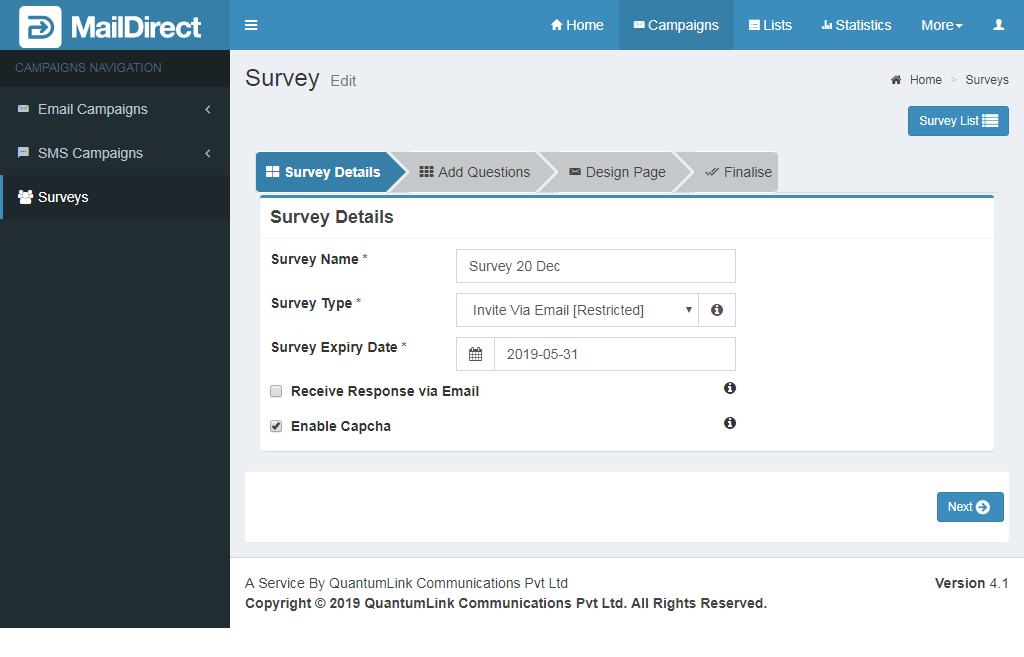
Figure : Create Surveys - Survey Details – Invite Via Email
Survey Details with Survey Type as Public Link on Web Site [Public] will appear as:
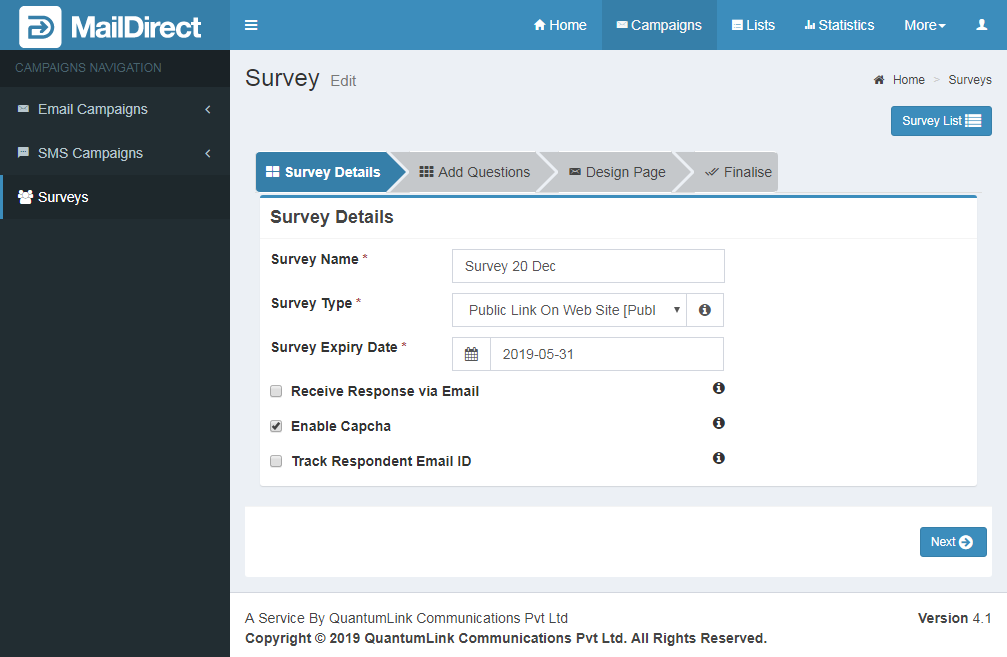
Figure : Create Surveys - Survey Details – Public Link
In this case an additional check box appears – Track Responder Email ID. Checking the checkbox an additional Mandatory Text Box appears – Question. The Question is added to the Survey as Mandatory Question which tracks Visitors Email ID on submission of Survey.
Survey Details with Survey Type as Combined [Restricted & Public] will appear as:
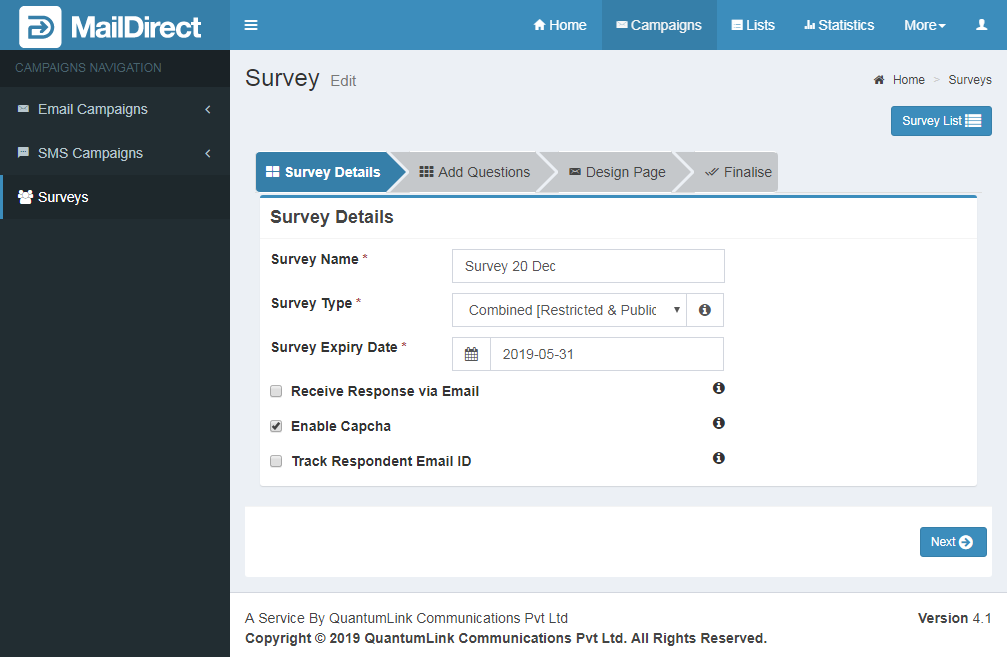
Figure : Create Surveys - Survey Details – Combined
In this case an additional check box appears – Track Responder Email ID. Checking the checkbox an additional Mandatory Text Box appears – Question. The Question is added to the Survey as Mandatory Question which tracks Visitors Email ID on submission of Survey, in case of Public Survey.
Table : Create Surveys - Survey Details
|
Field |
Description |
|
Survey Name |
Type an appropriate name for the survey. This field is mandatory. |
|
Survey Type |
Select an appropriate option to define the type of survey to be created, from the drop - down list. The available options are explained below - 1. Invite Via Email [Restricted]: Select this option to create a survey that will be conducted via emails. This type of survey facilitates the user to send an invitation to the survey, via email. 2. Public Link On Website [Public]: Select this option to create a survey that will be conducted by using public links on the user's Website. This type of survey can be answered by anybody who visits the user's website. 3. Combined [Restricted & Public]: Select this option to create a survey that will be conducted via emails as well as by using public links on the user's Website. This field is mandatory. |
|
Survey Expiry Date |
Select an appropriate date, month and year till when this survey will be conducted. This field is mandatory. |
|
Receive Response by Email |
Select checkbox to enable receipt of survey responses by email. If checked, the Email Id To Receive Response Response Email ID text box will be made available to the user. Type an appropriate email ID to which survey responses are to be sent by the recipients. Note: By default, field is unchecked. This field is mandatory. |
|
Enable Captcha |
Select either checkbox to enable Captcha (Completely Automated Public Turing Test to tell Computers and Humans Apart). Selecting Yes ensures that survey responses are not generated by computers. Note: By default, field is checked. |
|
Track Respondent Email ID |
If Combined [Restricted & Public] is selected then it is visible on page. Select checkbox enable receipt of survey Track Respondent Email ID. If Checked, the Email Id To Track Respondent Email ID text box will be made available to the user. Type an appropriate email ID to which survey responses are to be tracked by Email ID. Note: By default, field is unchecked. This field is mandatory if field is Checked. |
- Enter/ Select the appropriate details in the required fields.
Note: To create an email based survey, select the Invite via Email [Restricted] option from the Survey Type drop -down list.
- Below steps are applicable only if the Invite via Email [Restricted] option is selected.
- Click on
 next button.