MailDirect Help
Browse and Manage Recipients
Browse and Manage Recipients
The section All Recipients, allows user to Select a List and allows to Filter the results to be displayed. The results of the Recipients mapped to the lists, when selected can be Mapped to Other Lists, the Emails and Mobile Nos can be unsubscribed from List, Emails and Mobile Nos can be Blocked or Unblocked or Deleted.
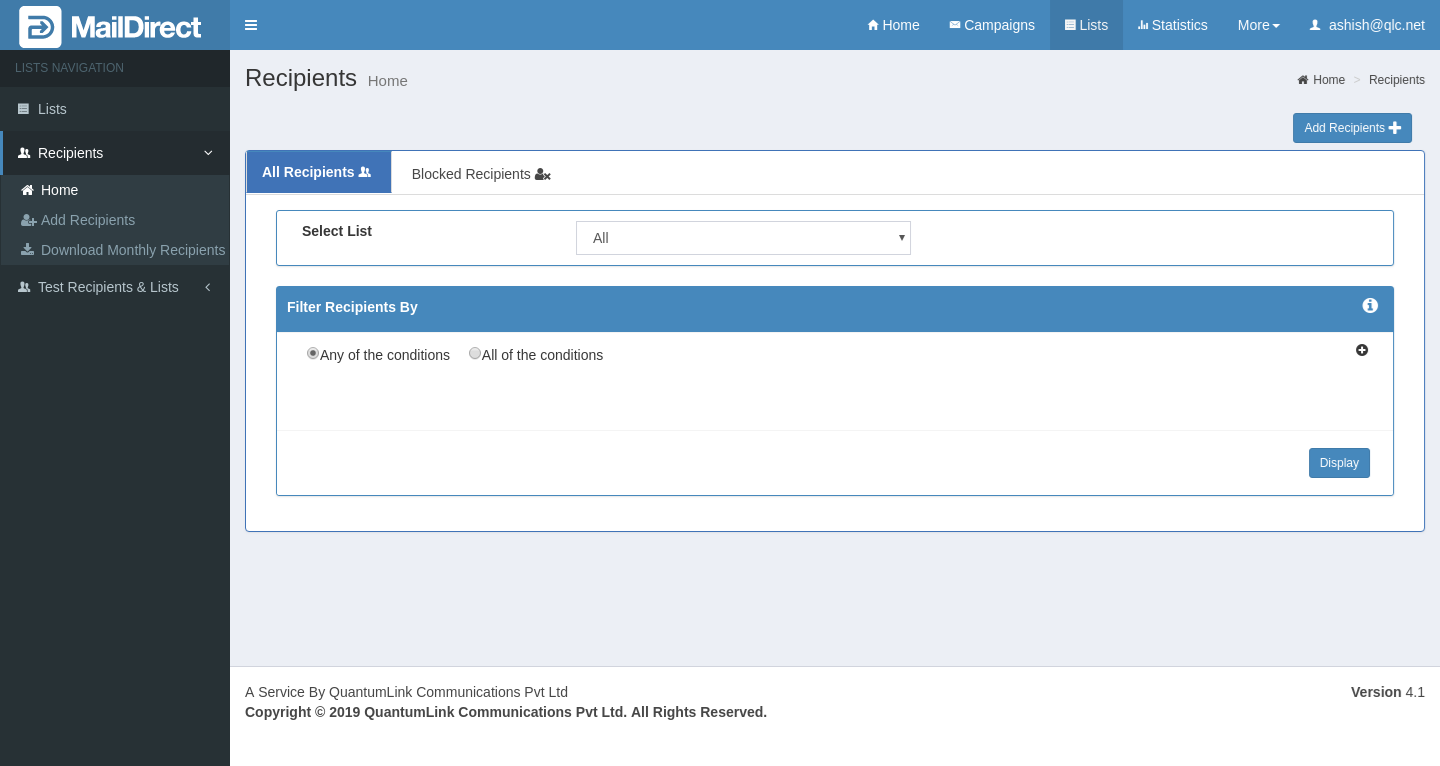
Figure :-Manage Recipients>All Recipients
- Select the List from Select List Drop Down.
- Optionally the Search Criteria can be Filtered by Using the Fiter Recipients By Section.
- Click on Display to display the Recipients Mapped to the List.
Table :-Manage Recipients>All Recipient
|
Field |
Description |
|
Select List Area |
Select an appropriate list from which recipient s are to be filtered and do some actions against them like block, delete, copy to test recipients etc. from the Drop-down list. |
|
Filter Recipients |
|
|
Condition Area |
Select either the Any of the Condition option or the All the Condition option to filter the recipients that match any or all condition s in the Filter Area , if there is more than one condition in the Filter Area . |
|
Filter Area |
This section has icons that allow the user to add or remove a filter condition. The available options are explained below, |
|
|
Click Add Filter icon to add a filter condition. If this icon is clicked, a filter condition is added in the Filter Area.
Figure : Filter Condition The available options are explained below Condition: Field: Select an appropriate option, which is a field in which the filter keyword is to be searched for, from the drop - down list, options available like Email, Mobile No, First Name, Last Name, and Custom Fields. Note: The options available in dropdown list are according to the personalization fields defined in the field manager in the settings menu. Parameter:-Select an appropriate option for the parameter according to which the keyword will be searched for in the selected field, from the drop - down list. Note: The parameter options are available according to the field selected. Value: Type an appropriate keyword for which the filter search is to be performed. Click Remove Filter icon corresponding to the filter condition to remove that filter condition. Note: This icon is available only if there is at least one filter condition in the Filter Area. Select/Enter the appropriate details in the required fields. Click the Display button. MailDirect displays the Recipients>Manage Recipient screen with the Filtered Results.
Figure : Recipients>Manage Recipients For Recipient with the Filtered Result Select the appropriate details in the required fields and Click on Apply Action button. |
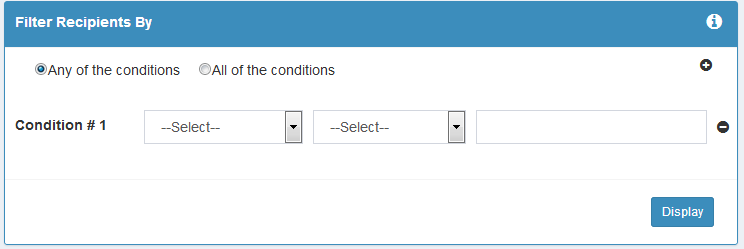
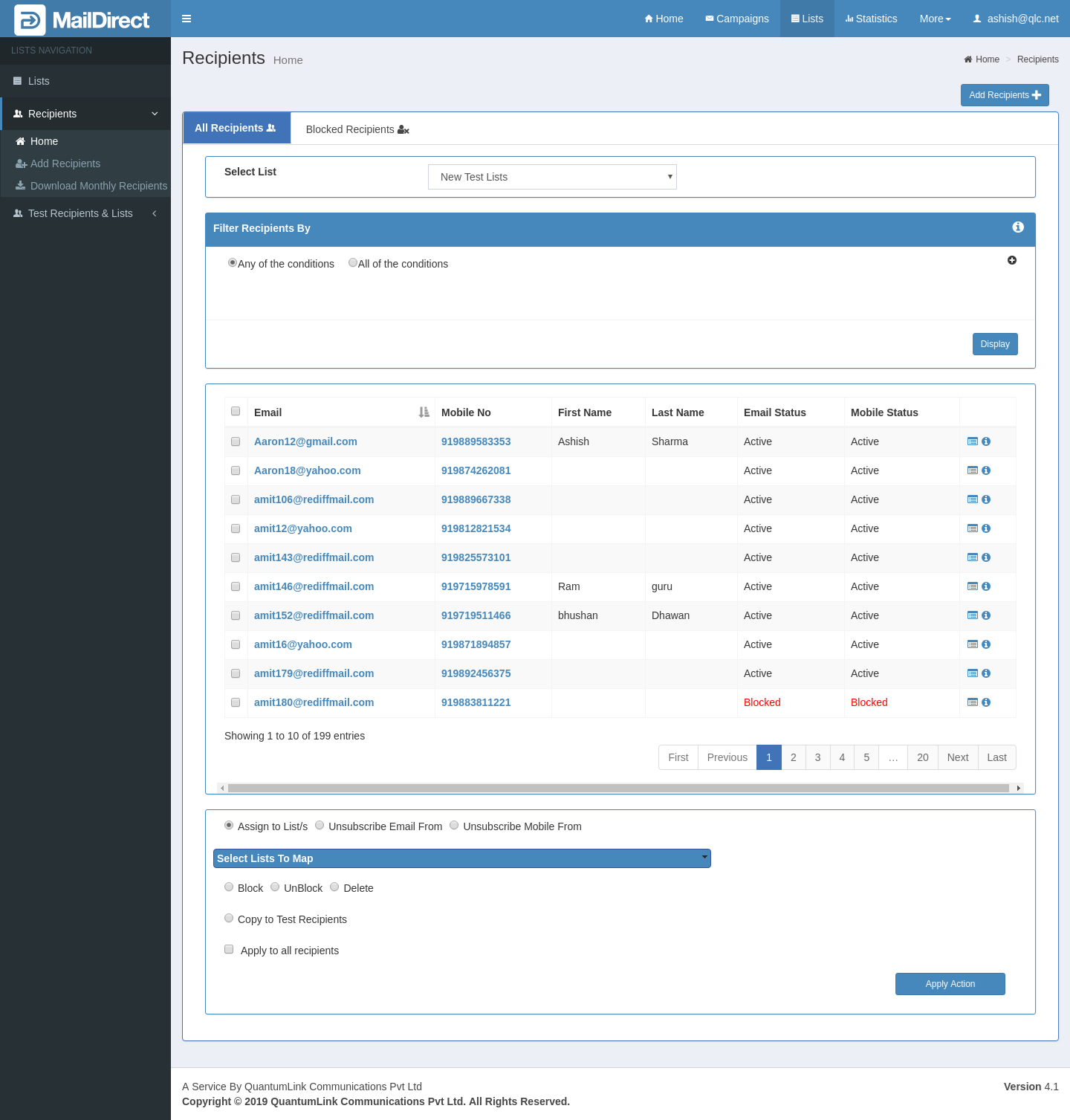
Table : Filtered Result
|
Field /Link |
Description |
|
|
Recipients |
|
|
Click Previous button icon to view the previous page with the filtered results. Note: This icon can be clicked only if the filtered results are displayed in more than one page. |
|
|
Click Next Page button to view the next page with the filtered results. Note: This icon can be clicked only if the filtered results are displayed in more than one page. |
|
|
Filtered Recipients |
|
|
This field displays the email address of the corresponding recipient. |
|
Mobile No |
This field displays the mobile number of the corresponding recipient. |
|
First Name |
Field displays the first name of the corresponding recipient. |
|
Last Name |
This field displays the last name of the corresponding recipient. |
|
Email Status |
This field displays the status of the email address of the corresponding recipient i.e. Active, Blocked, Unsubscribed or Unsubscribed by Recipient. |
|
Mobile Status |
This field displays the status of the mobile number of the corresponding recipient i.e. Active, Blocked or Unsubscribed. |
|
|
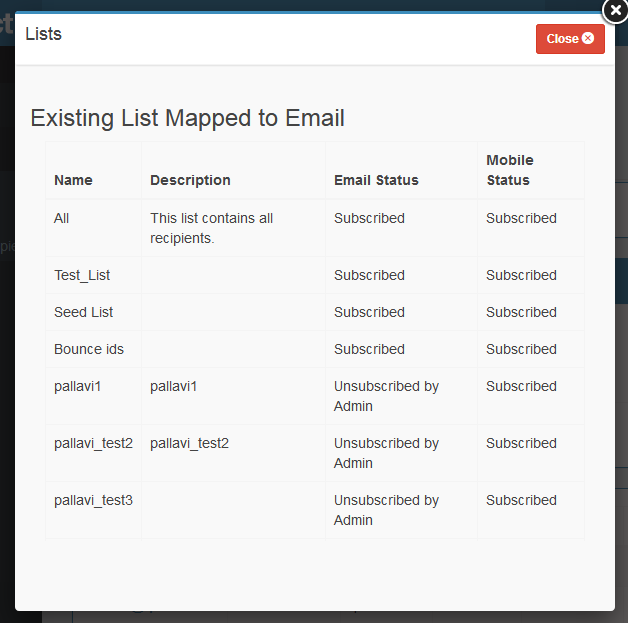
In the last column, the first Icon - List, provides the option to view the contact lists to which the corresponding recipient is subscribed/unsubscribed to. When the
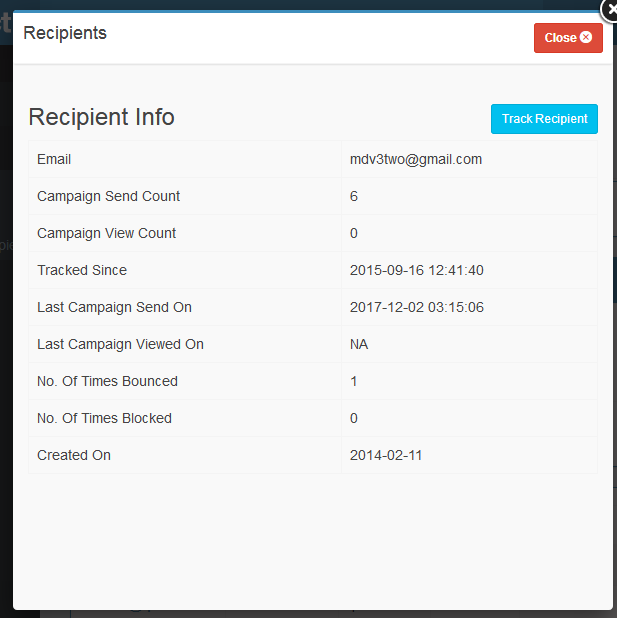
Figure : Existing Lists mapped to Recipient The Info Icon If this link is clicked MailDirect displays the List Management > Recipient info screen.
Figure : Recipients Info On Clicking Track Recipients the page is redirected to |
|
Advance Option |
|
|
Recipient Management Options |
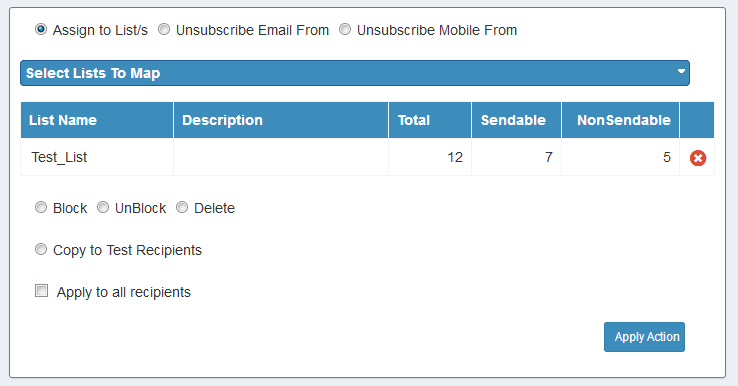
This section provides the options to manage the selected recipient. The available options are explained below, Assign to Lists: Select this option to copy/subscribe the selected recipients to the list/s in Option Area. Note:- by default this option is selected
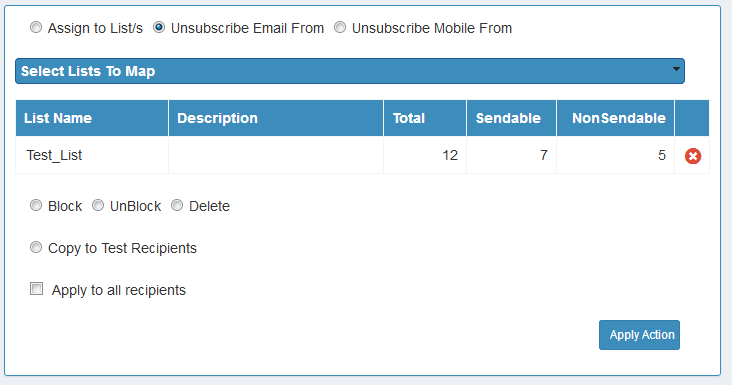
Figure : Manage Recipients>Select Action>Assign to Lists Unsubscribe Email: Select this option to Unsubscribe the selected recipient's Email ID from the list/s in Option Area.
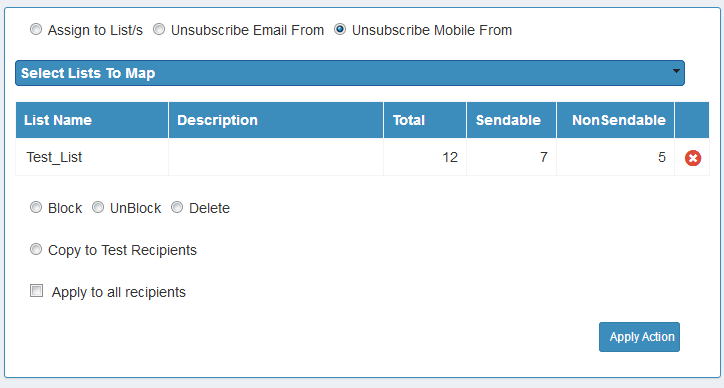
Figure : Manage Recipients>Select Action>Unsubscribe Email Unsubscribe Mobile No: Select this option to Unsubscribe the selected recipient's Mobile from the list/s in Option Area.
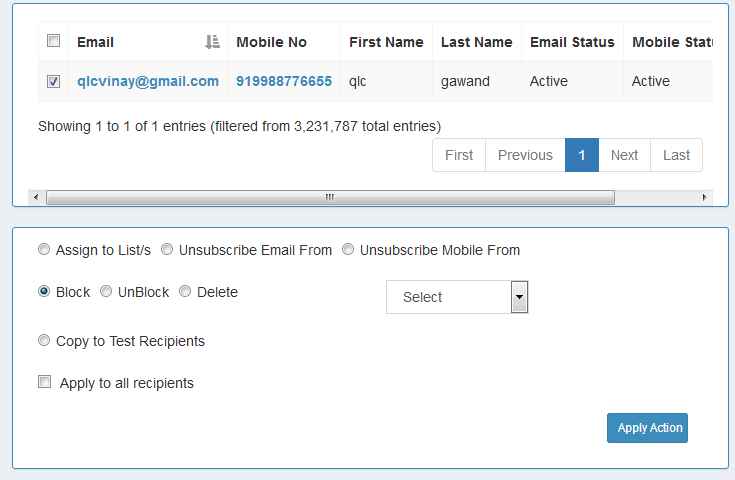
Figure : Manage Recipients>Select Action>Unsubscribe Mobile No Block: Select this option to Block the selected recipient's (Check Check-box) Email ID OR Mobile No OR Both, whatever option selected from dropdown, from the filtered result list.
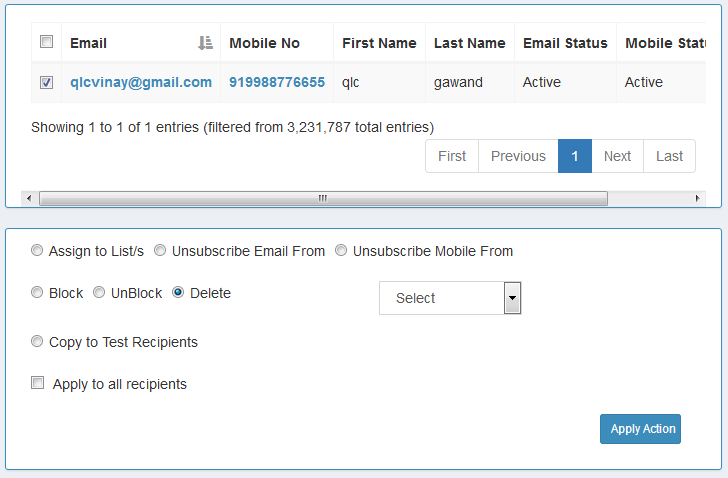
Figure : Manage Recipients>Select Action>Block Unblock: Select this option to unblock the selected recipients (Check Check-box) from the filtered result list. Delete: Select this option to Delete the selected recipient's (Check Check-box) Email ID OR Mobile No OR Both, whatever option selected from dropdown, from the filtered result list.
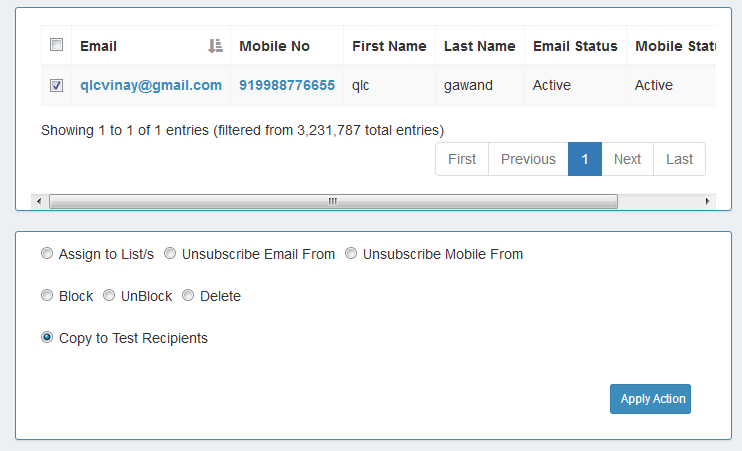
Figure : Manage Recipients>Select Action>Delete Copy to Test Recipients: Select this option to copy the selected recipients (Check Check-box) from the filtered result list, to the test recipients list.
Figure : Manage Recipients>Select Action>Copy To Test Recipient |