 MailDirect Help
Campaign Wizard – Select Lists - List Based Campaign
Campaign Wizard – Select Lists - List Based Campaign
Based on List:
If Based on List option is selected (Default List):
The mapped lists can be added by clicking Select List to Map and the required lists can be selected. Search/Filter Option is available to search by List Name. Option for Check All and Uncheck All is provided to select and unselect all lists. Clicking Add link maps the list to the Campaign.
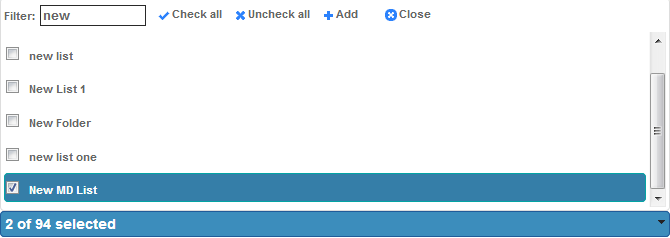
Figure : Create New Campaign - Select Lists
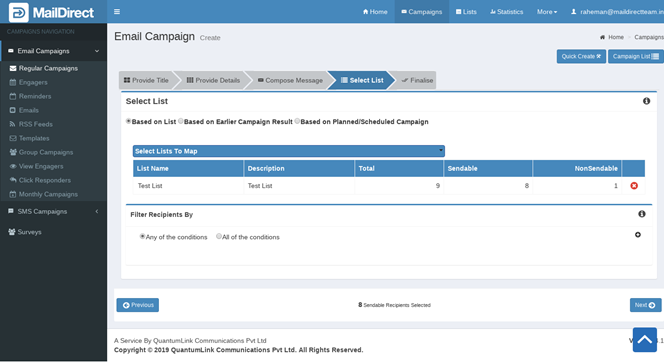
Figure : Creating New Campaign –Based On List
Table : List Map.
|
Field |
Description |
|
List Name |
This section displays the name of the contact list. |
|
Description |
This section displays the description about the contact list. |
|
Total |
Total number of recipient selected. |
|
Send able |
Total number of Send able recipient in selected lists. |
|
Non Send able |
Total number of non-Send able recipient in selected lists. |
Clicking  will remove the list mapped to the campaign.
Filtering Recipients
Select  to add conditions for filtering the recipients mapped to the campaign.
The filtering is done on the basis of Any of the Conditions or All the Conditions based on the option selected.
To remove the condition click  to remove the corresponding row for filter condition.
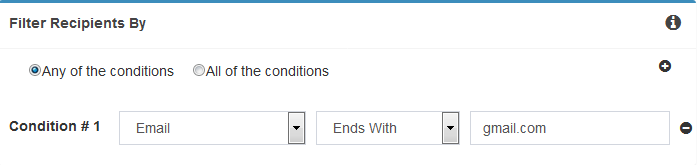
Figure : Create New Campaign - Lists - Filter Recipients
Table : Create New Campaign - Lists - Filter Recipients
|
Field |
Description |
|
Condition Area |
Select either the Any of the Condition option or the All the Condition option to filter the recipients that match any or all condition s in the Filter Area , if there is more than one condition in the Filter Area . |
|
Filter Area |
This section has icons that allow the user to add or remove a filter condition. The available options are explained below, |
|
|
Click Add Filter icon to add a filter condition. If this icon is clicked, a filter condition is added in the Filter Area. The available options are explained below Condition: Field: Select an appropriate option, which is a field in which the filter keyword is to be searched for, from the drop - down list, options available like Email, Mobile No, First Name, Last Name and Custom Field. Note: The options available in dropdown list are according to the personalization fields defined in the field manager in the settings menu. Parameter:-Select an appropriate option for the parameter according to which the keyword will be searched for in the selected field, from the drop - down list. Note: The parameter options are available according to the field selected. Value: Type an appropriate keyword for which the filter search is to be performed. Click Remove Filter icon corresponding to the filter condition to remove that filter condition. Note: This icon is available only if there is at least one filter condition in the Filter Area. Select/Enter the appropriate details in the required fields. |