 MailDirect Help
Multiple Template Campaign
Multiple Template Campaign
On clicking on multiple template button, on Regular Email Campaign Wizard Finalise Section or Email Campaign Details, MailDirect displays the Multiple Template Campaign screen.
- Multiple Templates allows to map multiple Email Messages to the Campaign.
- When click on
 Edit button it will displays wizard page where user can edit Map Email information.
 - When click on
 View button it will displays two options Email Preview and Email Details.
 - On clicking of Email Preview link, displays preview of Email message.
- On clicking of Email Details link, displays Email Details page which allows Users to View and Edit Email details.
- When the Campaign is send, the Message of the Campaign is changed or rotated equally across recipients. i.e. The original message is send first for few recipients, then the messages of the Email mapped is send to other recipients, based on the order set in the mapped Email list.
- The Subject of Campaign and From Name (From Name, From Email, Reply To etc.) by selecting Change Subject and Change From Name options respectively.
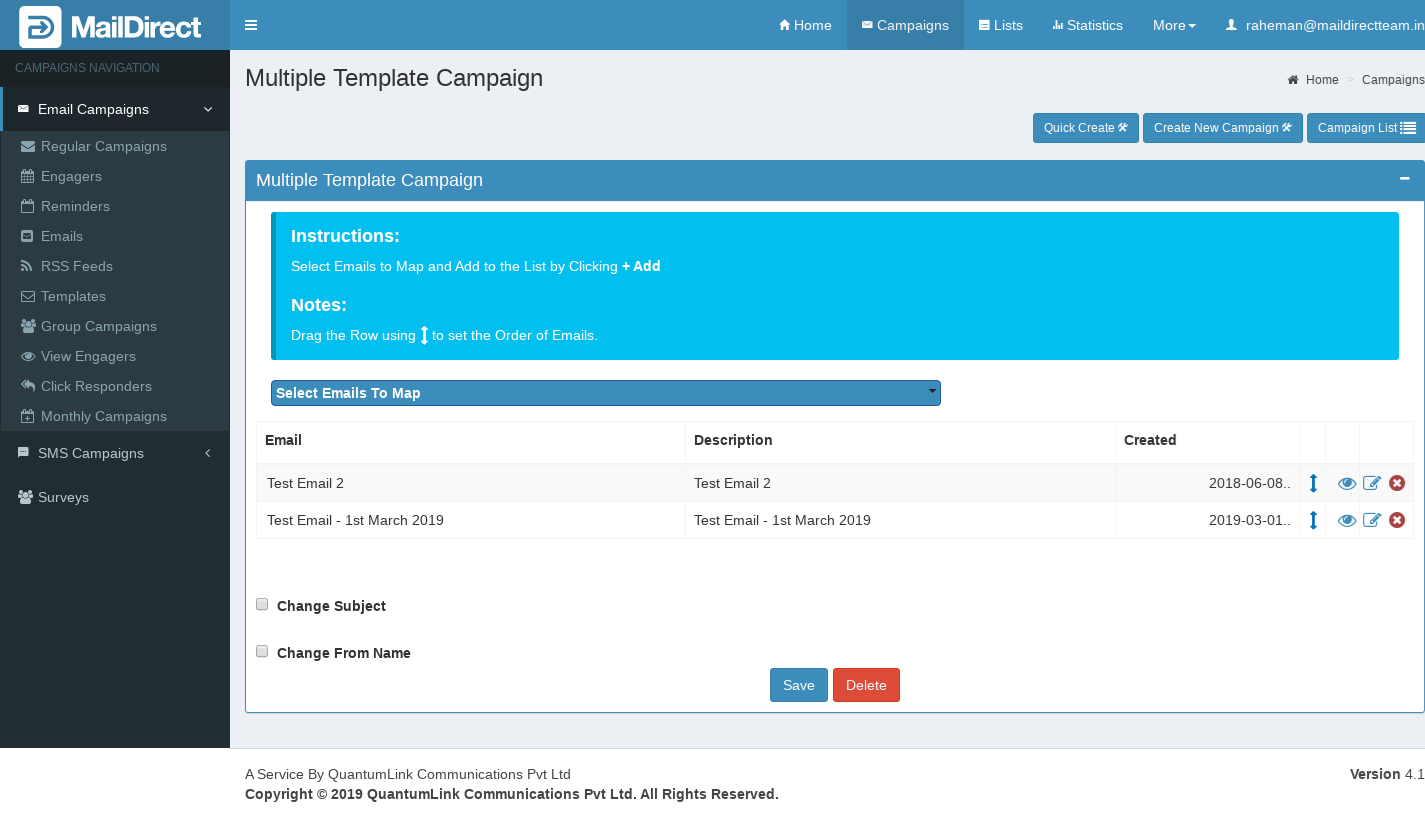
Figure : Multiple Template Campaign
Note: Users who fail to configure DNS records, such as DMARC, SPF, and DKIM, will have an error message pop-up and won't be able to continue until DNS records are configured. At this stage the user is not permitted to map emails to domains that do not have DNS records configured
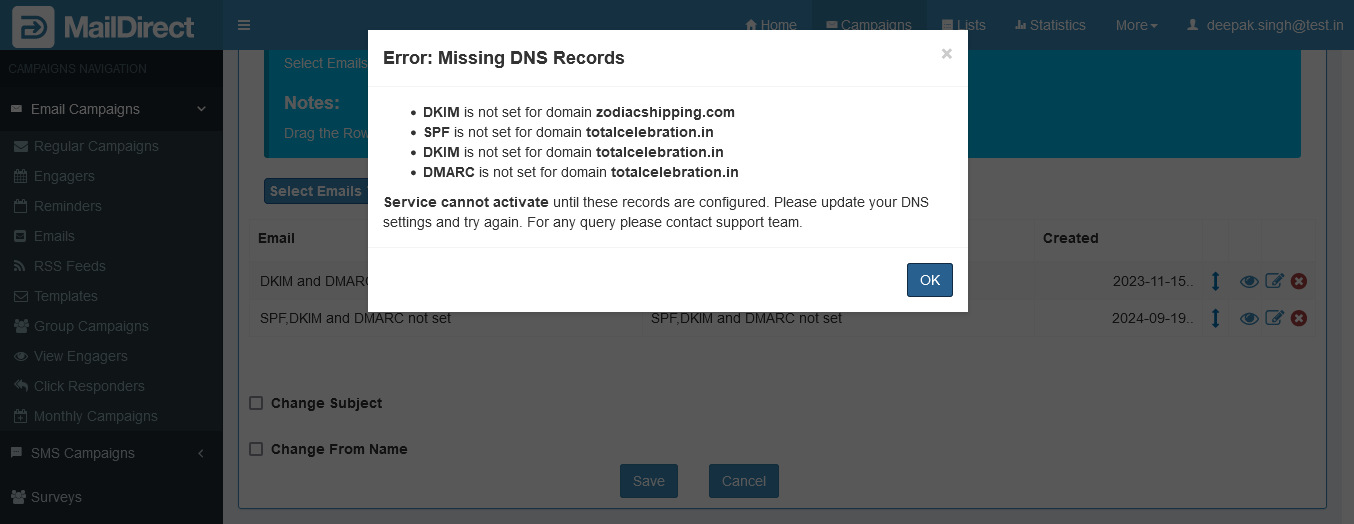
Figure : Multiple Template Campaign - Error : Missing DNS Records