 MailDirect Help
Opt In/Out Mail Details
Opt In/Out Mail Details
This option is available for Clients who are entitled for Double-Opt-In and Single-Opt-In-With-Opt-Out Options.
Double-Opt-In - when the clients upload recipient email addresses, the system will send out a mail to all uploaded recipients asking the recipients to confirm (using web-link) that "recipient wants to receive mails from client in future". Till this confirmation is received, no mails will be sent to the recipient even if the client selects this recipient for a mail campaign. Since we presume that the recipient is already opted-in before the list was uploaded, our mail and recipients confirmation serves as a double opt in mechanism. Once confirmed the recipient will be part of the client list(s) for life time.
Single-Opt-In-With-Opt-Out - when the clients uploads recipient email addresses, the system will send out a mail to all uploaded recipients asking the recipients to opt-out (using web-link) "if the recipient does not wants to receive mails from client in future". During "cooling period" (say 3 days from the time mail was sent out) no mails will be sent to the recipient even if the client selects this recipient for a mail campaign. Since we presume that the recipient is already opted-in before the list was uploaded, our mail gives a chance to the recipient to opt-out of the future campaigns. hence Single-Opt-In-With-Opt-Out. It is recommended that periodically (frequency to be decided) Opt-Out-Mails are sent out.
When user clicks on Opt-In/Opt-Out Mail Details link from left menu MailDirect will display the Opt In Mail Details screen
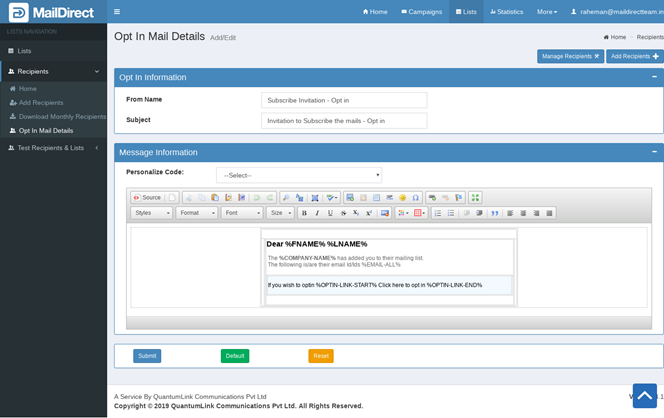
Figure : Opt-In/Out Mail Details
- The Page allows to customize the format Opt-In/Opt-Out mails to be send to the recipients to Opt-In/Opt-Out.
- The From Email is set when the recipients are added.
Table : Opt-In/Out Mail Details
|
Field |
Description |
|
From Name |
From Name of the Opt-In/Opt-Out mails to be send |
|
Subject |
Subject of the Opt-In/Opt-Out mails to be send |
|
Message |
Message of the Opt-In/Opt-Out mails to be send |
|
Personalize Code |
The user can add personalize Code to the message. Make Sure the Opt-In/Opt-Out Personalize Code exists in the Message. |
|
Submit Button |
Clicking On Submit Button saves the Opt-In/Opt-Out Message. The emails to the Recipients to Opt-In/Opt-Out will be send in the saved format. The page will be redirected to Recipients Home Page. |
|
Default Button |
Sets the Message to the Default Opt-In/Opt-Out format. |
|
Reset Button |
Resets the Form |