 MailDirect Help
Preview - Campaign Details
Preview - Campaign Details
To preview a campaign using the View button:
- Click the View button at Campaign Home Page to view created campaign details.
- Mail Direct displays the Details screen.
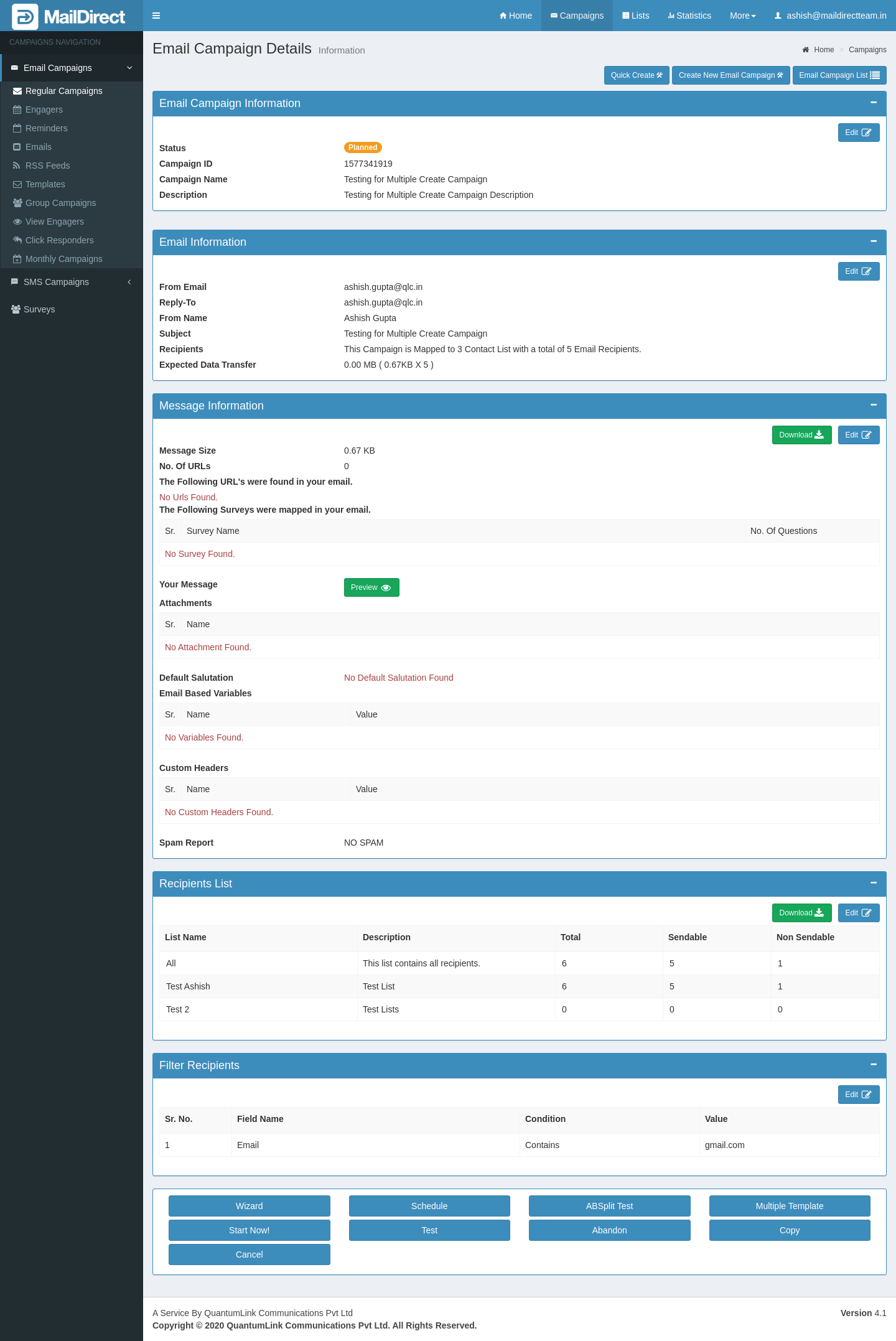
Figure : Preview Campaign
Campaign Information:
This section displays Campaign Status, Campaign ID, Campaign Name and Description. When click on edit button it will displays wizard page where user can edit campaign information like campaign name and description.
Email Information:
This section displays From Email, Reply To, From Name, Subject, Recipients and Expected Data Transfer. When click on edit button it will displays wizard page where user can edit email information like from email. Reply to, from name and subject.
Message Information:
This section displays Message Size, Number of URLs found in message, surveys mapped in email, attachments, message preview, default salutation, email based variables, custom headers, and spam report. When click on edit button it will displays wizard page compose message section, where user can edit message information like surveys mapped to email, attachments, default salutation, email based variables and custom headers.
Here user also can download message information by clicking on download button.
Google Analytics Details:
Google Analytics adds additional parameters to the link which helps the site owner to know that the page was reached by Clicking MailDirect Service Campaign link along with Campaign details.
When clicking  link in Campiagn Wizard Finalise Section or Email Wizard Finalise Section or Template Wizard Finalise Section, the pop up appears with the links that exists in the
message.
Clicking  of the corresponding link will enable Google Analytics and
  icon will be display. The Google Analytics will be disabled on clicking on
  and
and  will be displayed.
  icon is displayed, if the link is enabled and
  icon displayed, if the link is disabled.
Clicking  button enables all the links and clicking
  button disables all
the links from Google Analytics.
Recipients List Information:
This section displays information regarding lists mapped to campaign, like list name, description and number of email ids. When click on edit button it will displays wizard page where user can edit list information. Here user also can download Recipient Details with or Without Custom Fields by clicking on download button.
Filter Recipients Information:
This section displays information regarding recipient filters, like field name, condition and value. When click on edit button it will displays wizard page where user can edit filter condition.
Table : Preview Campaign Links/ buttons Details
|
Field |
Description |
|
|
Click this icon corresponding to the appropriate section to edit the information displayed in that section. |
|
|
Click this icon corresponding to the appropriate section to download the information displayed in that section. |
|
Wizard |
Click this button to edit the campaign that is currently being viewed. Note: The user can edit the entire campaign. |
|
Schedule |
Click this button to schedule the launch of campaign, which is currently being viewed, to a later point of time. Note : Instructions to schedule the campaign are given in step |
|
AB split test |
Click this button to AB split test the campaign that is currently being viewed. |
|
Start Now |
Click this button to immediately launch the campaign that is currently being viewed . Note : Instructions to start the campaign are given in step |
|
Test |
Click this button to test the campaign, which is currently being viewed, in real time . |
|
Abandon |
Click this button to abandon the campaign that is currently being viewed |
|
Copy |
Click this button to copy the campaign that is currently being viewed. |

- Click the appropriate icons/buttons as required.