 MailDirect Help
Schedule Campaign
Schedule Campaign
To schedule a campaign for launch at a later time using the Schedule button:
The option is available on Finalize Section of Campaign Wizard, Quick Campaign and Campaign Details page.
- Click the Schedule button on finalize page
- On selecting the Schedule option, the Schedule button will be available.
- Click the Schedule button.
- Mail Direct displays the Schedule Campaign screen.
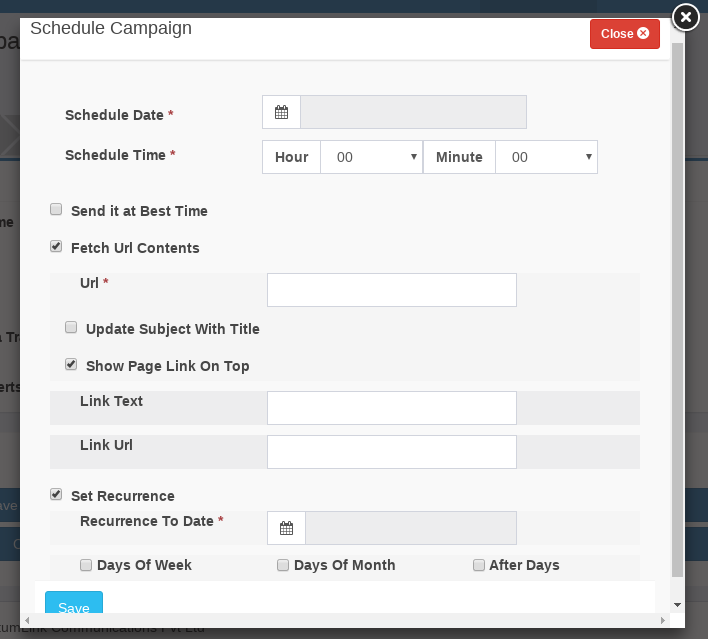
Figure : Campaign List-Schedule Campaigns
Table : Schedule Campaign
|
Field |
Description |
|
Campaign Schedule Date |
Select an appropriate date on which the campaign will be launched, from the calendar. |
|
Campaign Schedule Time |
Select an appropriate hour and minute at which the campaign will be the launched, from the Drop - down lists. |
|
Campaign Send at Best Time |
If selected then, campaign will be sent on best time for the recipients. |
|
Fetch URL Contents |
If selected then, URL field is mandatory to provide valid url address. The contents are fetched when the campaign starts. |
|
URL |
Fetches content. If URL is valid. |
|
Update Subject With Title |
If selected then it update the message subject as title of the URL/page. |
|
Show Page Link On Top |
If selected then Link text and link URL field is visible. |
|
Link Text |
Link Text show on top of contents. |
|
Link URL |
Link URL show on top of contents. |
|
Set Recurrence |
If selected then it shows Recurrence To Date, Day Wise and Days fields. It is a mechanism to copy and schedule campaigns for the particular date and time. |
|
Recurrence To Date |
Select date, which date same campaign will send. |
Send it at Best Time:
If Send it at Best Time option is checked, the campaign will be automatically scheduled at 00:00 AM on scheduled date, campaign will be send between 00 AM to 23 PM at best time for recipient.
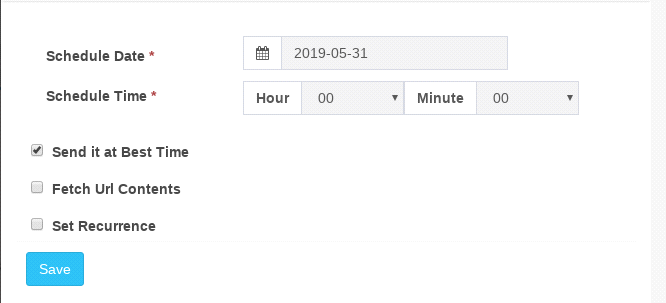
Figure : Schedule Campaign with Send it at Best Time
If set Recurrence option is checked, there are three options to filter further:
Days Of Week:
If Days Of Week option is selected then Days of Week option is displayed i.e. Sunday, Monday etc.
Single or multiple Days Of Week can be selected.
The Schedule campaign will be created based on days of week selected.
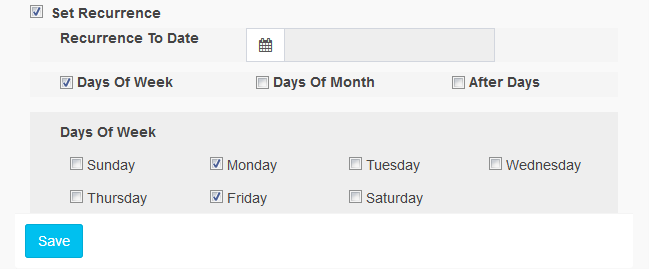
Figure : Schedule Campaign with Days of Week option
Days of Month:
If Day of month option is selected then Days from 01 to 31 is visible. Single or multiple days can be selected. The Schedule campaign will be created based on days of month selected.
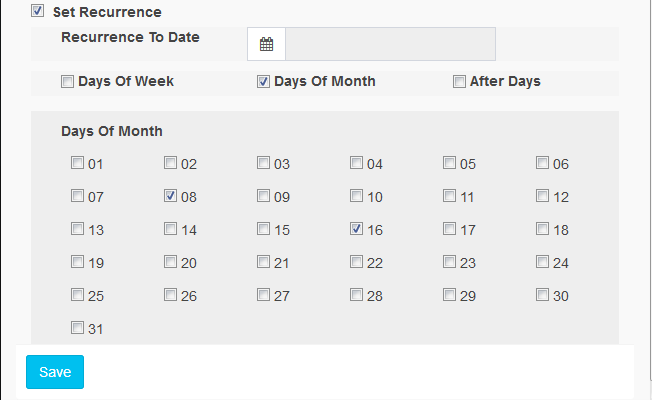
Figure : Schedule Campaign with Days of month option
After Days:
If After Days option is selected then Days drop down option is visible. At least one option can select. The Schedule campaign will be created based on after Days selected.
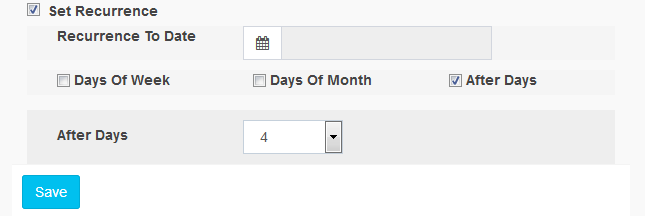
Figure : Schedule Campaign with After Days option.
Note: A campaign can only be scheduled to launch every hour or at the 15th, 30th and 45th minute of an hour.
- Select the appropriate details in the required fields, Click the Save button.
- Mail Direct displays the Create New Campaign screen with the campaign added to the Scheduled Email Campaigns section.
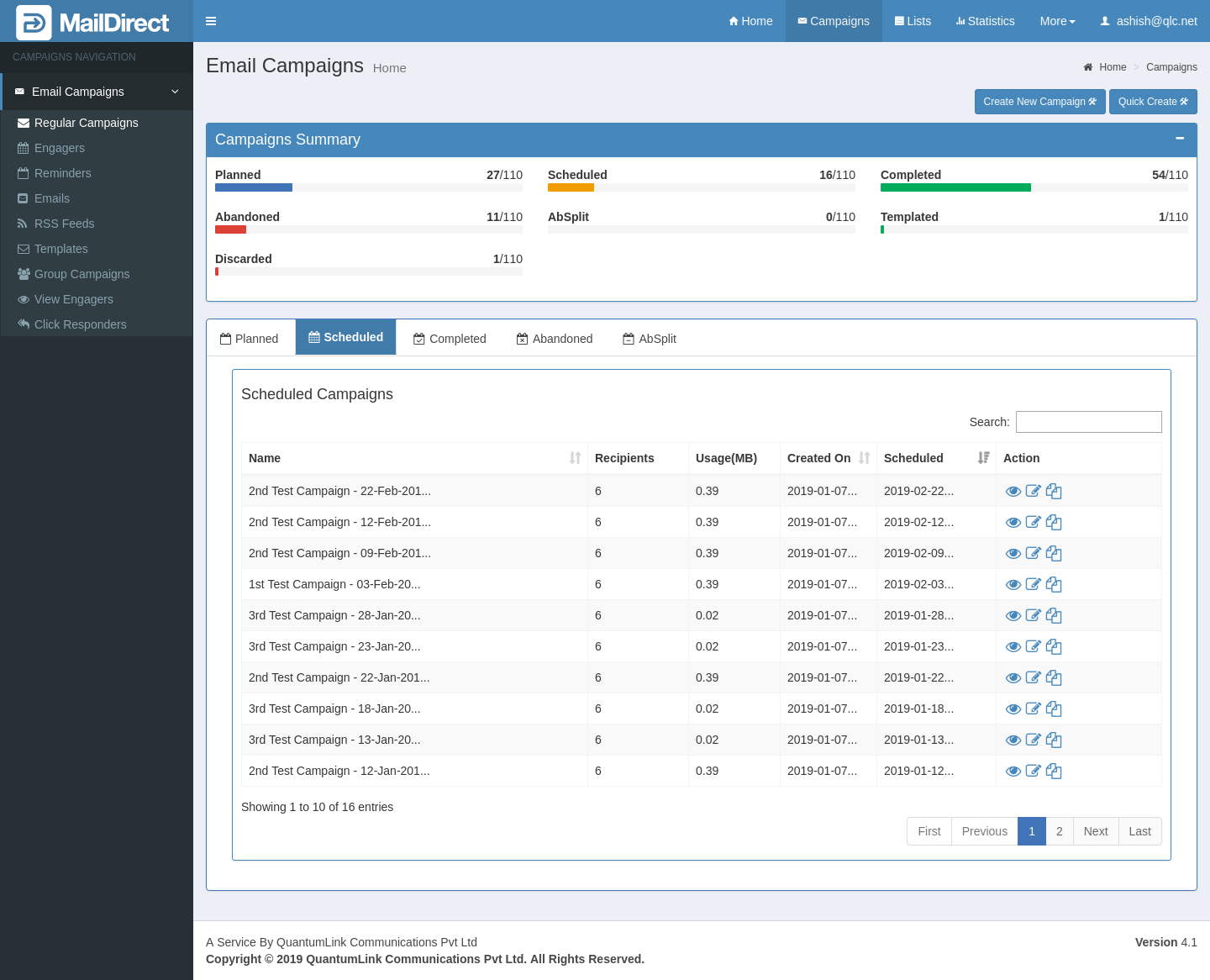
Figure : Campaign List-Schedule Campaigns