 MailDirect Help
Preview – View Engager Details
Preview – View Engager Details
To preview a view engager using the View button:
Click the View button  at View Engager Home Page to view created View Engager details.
Mail Direct displays the Details screen.
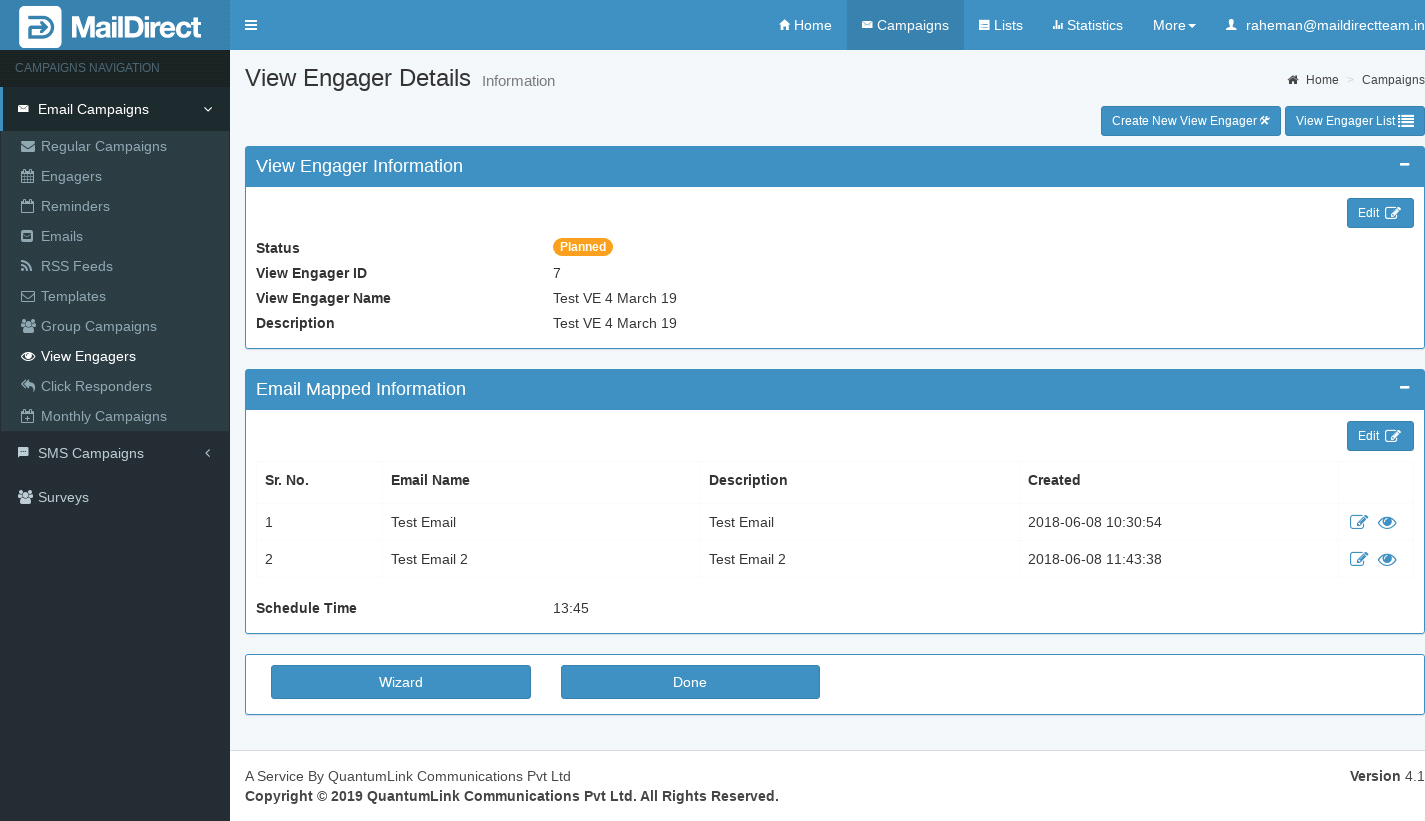
Figure : Preview View Engager
View Engager Information:
This section displays Status, View Engager ID, View Engager Name and Description. When click on edit button it will displays wizard page where user can edit View Engager information like View Engager name and Description.
Email Mapped Information:
This section displays list of Email Mapped to View Engager. This displays email details like Email Name, Description and Created Date with Edit link and Preview Button and Schedule Time.
When click on edit button it will displays View Engager wizard page where user can edit email mapped information and Schedule time.
Email can be edited by clicking the  Edit button.
On clicking  View button it will displays two options Email Preview and Email Details.
On clicking of Email Preview link, displays preview of email message.
On clicking of Email Details link, displays Email Details page where User can View and Edit email information
Table : Preview View Engager Links/ buttons Details
|
Field |
Description |
|
|
Click this icon corresponding to the appropriate section to edit the information displayed in that section. |
|
|
Click this button to edit the View Engager that is currently being viewed. Note: The user can edit the entire View Engager |
|
|
Click this button to go to Home page of View Engager. |


Click the appropriate icons/buttons as required.