 MailDirect Help
Survey Wizard – Finalize
Survey Wizard – Finalize
To View Created Survey.
- Mail Direct displays the Preview and details of survey created.
Case – Survey with option – Invite via Email
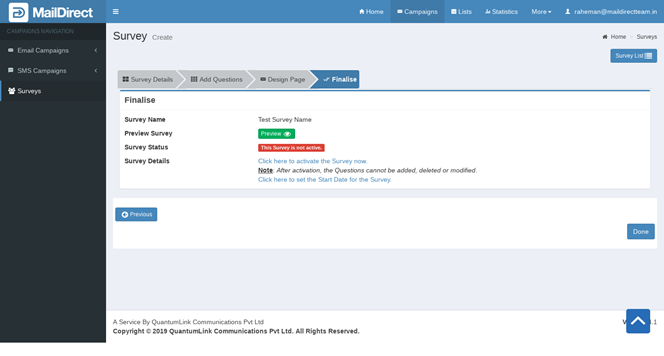
Figure : Create New Survey-Finalize Page - Survey with option – Invite via Email
Case – Survey with option – Public Link
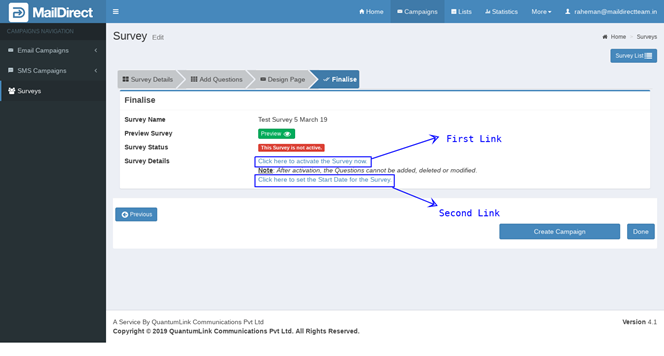
Figure : Create Survey-Finalize Page Survey with option – Public Link
Case – Survey with option – Combined
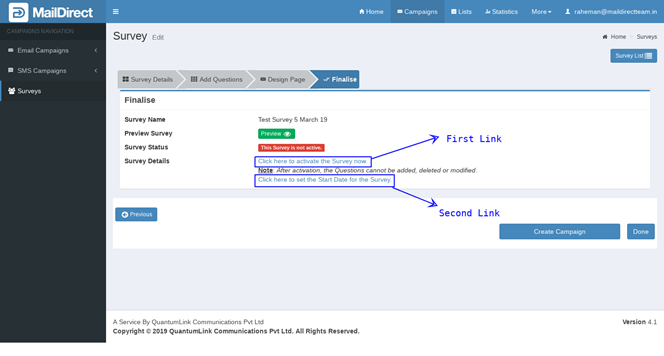
Figure : Create Survey-Finalize Page Survey with option – Combined
Table : Create New Survey-Finalize Page
|
Field |
Description |
|
Survey Name |
Displays name of Survey |
|
Preview Survey |
Displays page design preview as shown in figure. |
|
Survey Status |
Displays Status of survey |
|
Survey details |
Displays survey details |
|
Create Campaign |
Displays button to create new email campaign to send this survey. |
|
Done |
Displays button on click this button created as planned survey |
Survey Preview
Clicking  button will display the preview of the survey as shown below:
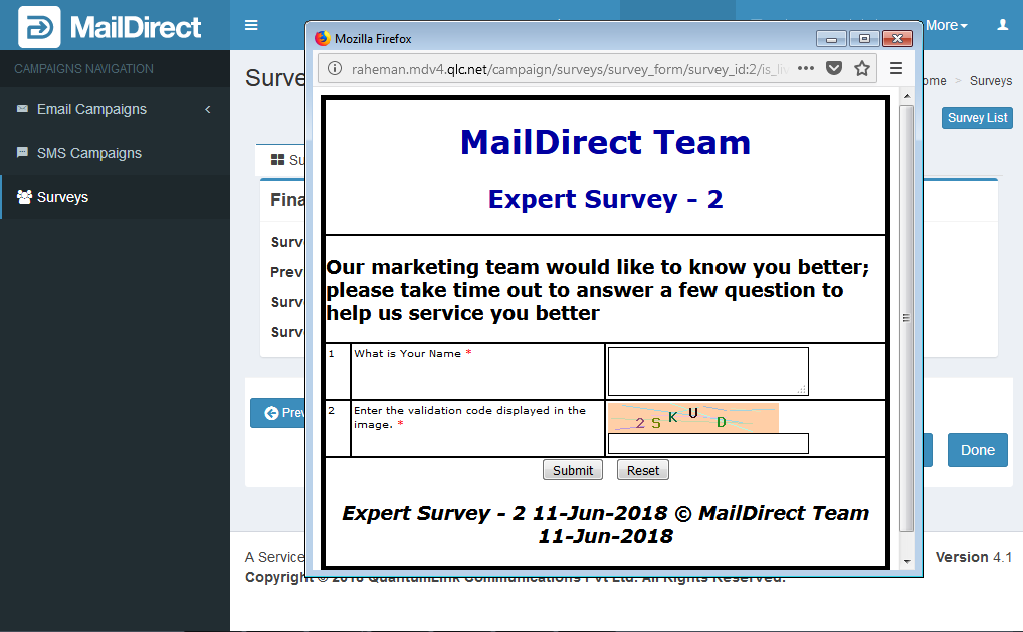
Figure : Create new survey-Survey Preview Page
Activating Survey
Invite via Email and Combined
For Survey with option – Invite via Email and Combined, the Survey can be activated by Creating/Editing Email Campaign and adding the Survey Link in the message. When the Campaign is fired, the Survey is activated.
An Link is provided -  to create Campaign.
After Activation, the page will be displayed as:
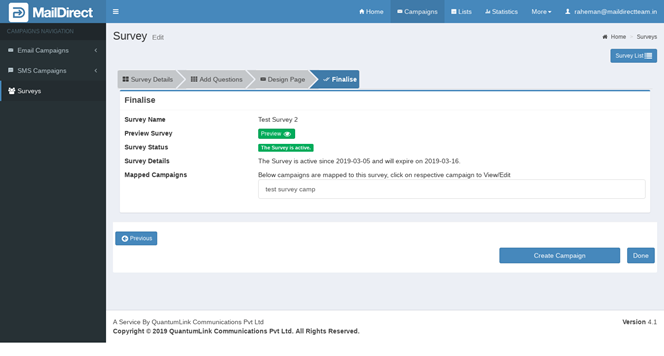
Figure : Survey Detail- Finalize - Restricted Survey - after Activation
Public Link and Combined
For Survey with option – Public Link and Combined, there exists option to activate the Survey instantly or schedule the Survey Activation Date.
To Activate the Survey instantly click the link - Click here to activate the Survey now. An Alert is generated to confirm the Activation.
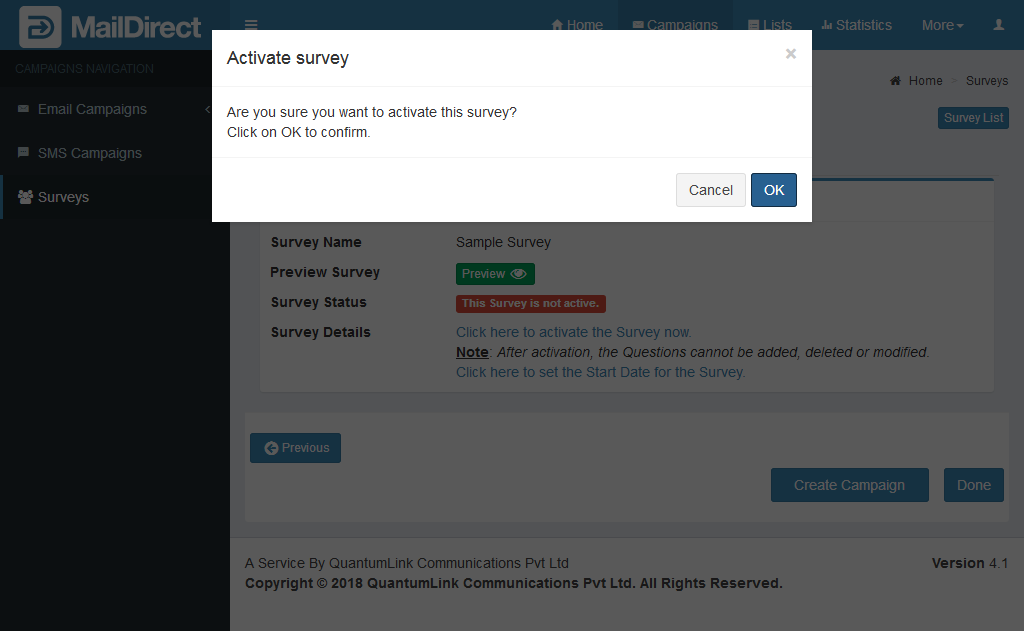
Figure : Survey Detail-Activate link window
On Confirmation the Survey is activated and the Finalize Section will display as:
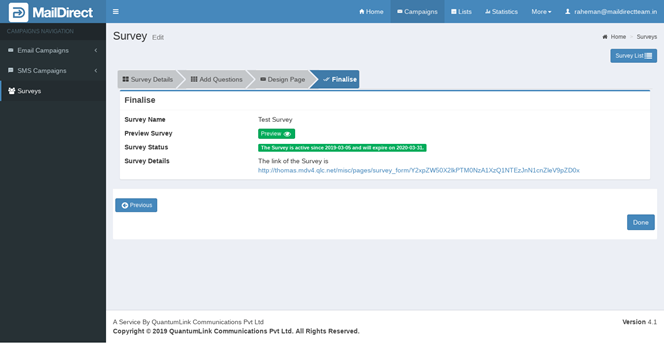
Figure : Survey Detail- Finalize - Public and Combined Survey- after Activation
The link of the Survey is displayed, which can be used to respond to Survey.
Scheduling Survey
The survey can be scheduled by clicking the link – Click here to set the Start Date for the Survey. The popup will appear:
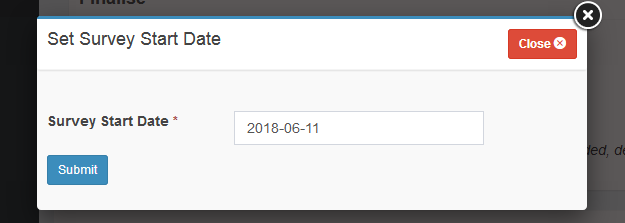
Figure : Set Survey Start date
After Entering/selecting the Survey Start Date and Clicking Submit will schedule the Survey and the Finalize section will appear as:
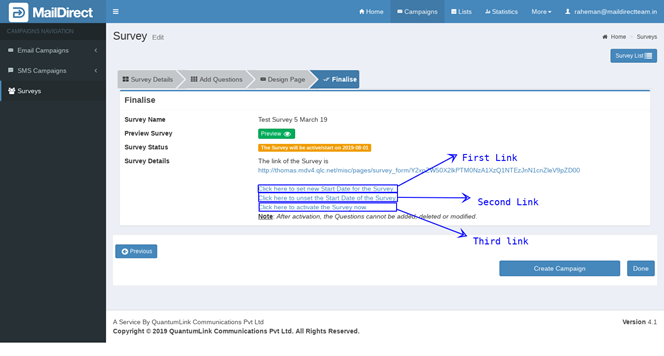
Figure : Create Survey- Finalize Page – Scheduled Survey
- Click the link “Click here to unset the Start Date of the Survey” to unset Start Day
- Mail Direct displays a message.
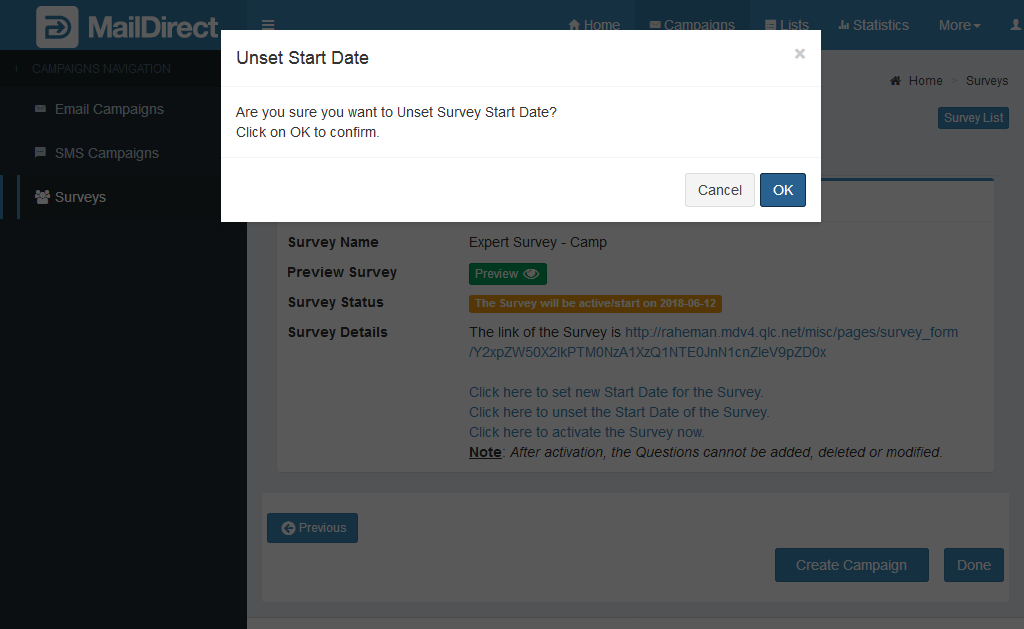
Figure : Create New Survey-Unset Survey Start date