 MailDirect Help
Test Campaign
Test Campaign
To test a campaign for a real - time view using the Test button:
The option is available on Finalize Section of Campaign Wizard, Quick Campaign and Campaign Details page.
- Click the Test button.
- MailDirect displays the Campaign screen.
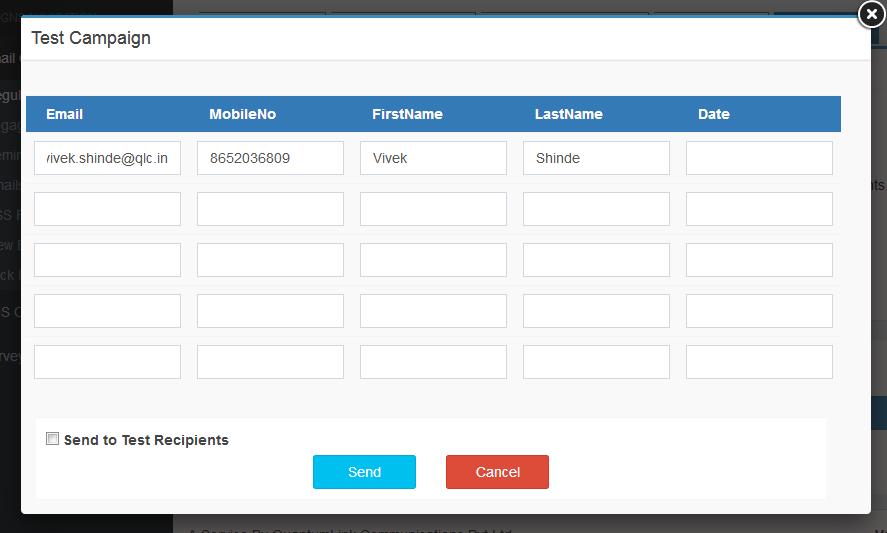
Figure : Test Campaign
Table : Test Campaign
|
Field |
Description |
|
|
|
Type an appropriate email address to which the campaign will be sent for a test in real time. |
|
|
Mobile No |
Type an appropriate mobile number of the recipient of the campaign under test. |
|
|
First Name |
Type an appropriate first name of the recipient of the campaign under test. |
|
|
Last Name |
Type an appropriate last name of the recipient of the campaign under test |
|
|
Custom Fields |
Other Custom Field in the Recipient |
|
Note: The number of fields for entering personal details can differ if the user has customized the fields using the Fields Manager tab in the Settings menu.
- Enter the appropriate details in the required fields, Click the Submit button.
- Alternatively there is an option to send Test Mails from the Test List.
- Select the Test List, Click the Submit button
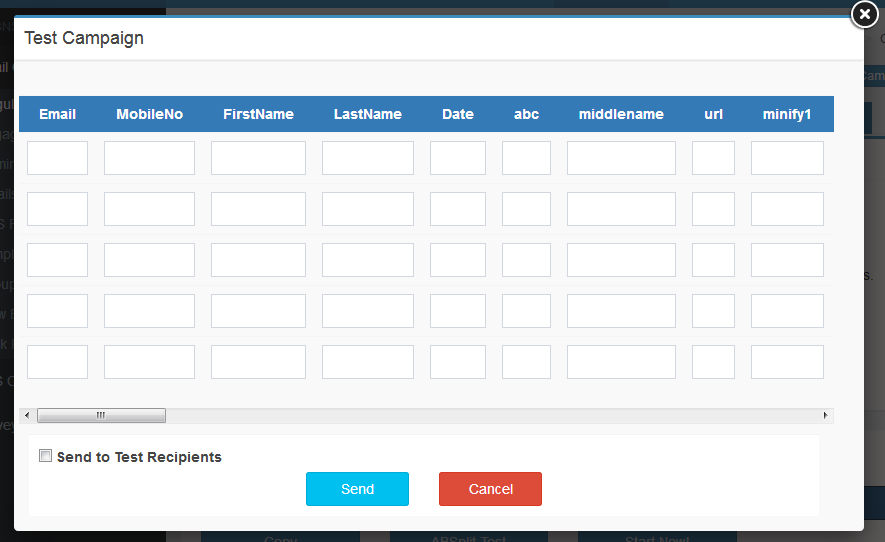
Figure : Test campaign Pop-Up
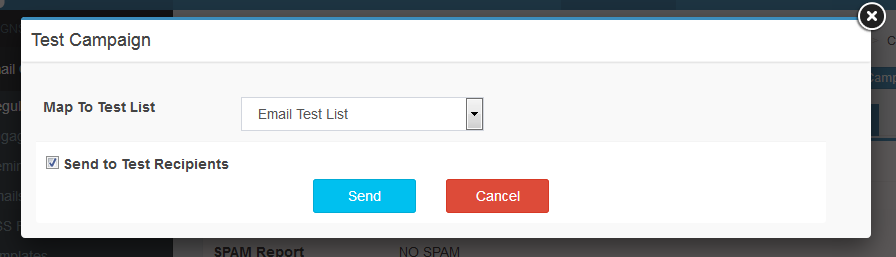
Figure : Test campaign Map list