 MailDirect Help
Save Message as a Template
Save Message as a Template
The section is available in Campaign Wizard – Compose Message, Quick Campaign, Emails and Templates, while Composing Message by HTML Editor.
1. To save message as template by clicking on button provided in create email campaign, emails and template campaigns Compose message section.
MailDirect displays screen for save message as a template
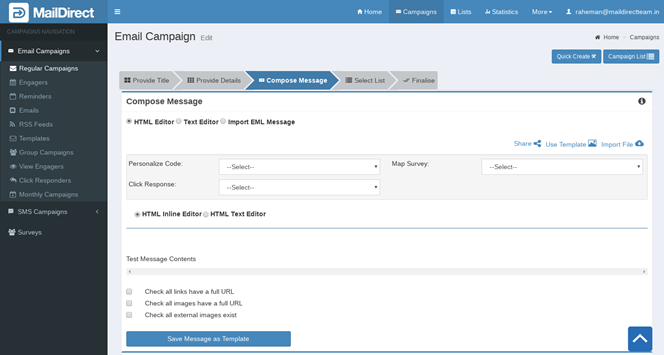
Figure : Save as a template message page
2. Click on save message as template button the popup for save message will open.
3. Select either add new template or update existing template checkbox.
4. If Add New Template is selected and on clicking submit button, a new page will open for create new custom template page with compose message content. Fill all other details to save this message.
MailDirect display screen for add new template
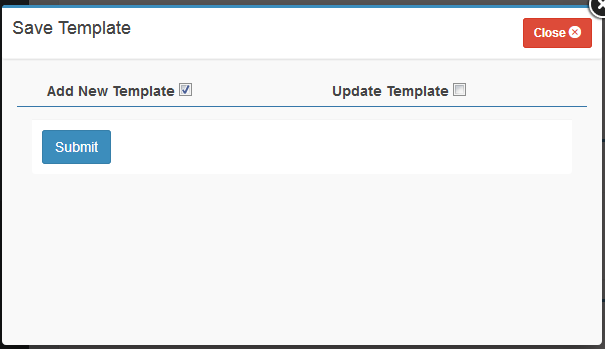
Figure : add new template page after select on add new template
MailDirect displays screen for save message as a template after click on submit button

Figure : Save message as a template after click on submit button
5. On selecting Update Existing Template, a drop down field with existing template is displayed. Select the template and Submit to update with message content for the Template. The option is provided to retain the Existing Logo or to capture the screen shot of the message.
MailDirect displays screen for save message template pop up update existing template option selected.
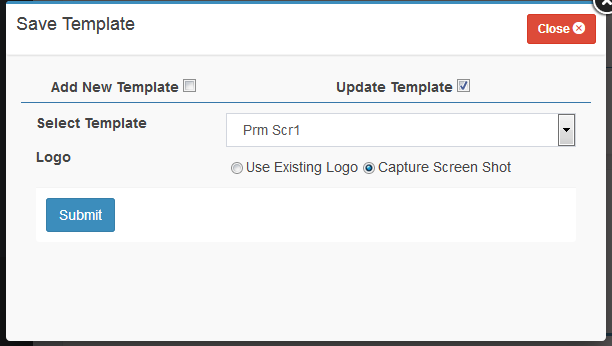
Figure : Save message template pop up update existing template option selected
Table : Save Message as a Template
|
Fields |
Description |
|
Add new template |
Select this to save message as a new custom template |
|
Update existing template |
Select this to update existing custom template message to this message. On select this field select template field is visible and select to update existing template this is field is mandatory |
|
Submit |
Click to save the message as template |