 MailDirect Help
View Engager Wizard – Map Emails
View Engager Wizard – Map Emails
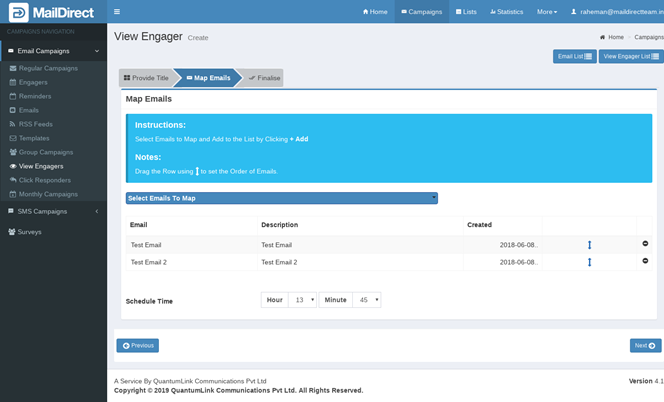
Figure : Create New View Engager-Map Emails
The mapped Emails can be added by clicking Select Emails to Map and the required lists can be selected. Search/Filter Option is available to search by Email Name. Option for Check All and Uncheck All is provided to select and unselect all Emails. Clicking Add link maps the Emails to the View Engager. The View Engager can be scheduled on desired time by selecting schedule time i.e. Hour and Minutes.
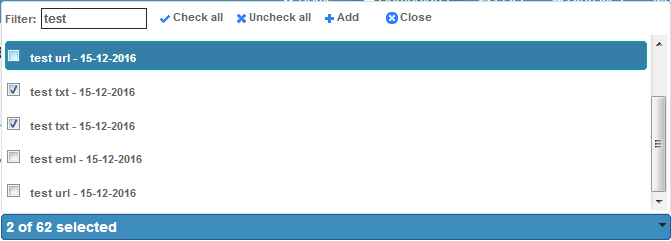
Figure : Create New View Engager - Map Emails Operation
The order of the Email to be fired can be set by Dragging  and setting placing the Email row on the required order.
Table : View Engager-Map Emails
|
Field |
Description |
|
Select emails To Map |
Select the check boxes corresponding to the appropriate Email list/s to be mapped to the view engager. The campaign will be sent with this view engager. |
|
Email Name |
This section displays the name of the email campaign list. |
|
Description |
This section displays the description about the email campaign list. |
|
Created |
This section displays created date for email campaign. |
- Click on
 next button
 - Mail Direct displays the View Engager Campaign Finalize Page