 MailDirect Help
Add Contact List
Add Contact List
- Click on to Add List
 Button
 - Add Contact List screen pops up.
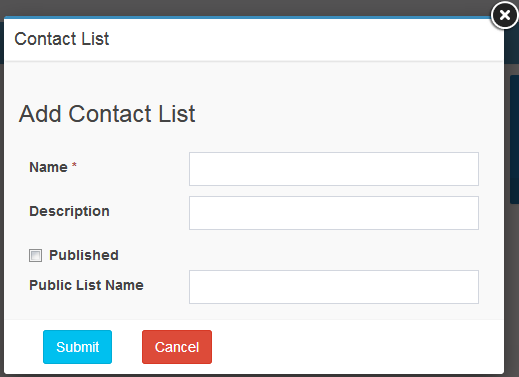
Figure : Add Contact List
Table : Add Contact List
|
Field |
Description |
|
Name |
Type an appropriate description for the contact list, not exceeding 30 characters The field should be Unique This field is mandatory |
|
Description |
Type an appropriate description for the contact list, not exceeding 30 characters This field is not mandatory |
|
Published |
Select the check box to enable creation of a public name for the contact list This field is not mandatory |
|
Public List Name |
Type an appropriate public name for the list, not exceeding 30 characters This field is mandatory only if the Published check box is enabled |
- Enter /Select the appropriate details in the required fields.
- Click Submit Button.
- MailDirect displays the Manage Lists screen with the list added.
Note: The public is an alternative list name, which is displayed when Recipients manage their subscription. If public list is blank, contact list is displayed. The contact list name and the public name should be unique, otherwise, MailDirect displays an error message.
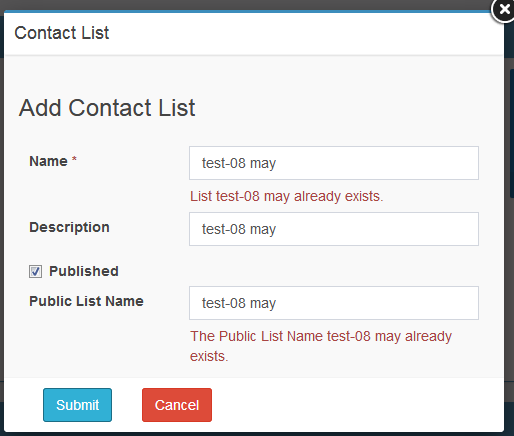
Figure : Add Contact List with Error