 MailDirect Help
Compose Message Options
Compose Message Options
- Click the Preview button.
- Mail Direct displays the Preview screen.
- The user can preview the composed message.
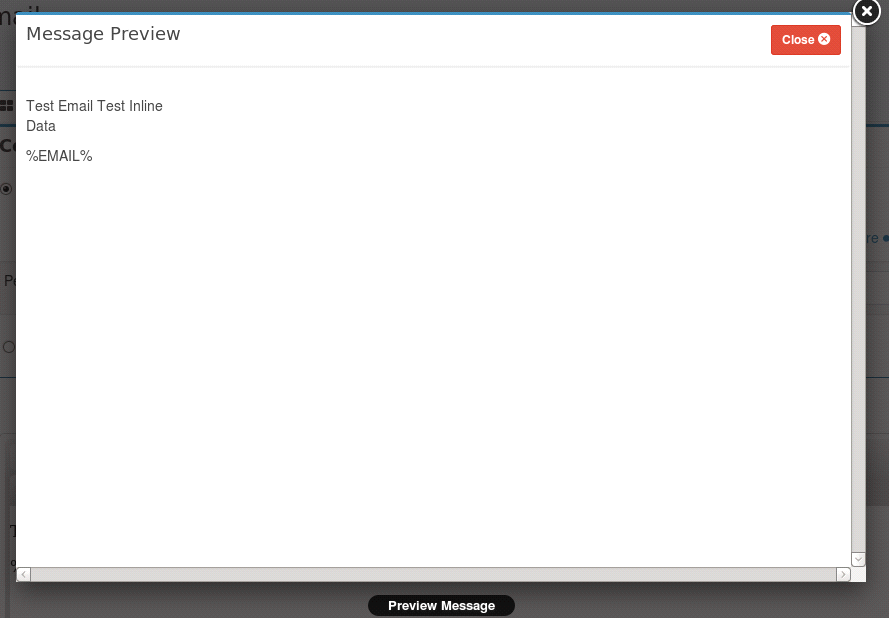
Figure 1: Create New Campaign - Compose Message - Preview Message
Default Salutation

Figure : Default Salutation
If custom variable %FNAME_LNAME% set then it will replace it with FirstName LastName if FirstName and LastName exists. If only FirstName exists it will replace with FirstName and similarly if only LastName exist it will replace with LastName. In case if FirstName and LastName does not exist then it will replace with the input text at Default Salutation.
Email Based Variable
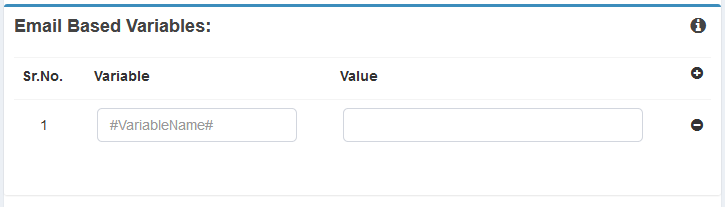
Figure : Email Based Variables
The Email Based Variable is to be added by clicking  button. The acceptable pattern is #variable#. The variables are replaced by the corresponding values set in the message, when the email is send. Clicking
  will remove the corresponding Email Based Variable.
Custom Header

Figure : Custom Header
MailDirect provide an option to add Custom headers in the email messages. Custom header can
be added in X-HeaderName format in your email by clicking  button. Clicking
  will remove the corresponding Email Based Variable.
Unsubscribe Text
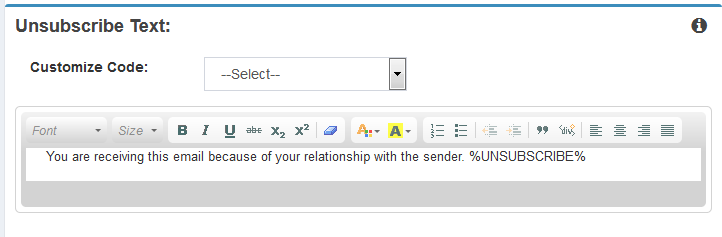
Figure : Unsubscribe Text
Unsubscribe Text provides option to modify the unsubscribe message and link, in order to enable recipients to unsubscribe from Mailing List.
Disclaimer Text
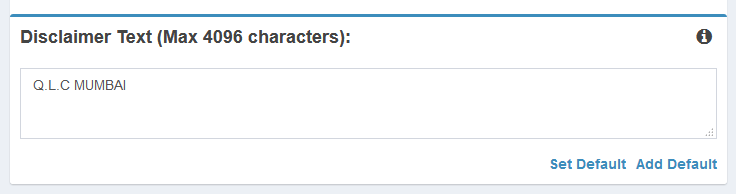
Figure : Disclaimer Text
Disclaimer Text provides option to modify or add disclaimer text. User can also set default disclaimer text for all emails by clicking Set Default Link.
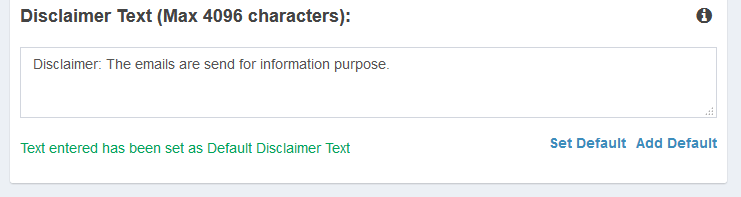
Figure : Disclaimer Text - Set Default
Users can also Add default disclaimer text for all emails by clicking Add Default Link.
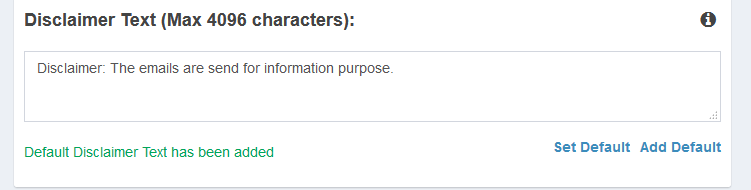
Figure : Disclaimer Text - Set Default
- Click the Next
 button.
 - Mail Direct displays the List Map screen.