 MailDirect Help
Device Report Home
Device Report Home
When clicking on Device Report link in Report and Downloads Section of Email Statistics Section of Left Menu, MailDirect will display the Device Report screen.
This section allows user to analyse and view cumulative device view and clicks based on the campaign selected or between a date range. The data is displayed and analysed for the campaigns send for the past 400 days and maximum 50 campaigns can be selected or date range selected shouldn't exceed 31 days.
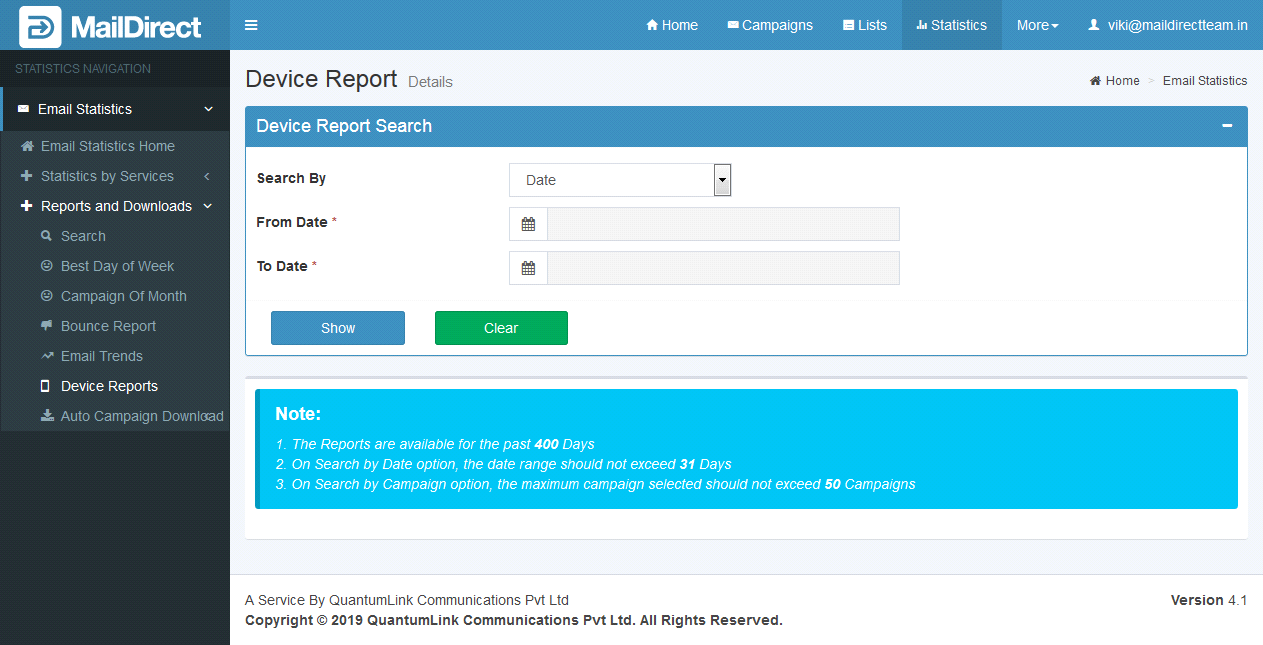
Figure : Device Report Home Page
Table : Device Report
|
Fields |
Description |
|
Device Report |
|
|
Search By : |
This section displays drop down to select values to search by either date or campaign options. If user selects search by date option (search by date is default selected option), then two date picker fields From Date & To Date appears. User can select dates, to search campaign between these two dates range for Device Report. The maximum date range should not exceed 31 days.
Figure : Device Report Home - Search By Date If user selects Campaign option, then select campaign drop down displayed next to search by drop down, to search campaign by name. MailDirect displays screen with search by Campaign Name option:
Figure : Device Report Home - Search By Campaigns The mapped Campaigns can be added by clicking Select Campaign to Map and the required Campaigns can be selected. Search/Filter Option is available to search by Campaign Name. Option for Check All and Uncheck All is provided to select and unselect all Campaigns. Clicking Add link adds the Campaign for the Device analysis. Maximum 50 campaigns can be selected. |
|
Show |
On Clicking Show button, the page displays Device Report, Computer Analysis, Mobile Analysis and Tablet Analysis of Views and Clicks along with the details of the Campaigns Analysed. |
|
Clear |
On Clicking Clear button, the input and the displayed output are cleared. |
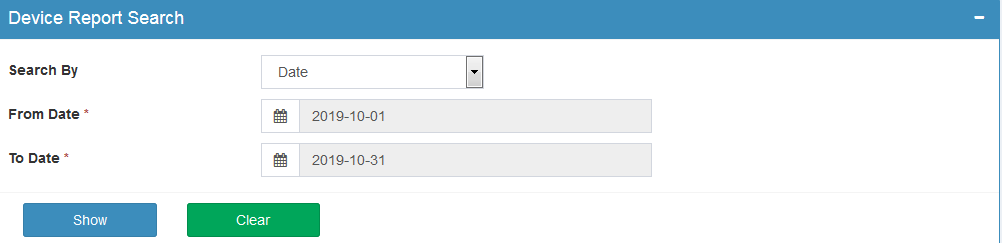
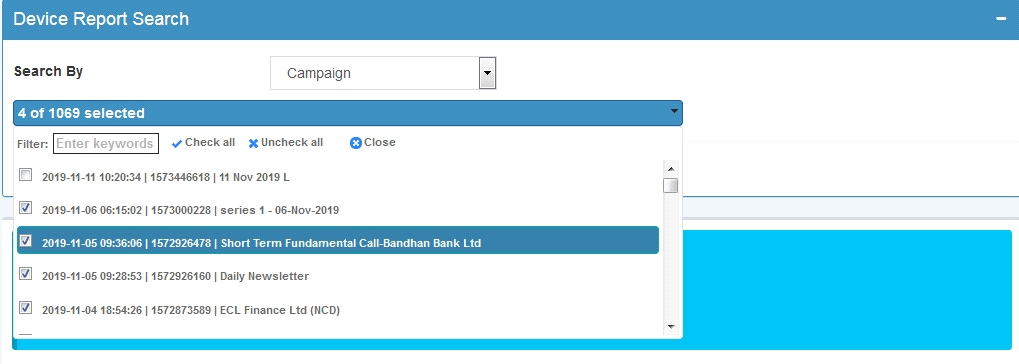


On Clicking Show Button, the page displays:
Device Report:
The Device Report section displays the details of Total Campaign Views and Clicks for Computer, Mobile and Tablet based on Campaigns selected or Date Range of the Campaigns selected in Table and Graphical format.
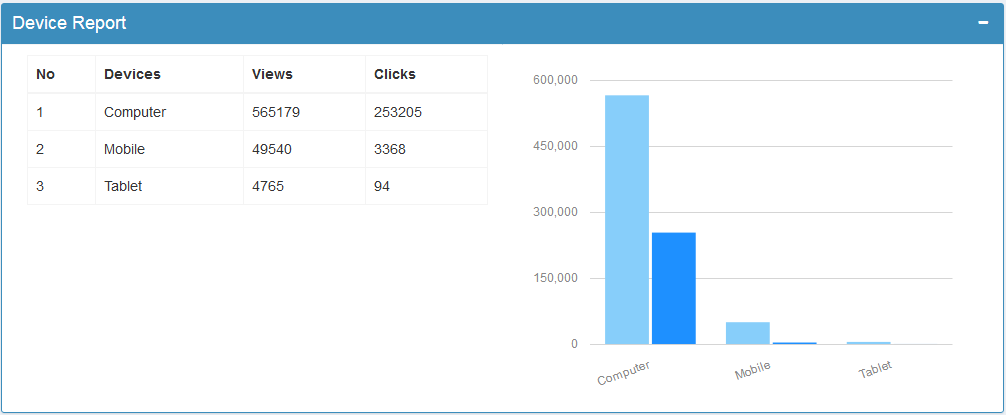
Figure : Device Report Home - Device Report
Computer Analysis – Views:
The Computer Analysis – Views section displays the details of Operating System and Browser for Views from Computer based on Campaigns selected or Date Range of the Campaigns selected in Table and Graphical format.
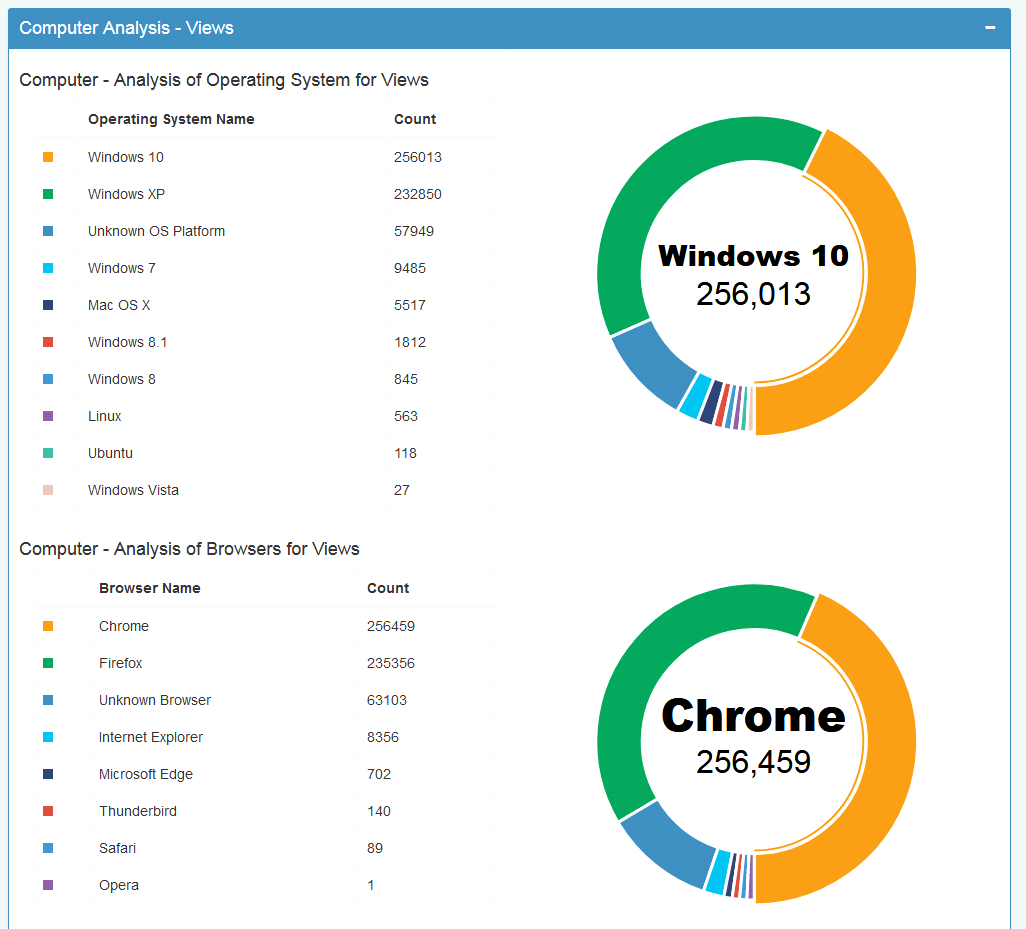
Figure : Device Report Home – Computer Analysis - Views
Mobile Analysis – Views:
The Mobile Analysis – Views section displays the details of Devices, Operating System and Browser for Views from Mobiles based on Campaigns selected or Date Range of the Campaigns selected in Table and Graphical format.
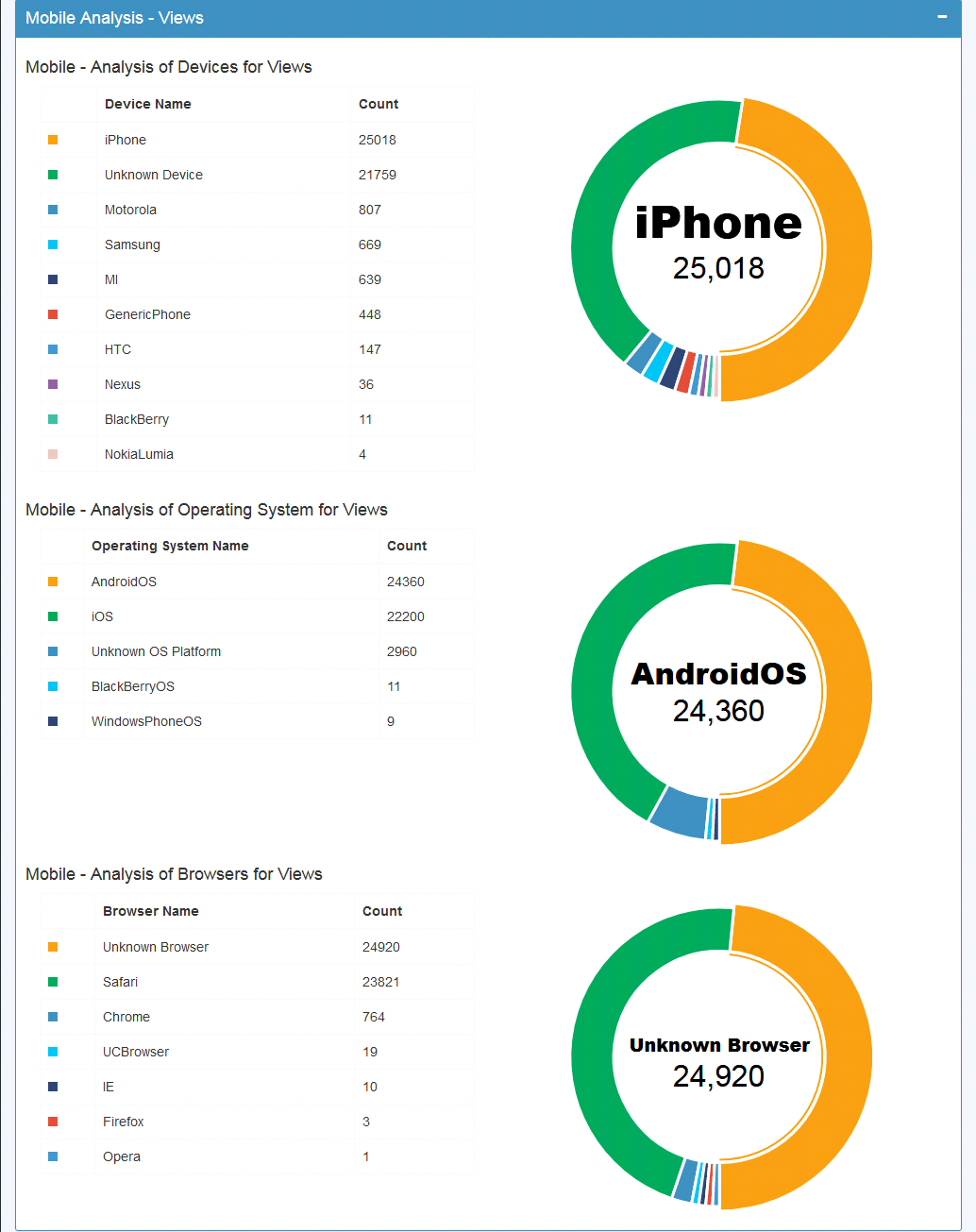
Figure : Device Report Home – Mobile Analysis - Views
Tablet Analysis – Views:
The Tablet Analysis – Views section displays the details of Devices, Operating System and Browser for Views from Tablets based on Campaigns selected or Date Range of the Campaigns selected in Table and Graphical format.

Figure : Device Report Home – Tablet Analysis - Views
Computer Analysis – Clicks:
The Computer Analysis – Clicks section displays the details of Operating System and Browser for Clicks from Computer based on Campaigns selected or Date Range of the Campaigns selected in Table and Graphical format.
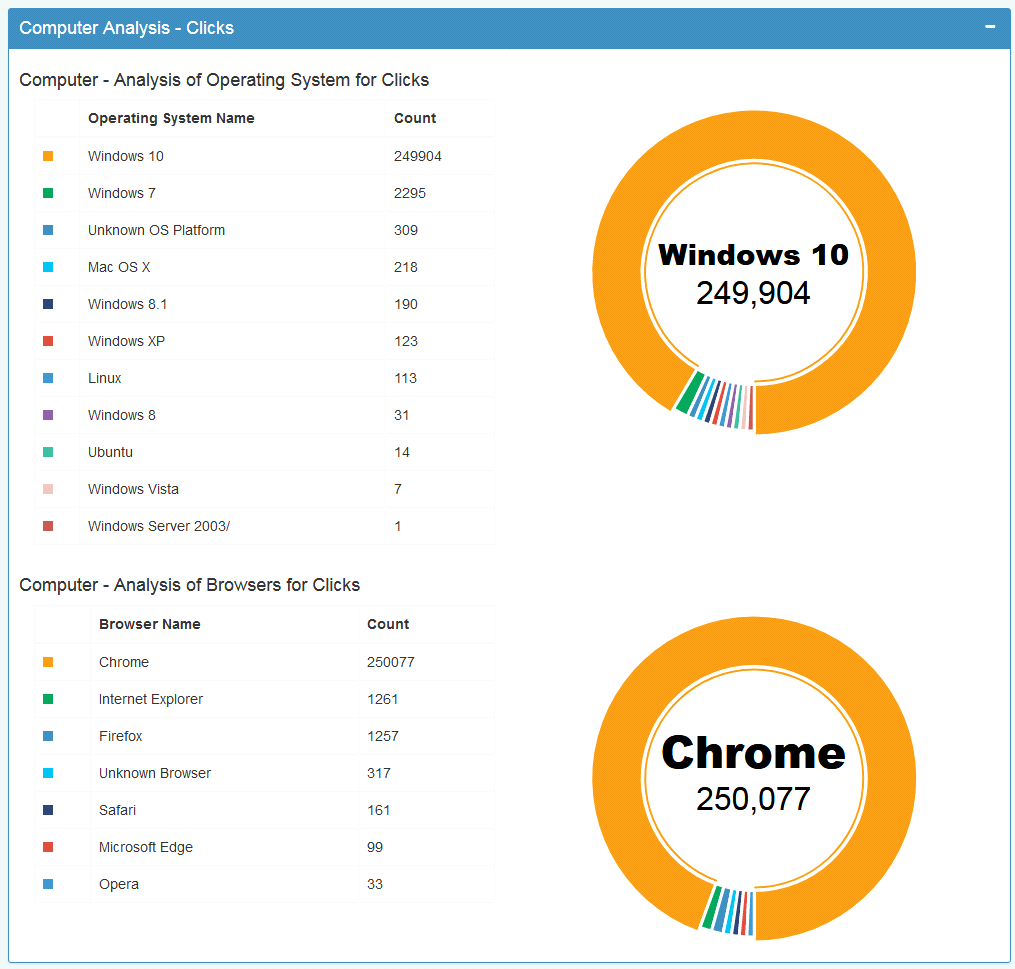
Figure : Device Report Home – Computer Analysis - Clicks
Mobile Analysis - Clicks
The Mobile Analysis – Clicks section displays the details of Devices, Operating System and Browser for Clicks from Mobile based on Campaigns selected or Date Range of the Campaigns selected in Table and Graphical format.
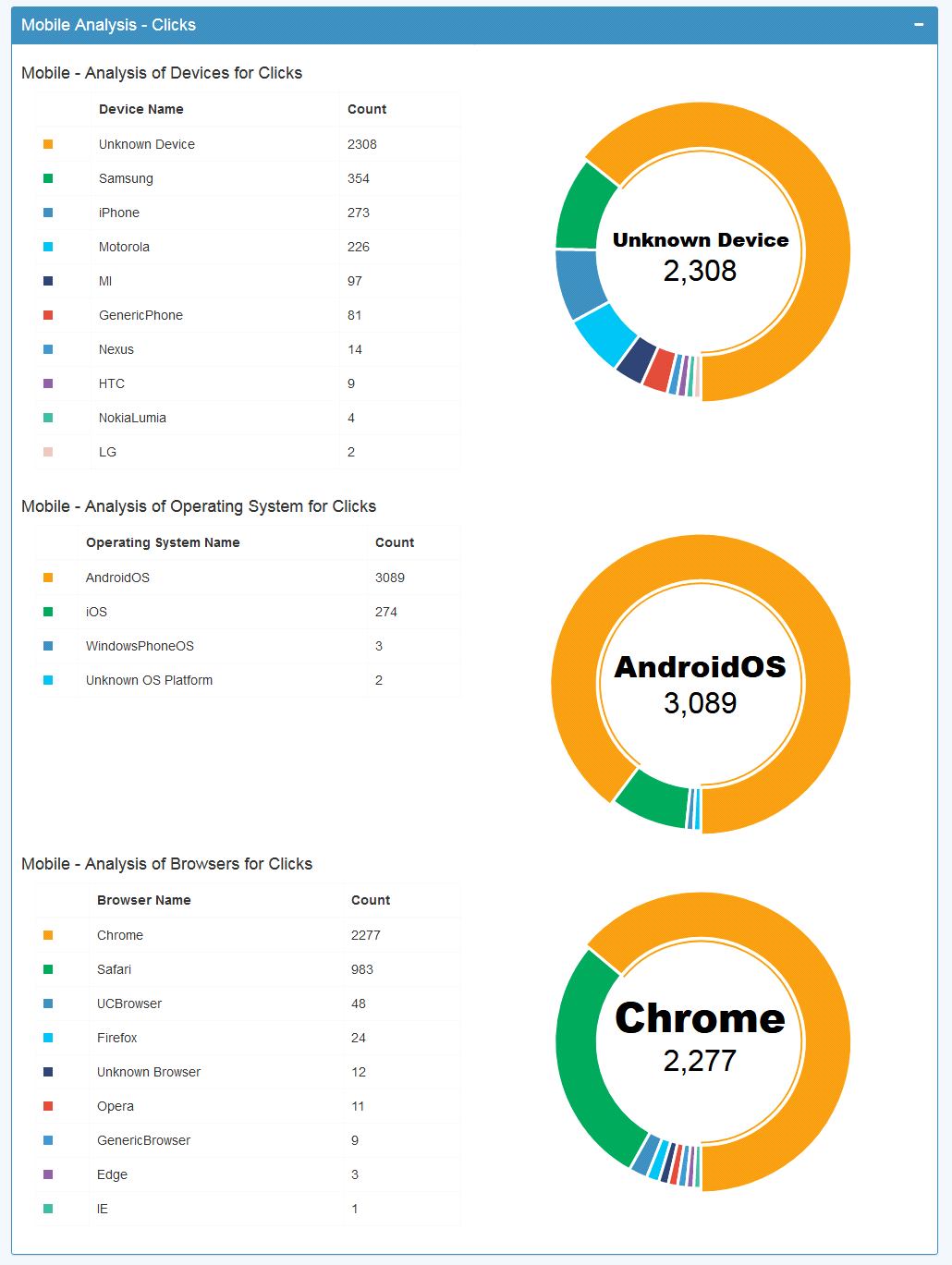
Figure : Device Report Home – Mobile Analysis - Clicks
Tablet Analysis – Clicks
The Tablet Analysis – Clicks section displays the details of Devices, Operating System and Browser for Clicks from Tablet based on Campaigns selected or Date Range of the Campaigns selected in Table and Graphical format.

Figure : Device Report Home – Tablet Analysis - Clicks
Campaigns Analysed:
This section provides the paginated details of the Campaign Analysed with options to search and sort. Options are provided to view Statistics of the Campaign on Clicking on the Campaign Name and Option to View Device Analysis for View and Clicks for the Devices.
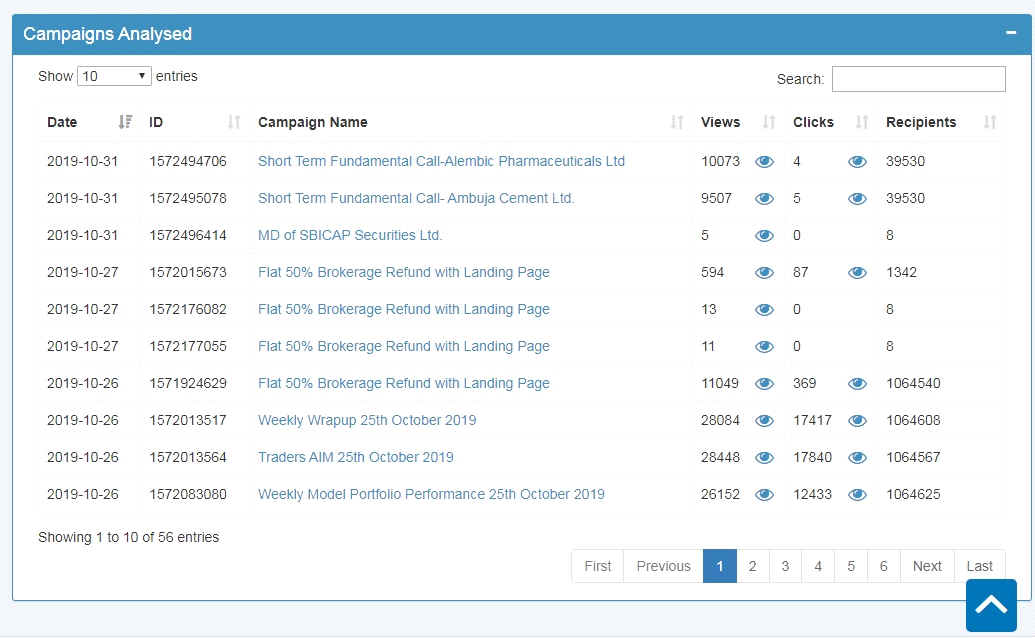
Figure : Device Report Home – Campaigns Analysed
The View Reports of Individual Campaigns is displayed by Clicking  in the Views Column and a Drop-down is displayed which has option to select Computer Views, Mobile Views and Tablet Views.
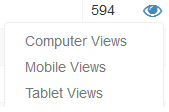
On clicking the option Device View Analysis of the Opted Device for the Campaign pops up.
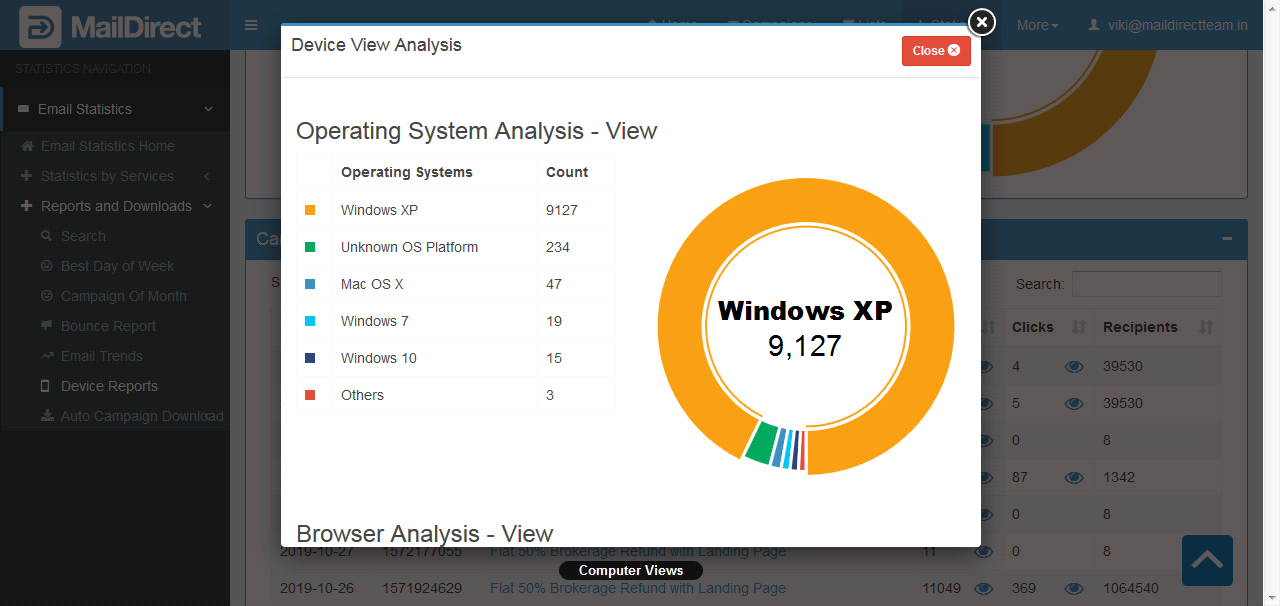
Figure : Device Report Home - View Details for the Selected Device and Campaign
The Click Reports of Individual Campaigns is displayed by Clicking  in the Clicks Column and a Drop-down is displayed which has option to select Computer Clicks, Mobile Clicks and Tablet Clicks.
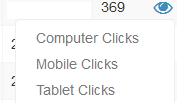
On clicking the option Device Click Analysis of the Opted Device for the Campaign pops up.
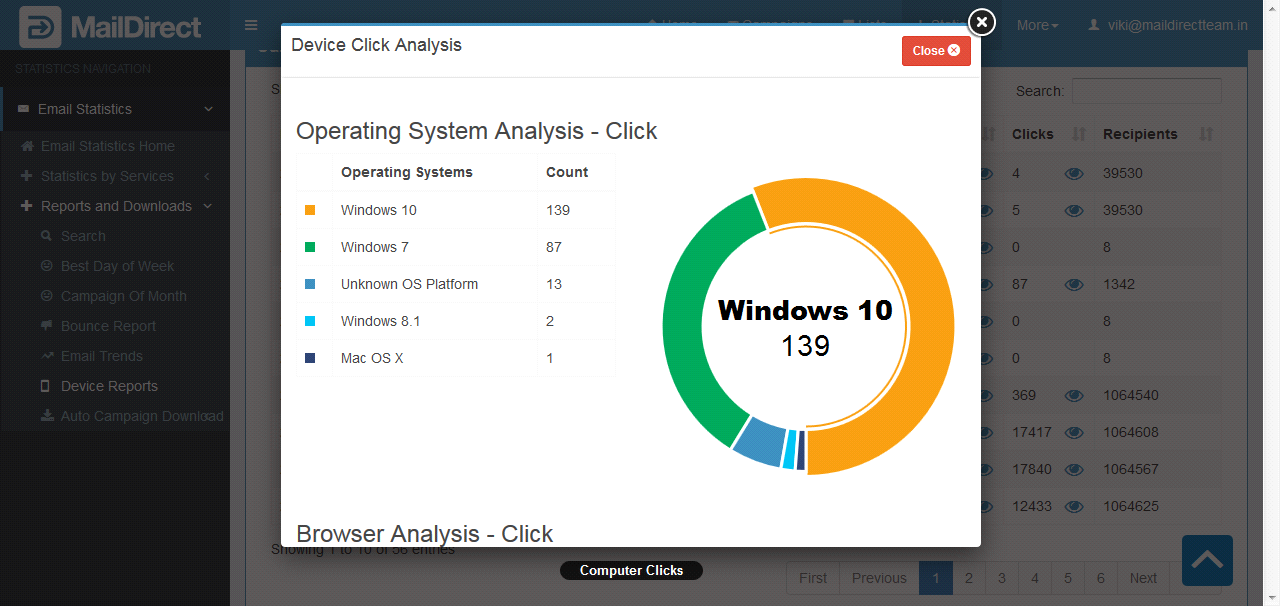
Figure : Device Report Home - Click Details for the Selected Device and Campaign