Email Trends Home


When clicking on Email Trends link in Report and Downloads Section of Email Statistics Section of Left Menu, MailDirect will display the Email Trends screen.


This section provides user to compare the trends of the Campaigns between a selected Date Range or Selected Campaigns in tabular and graphical format. The Standard Trends provides the details of Emails sent by Campaign and Rejected Trend provides details of Emails bounced in a Campaign.


Figure : Email Trends Home Page


Table : Email Trends Statistics


Fields

Description

Email Trend Search

Search By :

This section displays dropdown to select values to search by either date or campaign options.

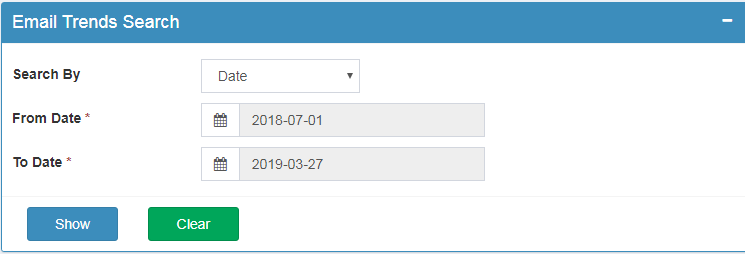
If user selects search by date option (search by date is default selected option), then two date picker fields From & To display next to search by drop-downs from which user can select dates, to search campaign between these two dates range.

MailDirect displays screen with search by date option,


Figure : Email Trends Home - Search By Date


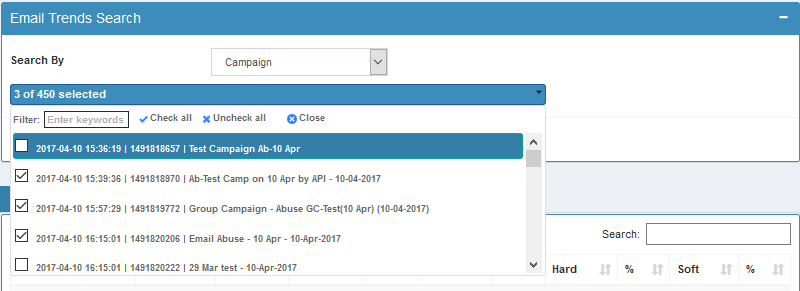
If user selects campaign option, then select campaign dropdown displayed next to search by dropdown, to search campaign by name. MailDirect displays screen with search by Campaign Name option:


Figure : Email Trends Home - Search By Campaigns


The mapped Campaigns can be added by clicking Select Campaign to Map and the required Campaigns can be selected. Search/Filter Option is available to search by Campaign Name. Option for Check All and Uncheck All is provided to select and unselect all Campaigns. Clicking Add link adds the Campaign for the analysis.


Standard Trends

Standard Trends

This section displays Standard Trends of the campaign.


MailDirect displays Standard Trends Screen,


Figure : Email Trends Home - Standard Trend


Available fields are explained below,


Date:  This section displays the date of the campaign sent on.


ID:  This section displays the Campaign ID.


Name:  This section displays the name of the campaign.


Sent:  This section displays the total number of recipients to whom campaign sent.


View:  This section displays the total number of times campaign has viewed by recipients.


%:  This section displays the ratio of the total number of views of the campaign.


Click : This section displays the total number of clicks of the links in the Campaign (if any link has been sent)


%:  This section displays the ratio of the total number of Clicks of the links in the campaign (if any link has been sent).


Hard:  This field displays the total number of email addresses from which the campaign has bounced due to domain of email id does not exist.


%:  It shows ratio (%) of the hard bounces.


Soft:  This field displays the total number of email addresses from which the campaign has bounced due to Server down or if mail box is full.


%:  It shows the ratio (%) of total soft bounces.


Standard Trend Graph

Standard Trend Graph

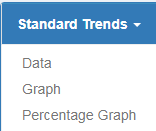
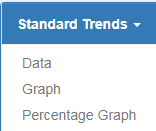
Click On Standard Trends  > Graph


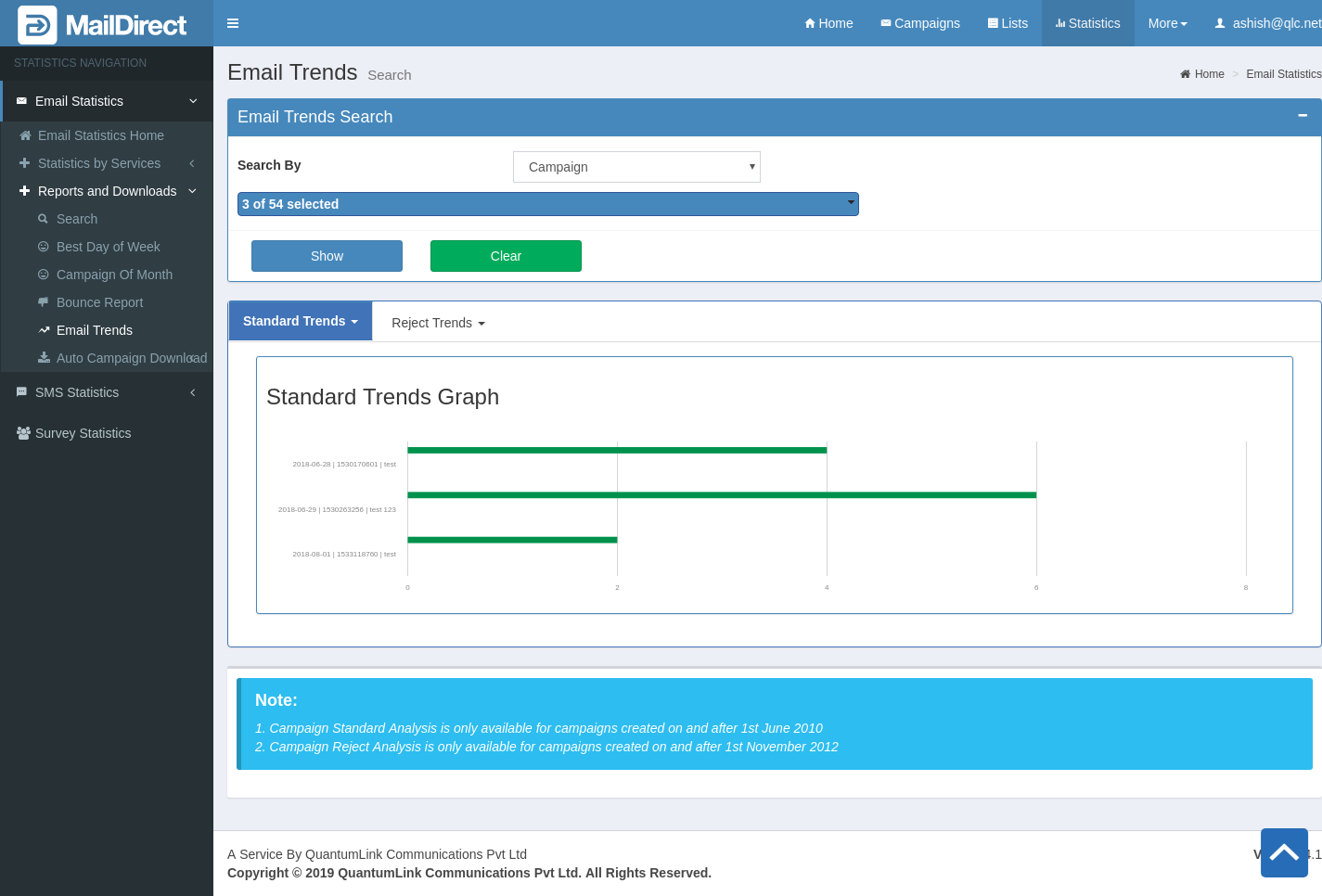
This section displays graphical presentation of standard trends,

MailDirect displays standard trends graph screen on clicking Standard Trend Graph


Figure : Email Trends Home - Standard Trend Graph


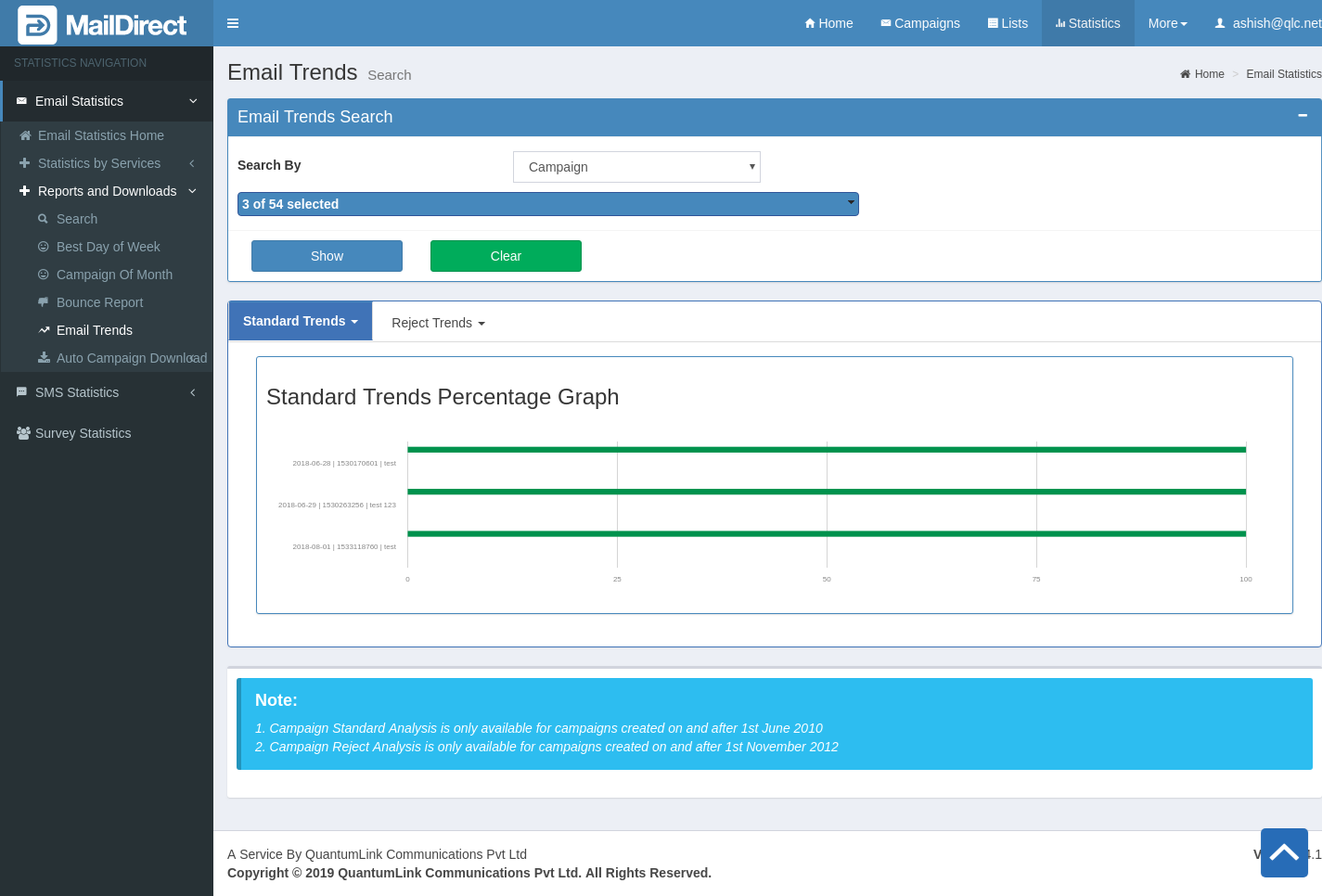
Standard Trend Percentage Graph

Standard Trend Percentage Graph

Click On Standard Trends  > Percentage Graph


This section displays graphical presentation of standard trends,

MailDirect displays standard trends graph screen on clicking Standard Trend Percentage Graph


Figure : Email Trends Home - Standard Trend Percentage Graph


Reject Trends

Reject Trends

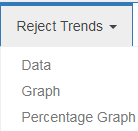
Click On Rejected Trends  > Data


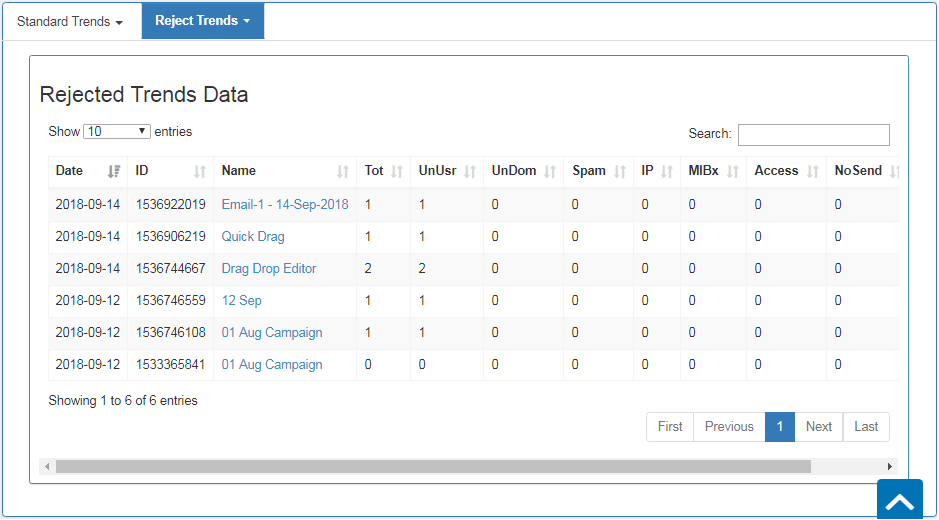
This section displays Reject Trends details, Available fields are explained below.

MailDirect displays reject trends graph screen on clicking Reject Trend


Figure : Email Trends Home - Reject Trends


Date:  This section displays the date of the campaign sent on.


ID:  This section displays the Campaign ID.


Name:  This section displays the name of the campaign.


Tot:  This section displays the total bounce of the campaign.


Un Usr:  This section displays the total number of unknown users.


Un Dom:  This section displays the total number of unknown Domains.


Spam:  This section displays the total number of spams.


IP:  This section displays the IP.


MIB:  This section displays the Mailbox Issues.


Access:  This section displays the Access Issues.


No Send:  This section displays the No Send Issues.


Other:  This section displays the other Issues.


Reject Trend Graph

Reject Trend Graph

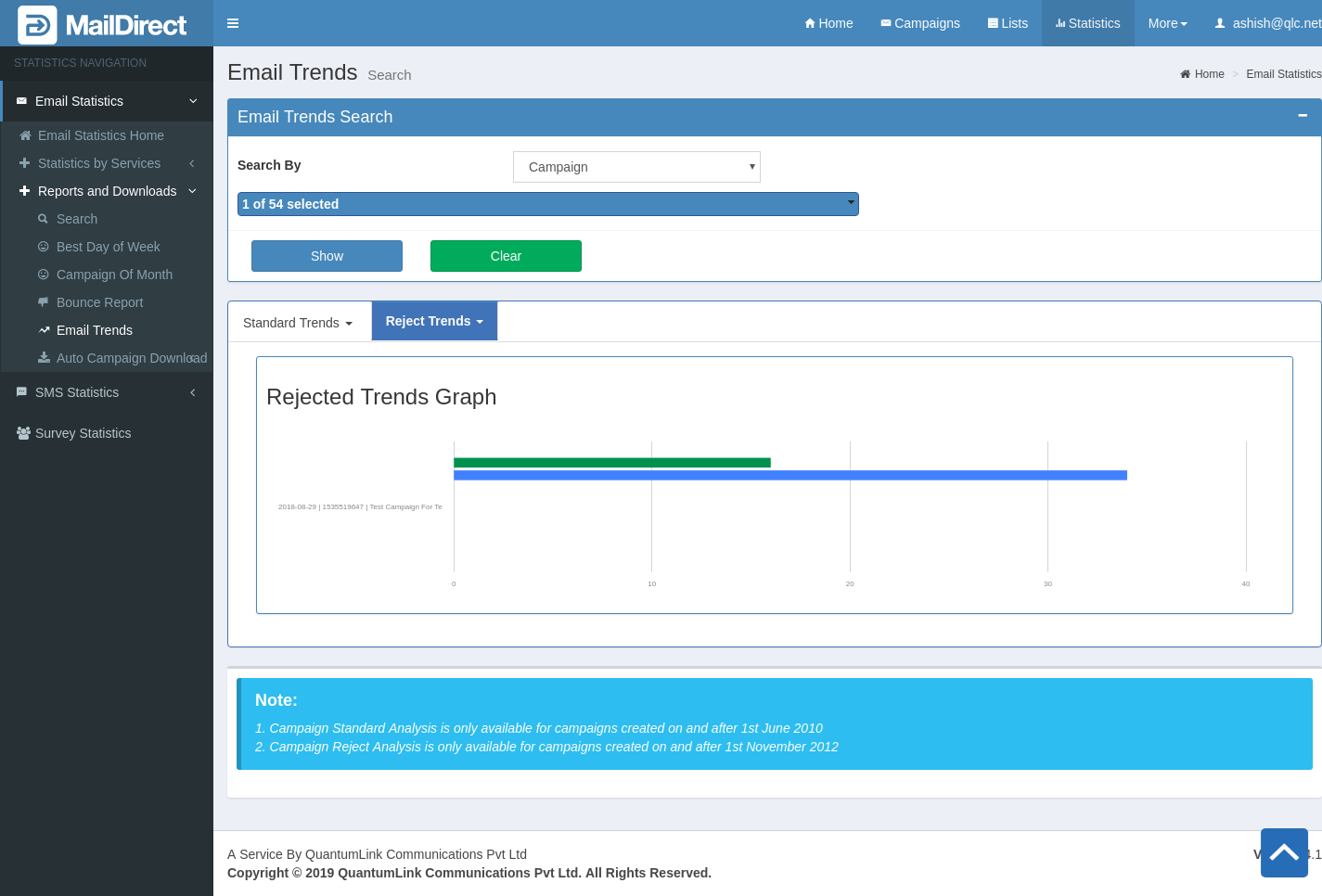
Click On Rejected Trends  > Graph


This section displays graphical presentation of reject trends.

MailDirect displays reject trends graph screen Reject Trend Graph


Figure : Email Trends Home - Reject trends Graph


Reject Trend Percentage Graph

Reject Trend Percentage Graph

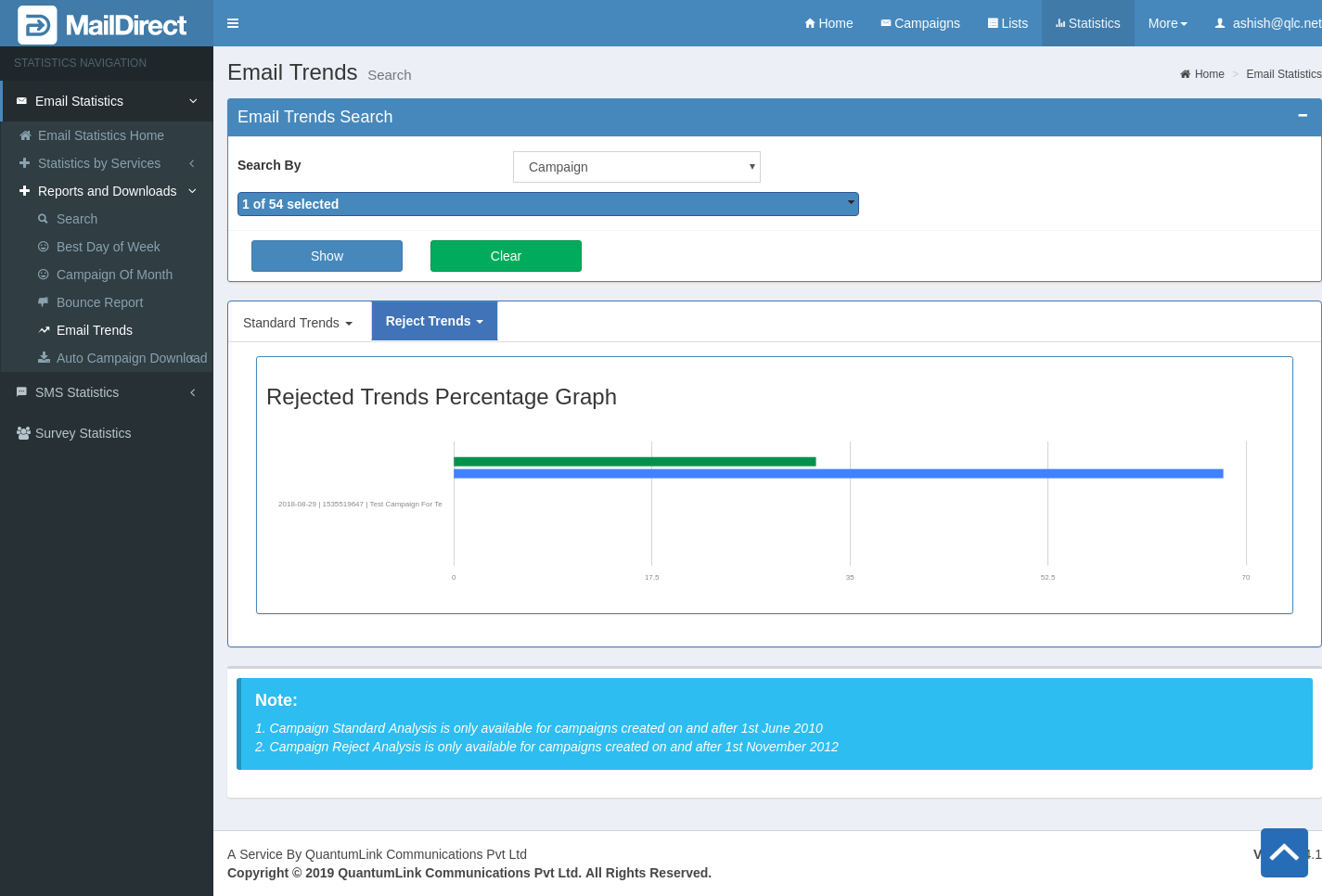
Click On Rejected Trends  > Percentage Graph


This section displays graphical presentation of reject trends.

MailDirect displays reject trends graph screen Reject Trend Percentage Graph


Figure : Email Trends Home - Reject trends Percentage Graph