MailDirect Help
Email Campaign Statistics For the Campaign
Email Campaign Statistics For the Campaign
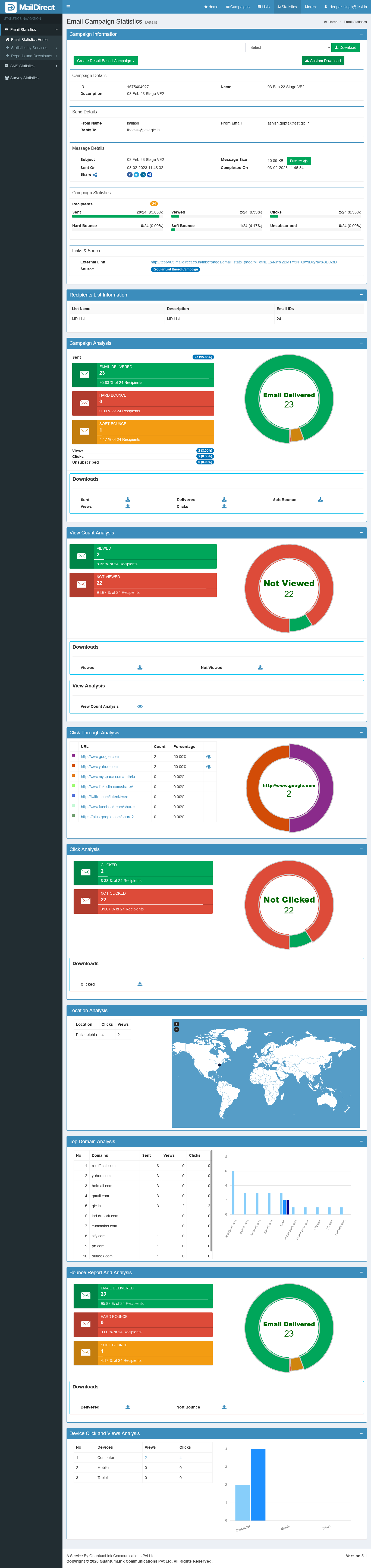
Figure : Email Campaign Statistics
Table : Email Campaign Statistics
|
Field |
Description |
|
Campaign Info |
This section displays the basic email campaign information. For detailed Information, select appropriate options available to download the required files from download dropdown and the field without custom field. The available options are explained below: The following Download options are provided: EML, Html/Text File, Recipients, Viewed Recipients, Unique Viewed Recipients, Clicked Recipients, Unique Clicked Recipients, Forwarded Emails, Total Bounced Emails, Hard Bounced Emails, Soft Bounced Emails, Location wise Viewed, Location wise Count, Not Viewed including Bounced Emails, Not Viewed without Bounced Emails, Delivered Emails, Unsubscribed Emails and Auto Campaign Not Send Emails (For Auto Campaign)
To Download EML, Html/Text File, Forwarded Emails, Location wise Count, and Auto Campaign Not Send Emails (For Auto Campaign), the screen will appear as:
Figure : Download Option To Download Recipients, Viewed Recipients, Unique Viewed Recipients, Clicked Recipients, Unique Clicked Recipients, Total Bounced Emails, Hard Bounced Emails, Soft Bounced Emails, Location wise Viewed, Not Viewed including Bounced Emails, Not Viewed without Bounced Emails, Delivered Emails and Unsubscribed Emails.
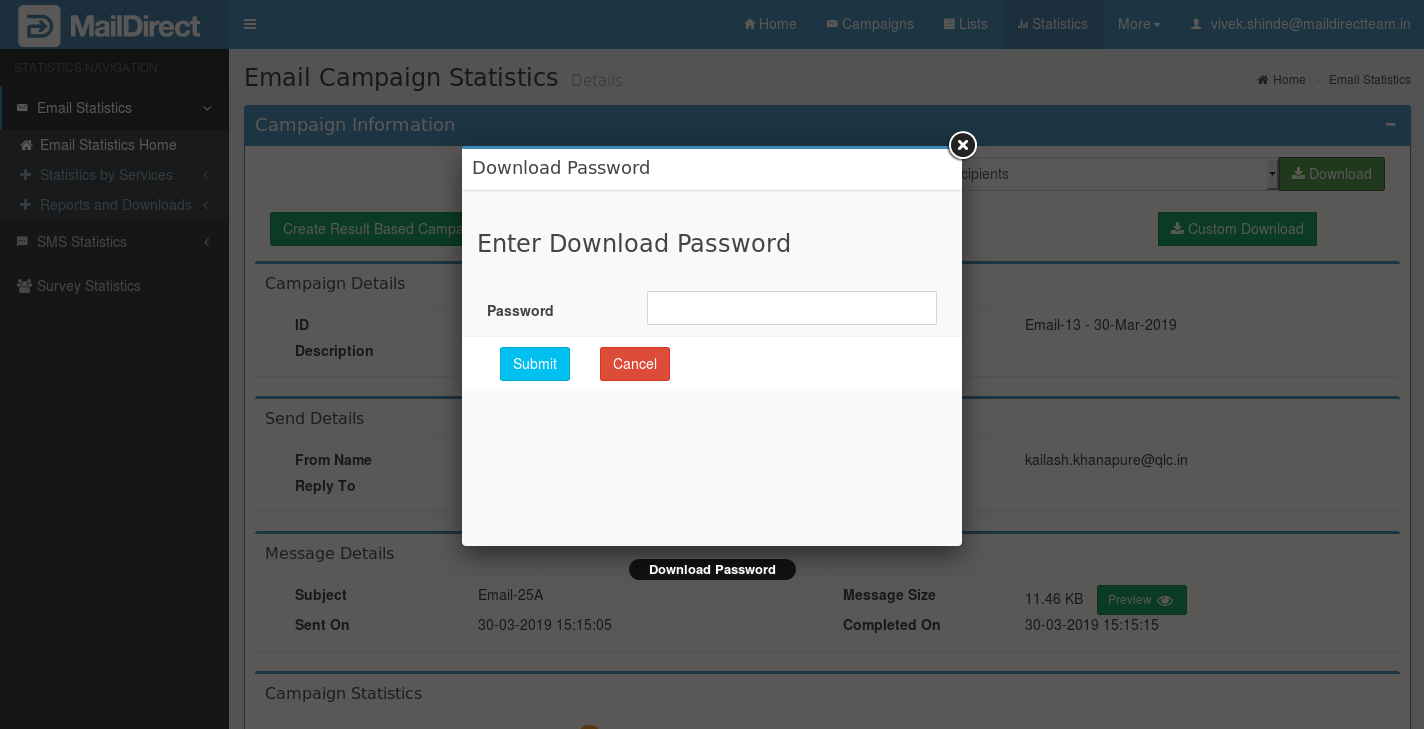
Figure : Download Option With "without Custom Field Option" Select the option to download the file and Click on Download Button. If download password is set MailDirect will ask for download password, it displays screen for download password.
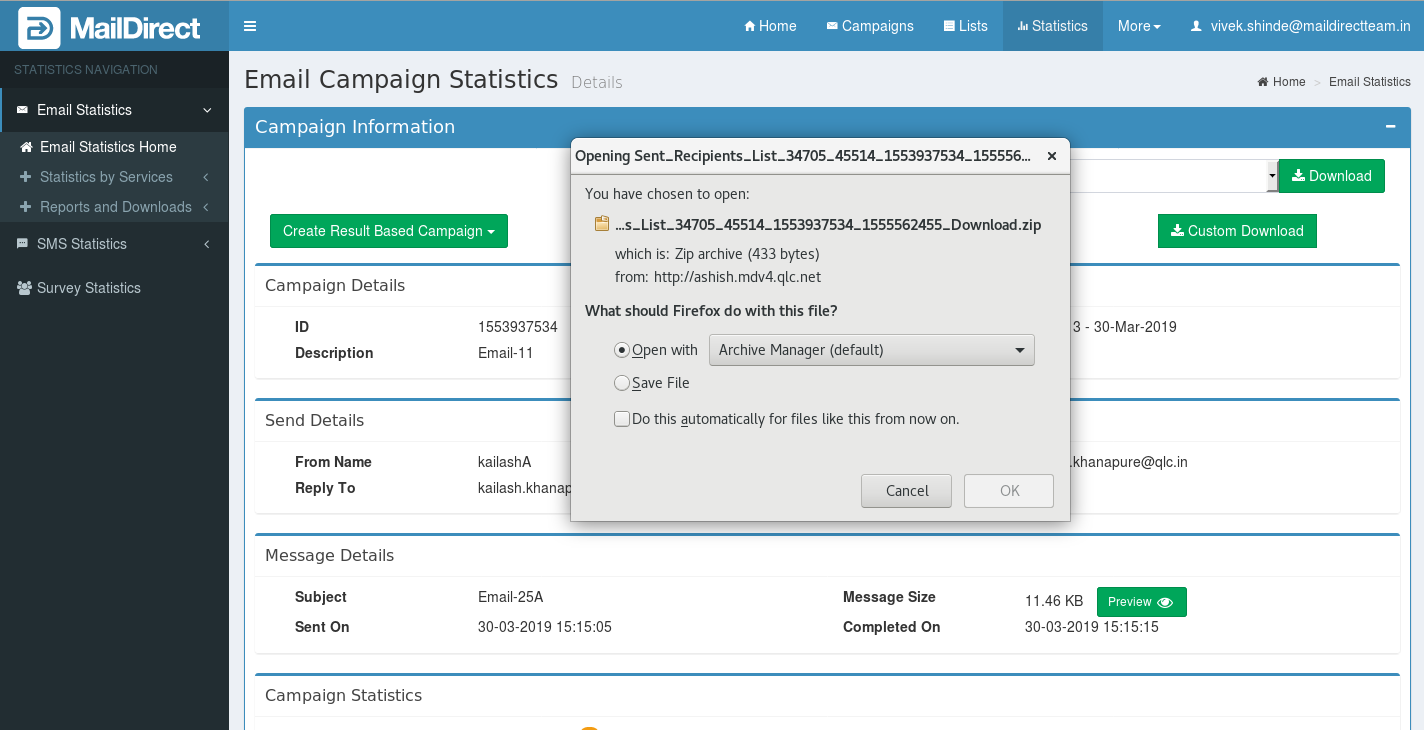
Figure : Statistics > Enter Download Password Enter download password, MailDirect will displays Download Screen
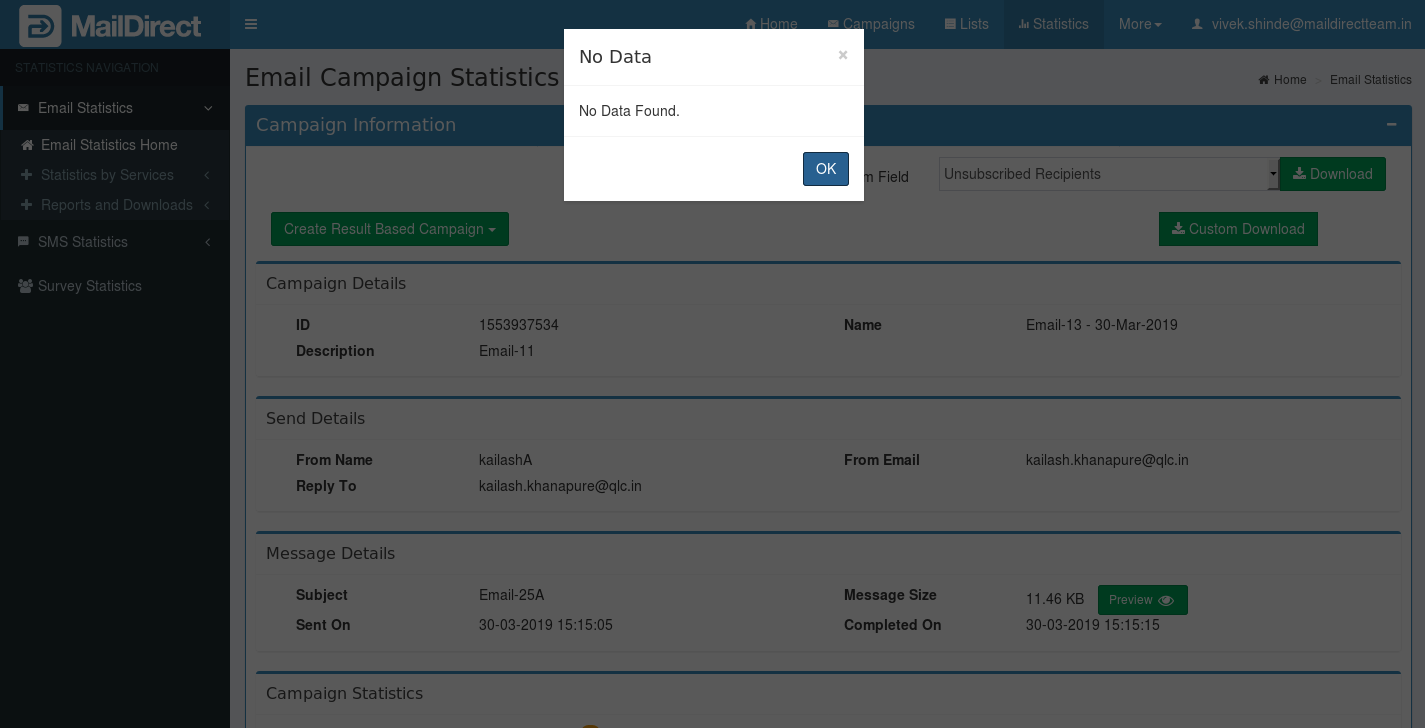
Figure : Email Statistics > Download Select the Save File option and click the OK button to download the file. Note: By default, the Save File option is selected. The user can also select the Open with option and select the suitable application Using which the file can be viewed without saving it. If any of above download options do not have any file to download or to open MailDirect will displays error screen with error message.
Figure : Email Statistics > Statistics Error Message It will displays error like no bounced recipients found, no viewed recipient found, no clicked recipient found etc. Select the Save File option and click the OK button to download the file. Note: By default, the Save File option is selected. The user can also select the Open with option and select the suitable application using which the file can be viewed without saving it. |
|
|
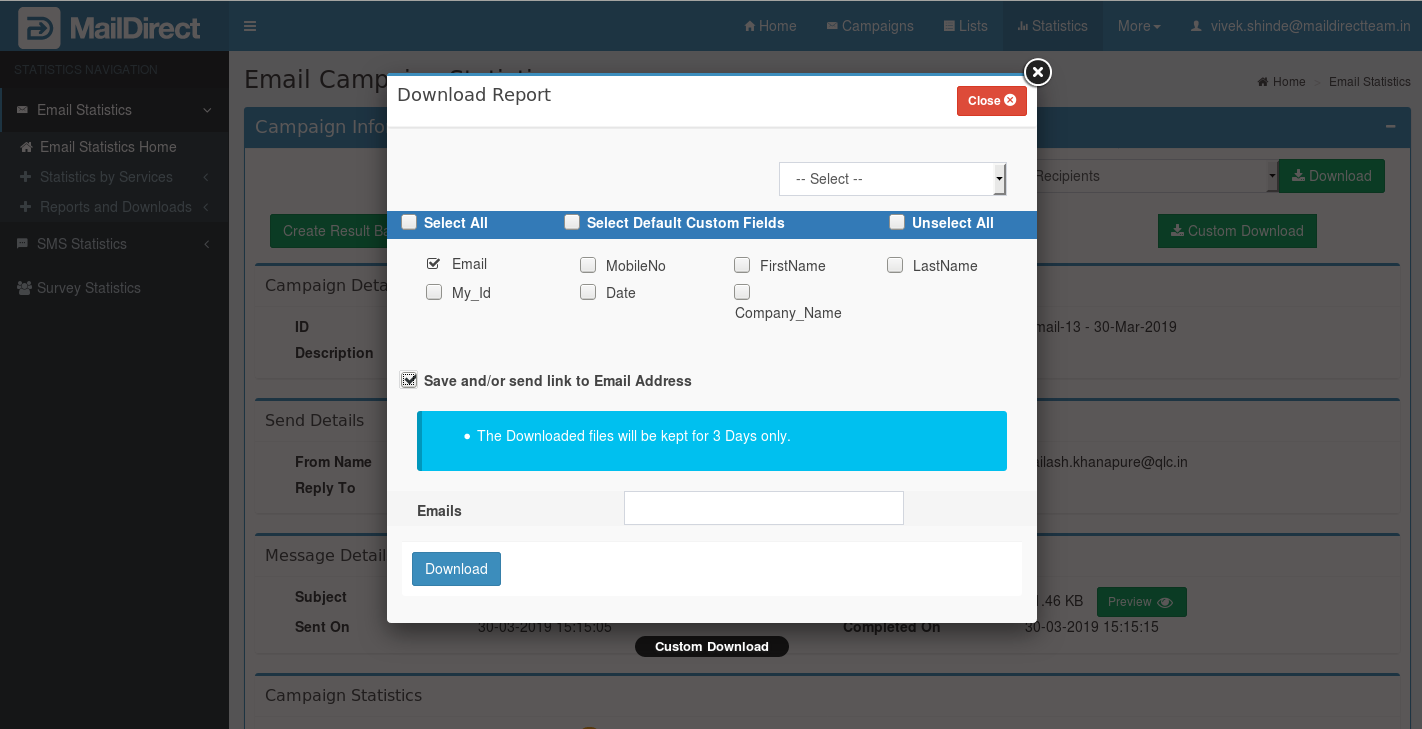
On clicking This feature is use to download details based on selective Custom Fields with options Select All, Select Default Custom Field and Unselect All. The User can select the Fields required to be downloaded. There is also other option to save and or send link to email addresses. The link of email address will expire after 3 days. The save file can be downloaded from Download page provide in account section. The download option will be active for 3 days.
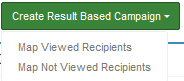
Figure : Email Statistics - Custom Download If Result Based Campaign feature is active. On Clicking on the option i.e. Map Viewed Recipients and Map Not Viewed Recipients
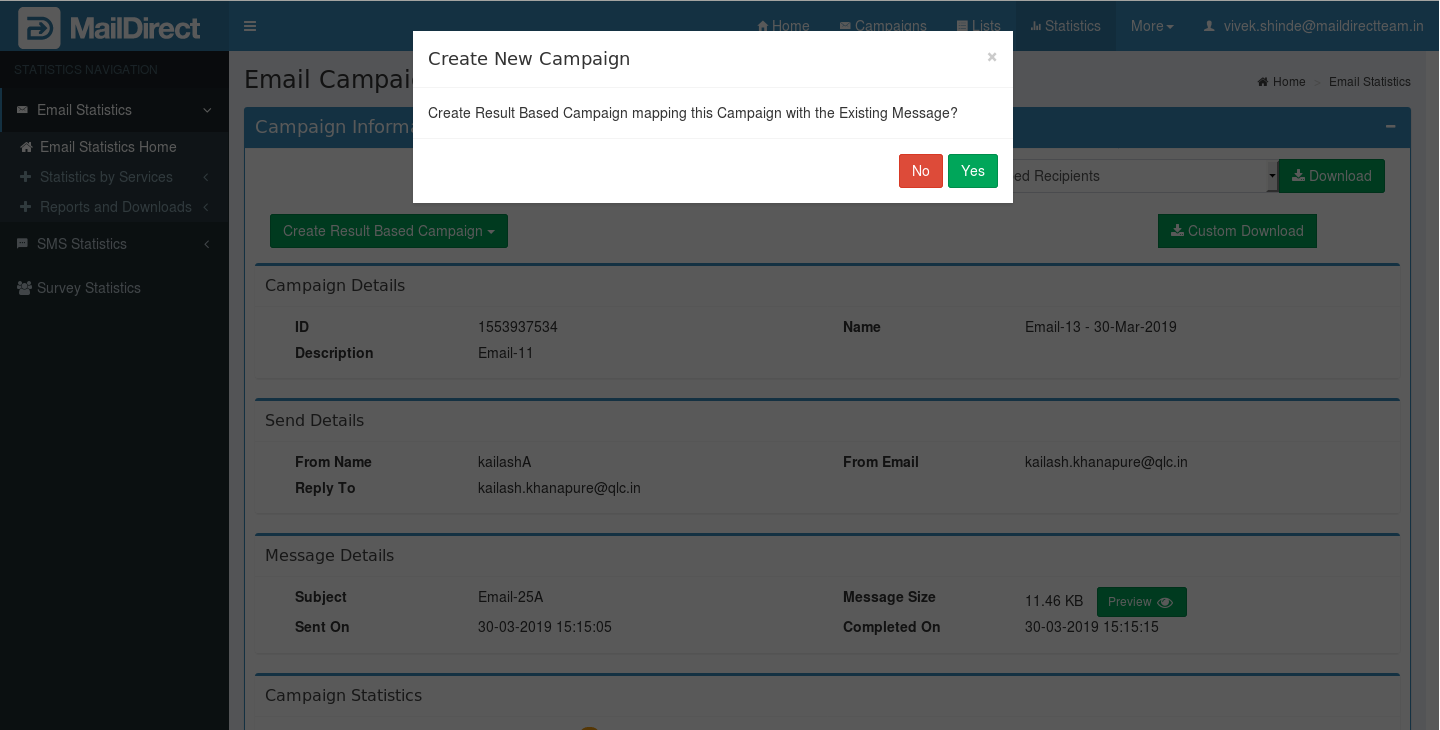
The alert appears
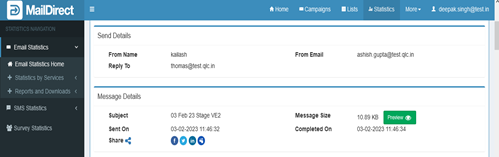
Figure : Email Statistics – Create result based campaign If click on Yes, Result based Campaign is created based on View of details of the campaign. The page is redirected to Edit Campaign Section. Campaign info displays information about particular or selected campaign, The available fields are explained below, Campaign Name: This field displays the campaign name. Campaign ID: This field displays the campaign id. Description: This field displays the description about the campaign. From Name: This field displays the name of the sender of the email campaign. From Email: This field displays the email address from which the campaign emails were/are being (depending on whether the campaign is active or completed) sent. Recipients: This field displays the total number of recipients of the email campaign. Sent: This field displays the total number of recipients to whom email campaign sent successfully. Reply To: This field displays the email address on which the reply to the campaign email s will be sent (if any). Viewed: This field displays the total number of recipients who have viewed Email campaign. Clicks: This field displays the total number of recipients who have clicked the links in the email campaign (if any link has been sent). Subject: This field displays the subject of the email campaign. Hard Bounce: This field displays the number of email addresses from which the campaign has bounced due to domain of email id does not exist. Soft Bounce: This field displays the number of email addresses from which the campaign has bounced due to Server down or if mail box is full, it will keep sending campaign for certain time period, after some time period it will bounce as soft bounce. Message Size: This field displays the size of the campaign message. Preview Message: On clicking Message Preview link, drop down menu appears with two options - Original Message and Message with Click Count .
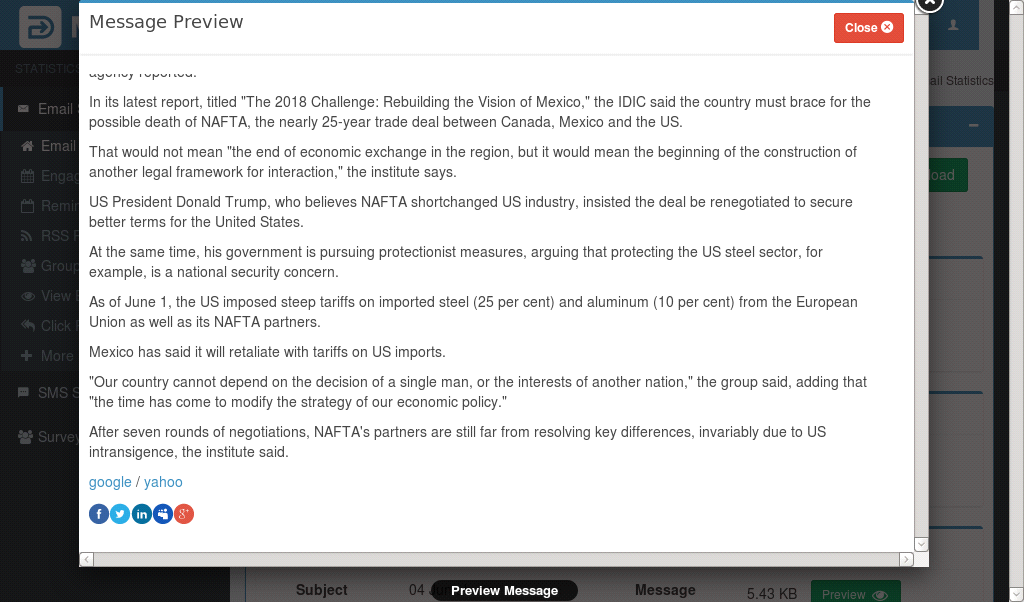
Figure : Email Statistics - Preview Message Clicking Original Message displays preview of message sent.
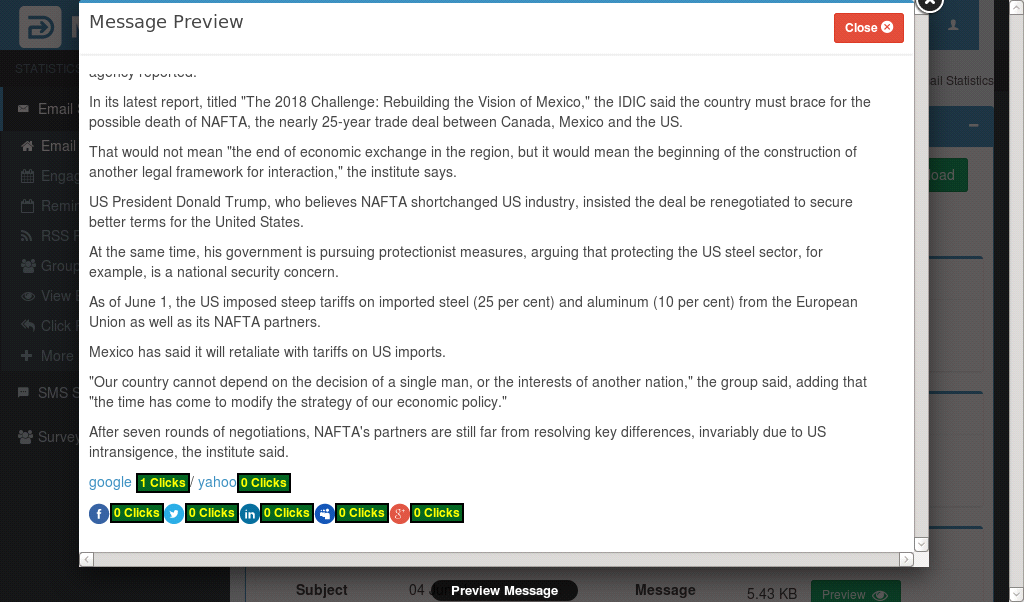
Figure : Email Statistics - Preview Message - Original Message Clicking Message with Click Count displays preview of message sent along with boxes showing the Click Count adjacent to the links.
Figure : Email Statistics - Preview Message - Message with Click Count Sent On: This field displays the date on which the corresponding campaign was sent. Completed On: This field displays the date on which the corresponding campaign was completed. Share: This field is used to post the campaign link on social media.
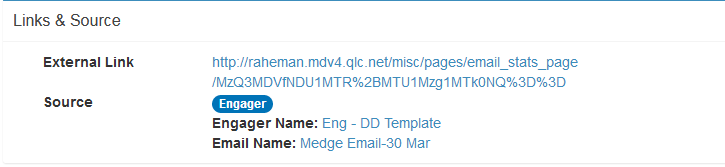
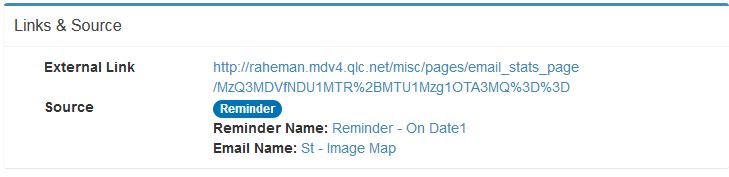
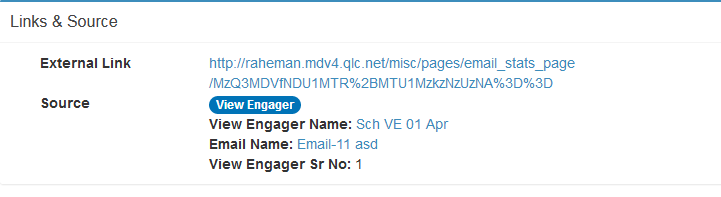
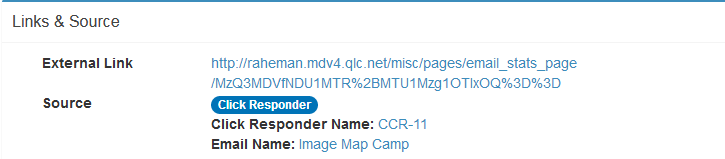
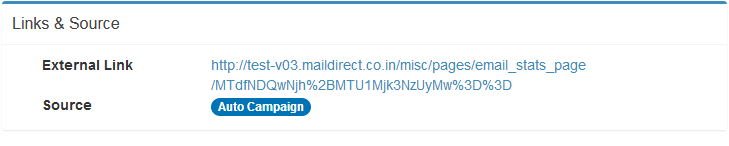
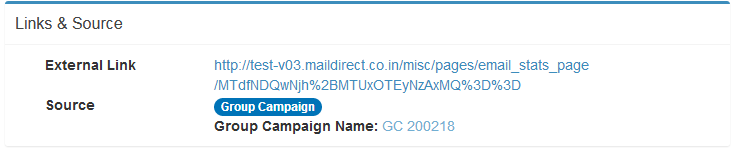
Figure : Email Statistics - Links & Source – Regular List Based Campaign External Link: This link redirects user to page where user can view email campaign Statistics without log in. Source: This field displays campaign source like Regular Campaign, Template Campaign, Engager, Reminder, RSS Feed, Group Campaign, View Engager, Click Responder, Monthly Campaign, Regular List Based Multiple Template Campaign and Result Based Campaign. On Clicking the links the page is redirect to the corresponding edit section of the services.
Figure : Email Statistics - Links & Source - Regular Result Based Campaign
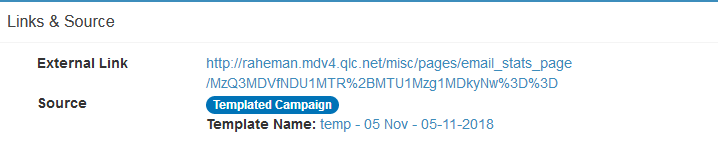
Figure : Email Statistics - Links & Source - Template Campaign
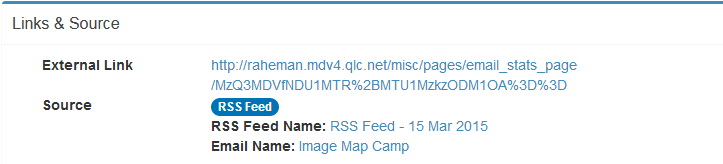
Figure : Email Statistics - Links & Source - RSS Feed
Figure : Email Statistics - Links & Source - Engager
Figure : Email Statistics - Links & Source – Reminder
Figure : Email Statistics - Links & Source – View Engager
Figure : Email Statistics - Links & Source – Click Responder
Figure: Email Statistics - Links & Source – Monthly Campaign
Figure: Email Statistics - Links & Source – Multiple Template Campaign
Figure : Email Statistics - Links & Source – Auto Campaign
Figure : Email Statistics - Links & Source – Group Campaign |
|
Recipients List Info / Result Based Info |
Figure : Email Statistics - Recipient List Info This section displays information about the recipients List of the email campaign. The available fields are explained below Name: This field displays the name of the contact list that was/is mapped to the campaign. Description: This field displays the description of the contact list that was/is mapped to the campaign. Email Ids: This field displays the total number of email addresses present in the contact list that was/is mapped to the campaign. |
|
Multiple Template Information |
Figure : Email Statistics - Multiple Template Info This section displays information about the Multiple Template Mapped List of the email campaign. The available fields are explained below Email Name: This field displays the name of the email campaign that was/is mapped to the campaign. Send Count: This field displays the send count of email campaign send to recipient. |
|
Campaign Analysis |
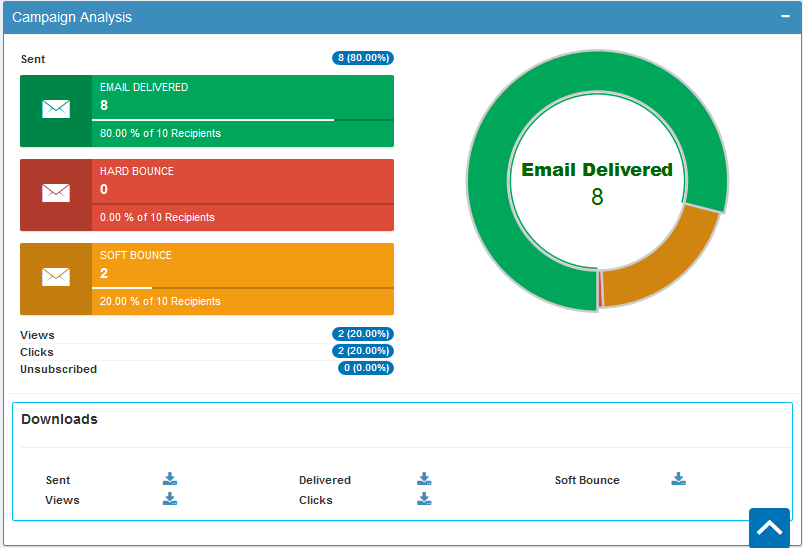
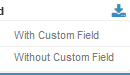
Figure : Email Statistics - Campaign Analysis This section displays chart of campaign analysis like Hard Bounce, Soft Bounce and Email Delivered, it shows the ratio (%) of total recipients. Available Fields are explained below, Sent: This field displays total number of recipients to whom email campaign sent. Delivered: This field displays total number of recipients to whom email campaign delivered successfully. It also shows ratio (%) of the total recipients to whom email campaign delivered successfully. Hard Bounce: This field displays the number of email addresses from which the campaign has bounced due to domain of email id does not exist. It also shows ratio (%) of the hard bounces. Soft Bounce: This field displays the number of email addresses from which the campaign has bounced due to Server down or if mail box is full. It also shows the ratio (%) of total soft bounces. Views: This field displays the total number of recipients who have viewed Email campaign. It also shows the ratio (%) of total views. Clicks: This field displays the total number of recipients who have clicked the links in the email campaign (if any link has been sent). It also shows the ratio (%) of total clicks. Clicking on Option to Download With or Without Custom Field. Clicking on the option downloads the data. |
|
View Count Analysis |
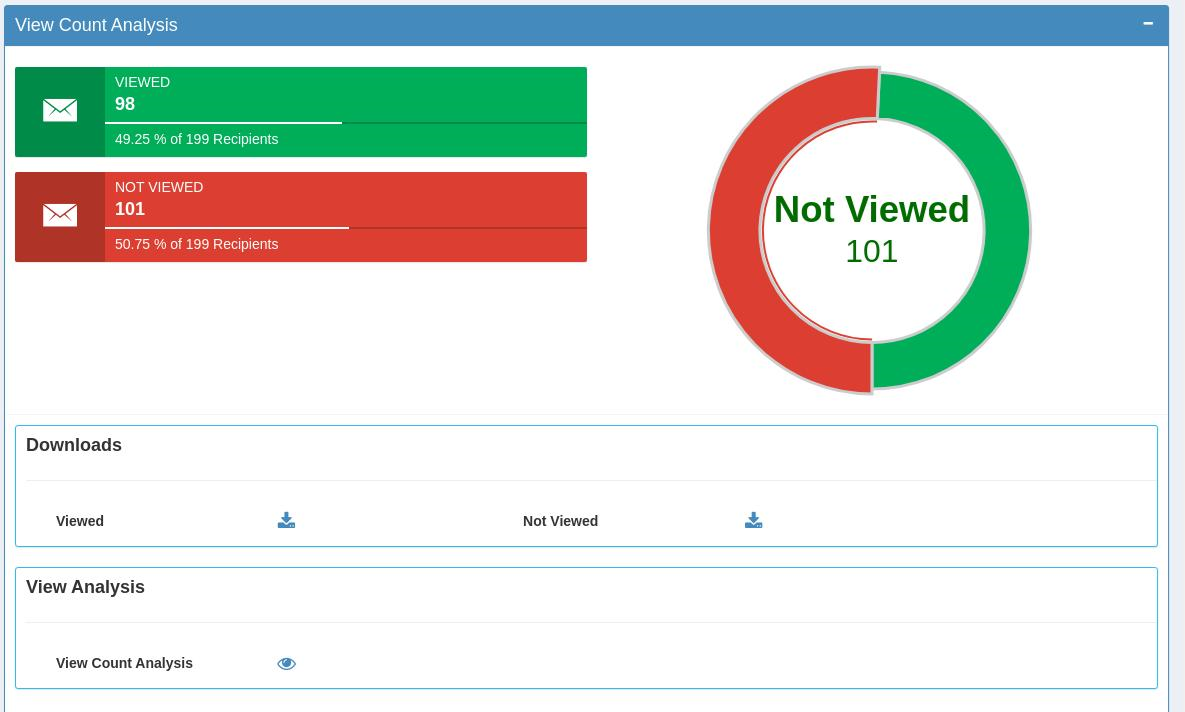
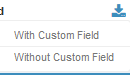
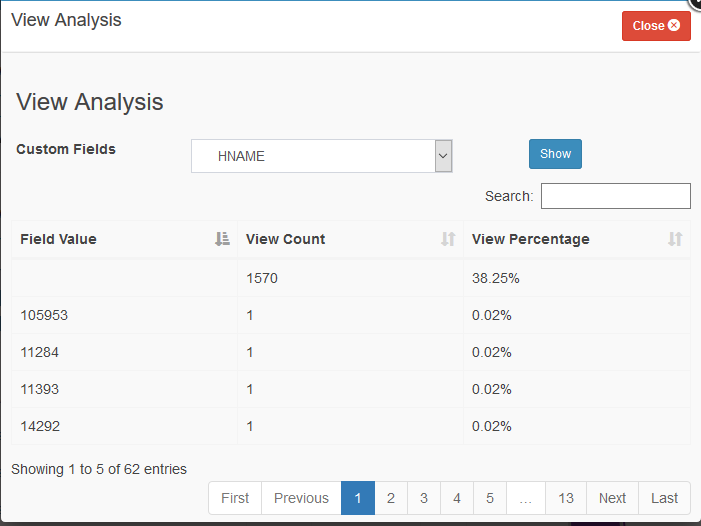
Figure : Email Statistics - View Count Analysis This section displays chart of view campaign analysis. It explains how many users viewed campaign and also user who have not viewed campaign. Viewed: This field displays the total number of recipients who have viewed Email campaign. It also shows the ratio (%) of total views. Not Viewed: This field displays the total number of recipients who have not viewed Email campaign. It also shows the ratio (%) of total number of recipients who have not views the campaign. Downloads Clicking on Option to Download With or Without Custom Field. Clicking on the option downloads the data View Analysis On Clicking Selecting Custom Fields and Clicking
Figure : Email Statistics - View Analysis |
|
Click Through Analysis |
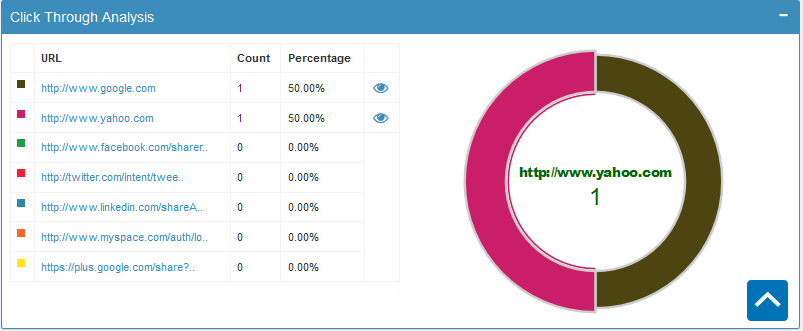
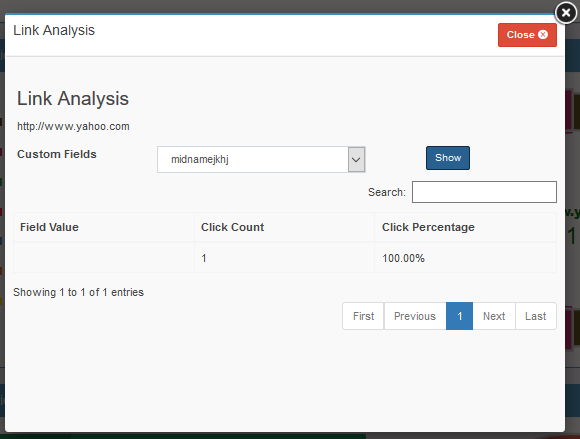
This Section Displays the links, which exists in the Campaign and the Count and Percentage of Recipients, who have Clicked the link.
Figure : Email Statistics - Click Through Analysis Clicking
Figure : Email Statistics - Link Analysis |
|
Click Analysis |
Figure : Email Statistics - Click Analysis This section displays chart of click analysis of email campaign (if any link has been sent). Available Fields are explained below, Clicked: This field displays the total number of recipients who have clicked the links in the email campaign (if any link has been sent). It also shows the ratio (%) of total clicks. Not Clicked: This field displays the total number of recipients who have not clicked the links in the email campaign (if any link has been sent). It also shows the ratio (%) of total number of recipients who have not clicks the link in the email campaign (if any link has been sent). Clicking on Option to Download With or Without Custom Field. Clicking on the option downloads the data |
|
Forward Count |
Figure : Email Statistics - Forward Count This section displays the total number of recipient to whom email campaign forwarded by user. |
|
Location Analysis |
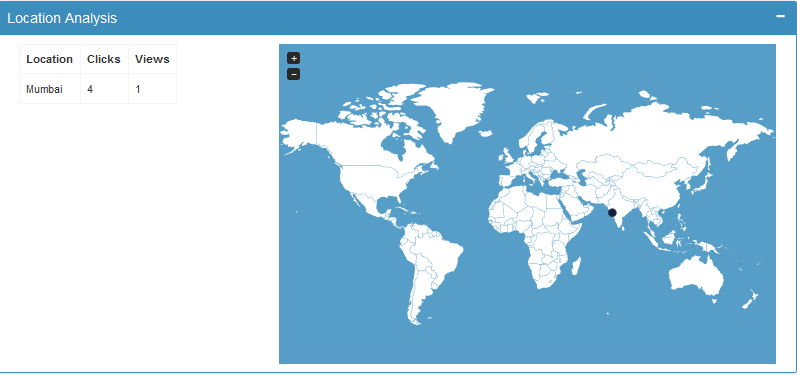
Figure : Email Statistics - Location Analysis This section displays locations of clicks and views of the email campaign on a Google map. It also displays location list with total number of clicks and views on particular locations. |
|
Top Domain Analysis |
Figure : Email Statistics - Top Domain Analysis This section displays list of domain to which email campaigns were sent. It also display sent, views and clicks count of each domain to which email campaign were sent. It displays chart with domains and recipients count. The domain which has a maximum number of recipients count is a Top domain. |
|
Bounce Report and Analysis |
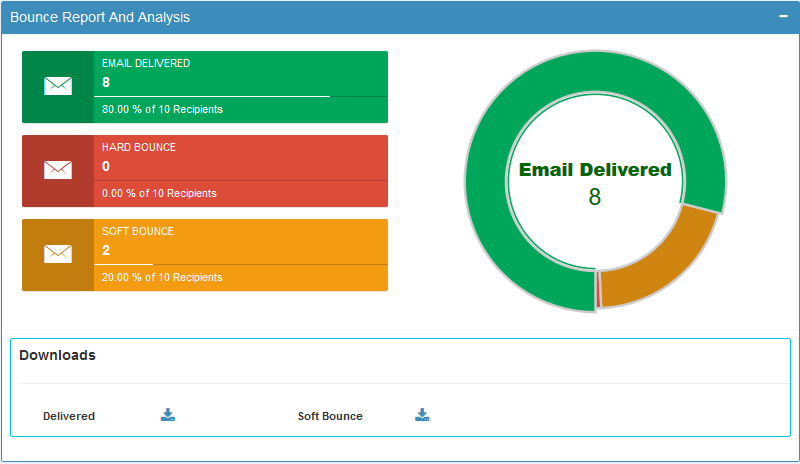
Figure : Email Statistics - Bounce Report and Analysis This section displays the chart for the number of emails delivered and number of emails bounced. Available fields are explained below, Hard Bounce: This field displays the total number of email addresses from which the campaign has bounced due to domain of email id does not exist. It also shows ratio (%) of the hard bounces. Soft Bounce: This field displays the total number of email addresses from which the campaign has bounced due to Server down or if mail box is full. It also shows the ratio (%) of total soft bounces. Delivered: This field displays the total number of recipients to which email campaign were sent or delivered successfully. It also shows the ratio (%) of total delivered recipients. Clicking on Option to Download With or Without Custom Field. Clicking on the option downloads the data |
|
|
|
|
Device Click and View Analysis |
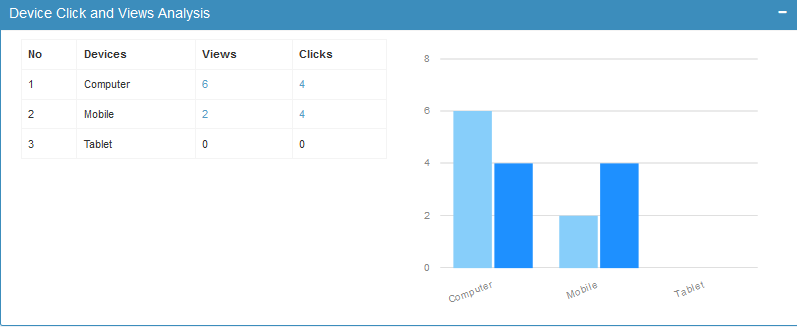
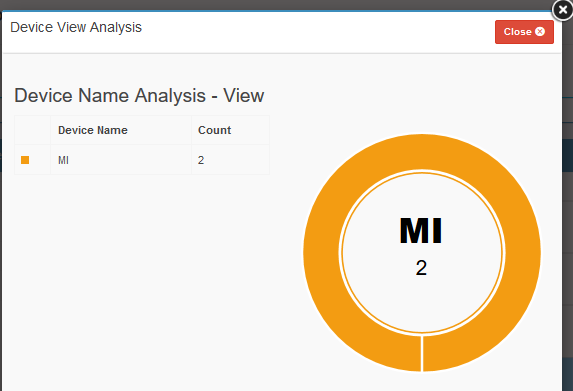
Figure : Email Statistics - Device Click and View Analysis This section displays chart of Device & Views Count and Devices & Clicks Count. It also displays total number of Clicks and Views of each device like Computer, Mobile, and Tablet. Clicking on the Count of Views will display the Device View Analysis: Device Name Analysis - View
Figure : Email Statistics - Device Name Analysis - View Operating System Analysis – View
Figure : Email Statistics - Operating System Analysis - View Browser Analysis – View
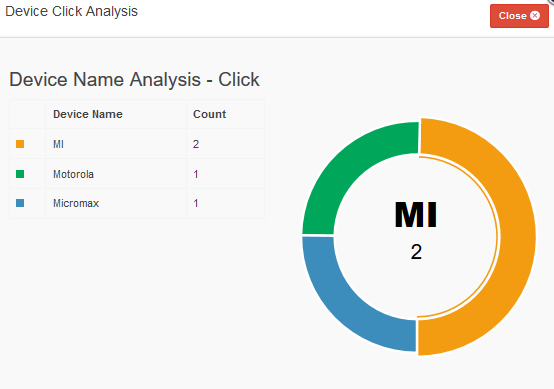
Figure : Email Statistics - Browser Analysis - View Clicking on the Count of Clicks will display the Device View Analysis: Device Name Analysis - Clicks
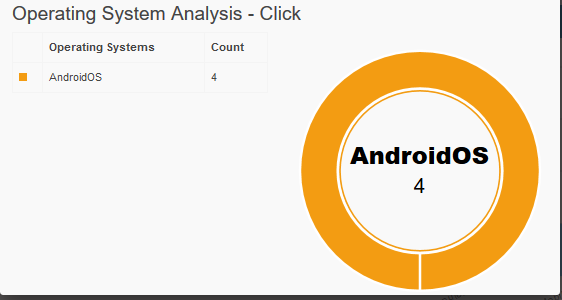
Figure: Email Statistics - Device Name Analysis- Click Operating System Analysis – Clicks
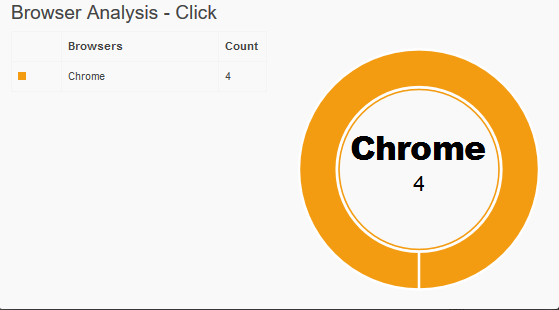
Figure : Email Statistics - Operating System Analysis - Click Browser Analysis – Clicks
Figure: Email Statistics - Browser Analysis - Click |