 MailDirect Help
Email Campaign Statistics Home Page
Email Campaign Statistics Home Page
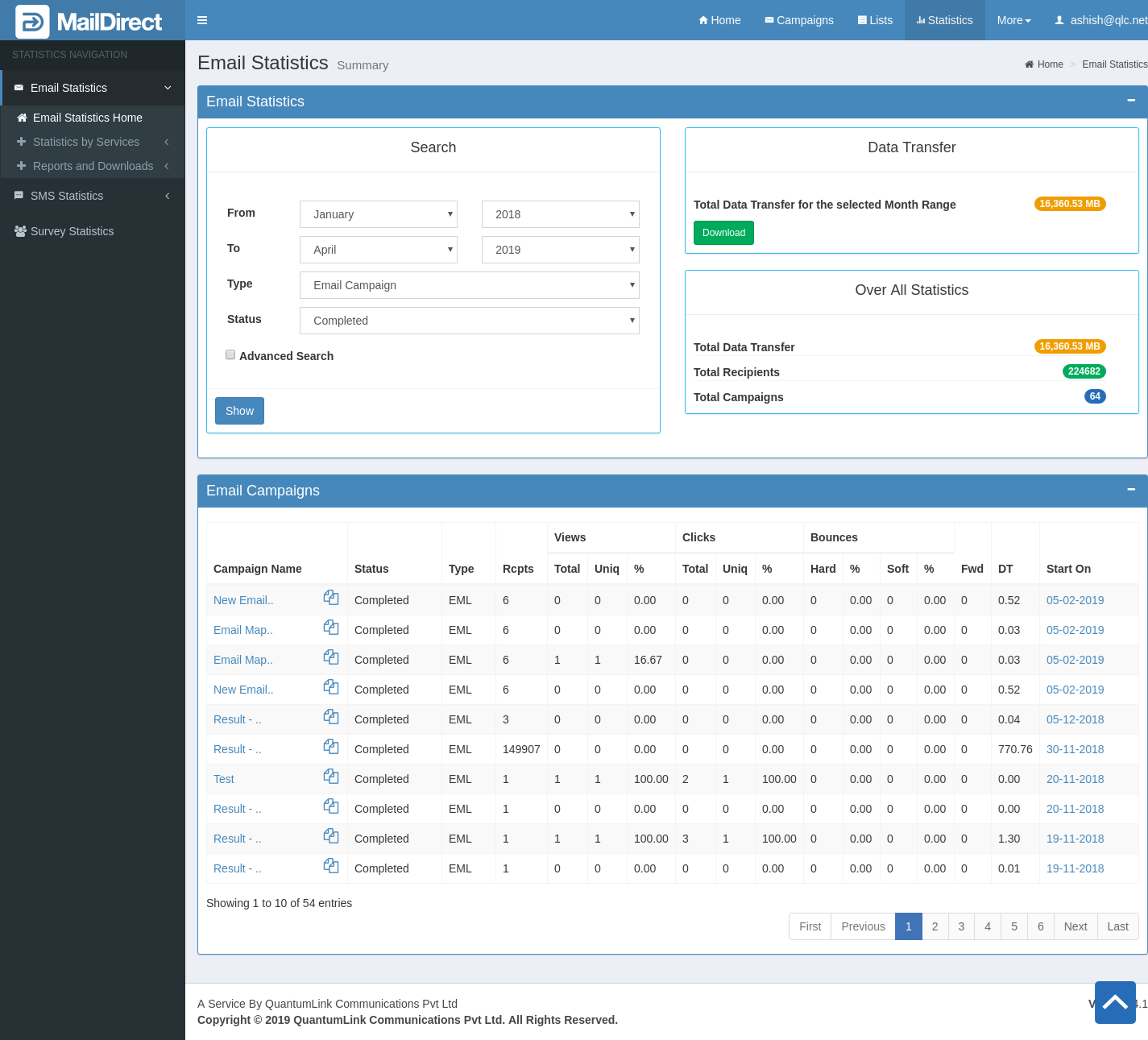
Figure : Email Campaign Statistics - Home Page
By default the page displays the details of Email Campaigns sent for the current month.
The results displayed includes Campaign Name with an option to Copy the Campaign, Status, Campaign Type, Number of Recipients, View Count – Total, Unique and Percentage, Click Count – Total, Unique and Percentage, Bounces – Hard and Soft Bounce Count and Percentage, Forwarded Emails Count, Data Transfer in MB and Campaign Start Date.
The search provides the Total Monthly Data for the selected Month Range with option to Download the details.
The Overall Statistics Details of Total Data Transfer, Total Recipients and Total Campaigns Sent are displayed.

Figure : Email Campaign Statistics - Results
In the Search Section, options are provided to Search Email Campaign Statistics based on various Parameters. After selection of the parameters click Show Button to display the desired list.
The criteria for displaying the Email Campaign Statistics result based on Month Range are as:
Table : Email Statistics Home - List Display based on Month Range
|
Field |
Description |
|
Email Statistics - Total Email Data Transfer Report |
|
|
From |
Select the appropriate options to specify the month and year from when the email campaign statistics are needed. The available options are explained below Month-Select an appropriate month from the drop - down list. Year-Select an appropriate year from the drop - down list. |
|
To |
Select the appropriate options to specify the month and year till when the email campaign statistics are needed. The available options are explained below Month-Select an appropriate month from the drop - down list. Year-Select an appropriate year from the drop - down list. |
|
Campaign Type |
This section displays Type of Campaign Statistics Email Campaign – Show details of Email Campaign. Auto Campaign – Show details of Auto Campaign. HTTP Campaign – Show details of HTTP Campaign. |
|
Status |
It is displayed when Campaign Type is Email Campaign Active – Campaign is active. Completed – Campaign is completed. Abandoned – Campaign abandoned by admin. Stopped – Campaign stopped due user sending data or recipients limit exceeds. Discarded – Campaign discarded by user. |
|
Show |
Click this button to view the email campaign statistics for the specified time - period. Note: By default Completed/Active/Abandoned/Stopped/Discarded Email Campaigns, the email campaign statistics for the current month are displayed. |
Clicking On Advanced Search provides option to Search based List Mapped to Campaign, Based on the User, who has created the Campaign and Search Criteria.
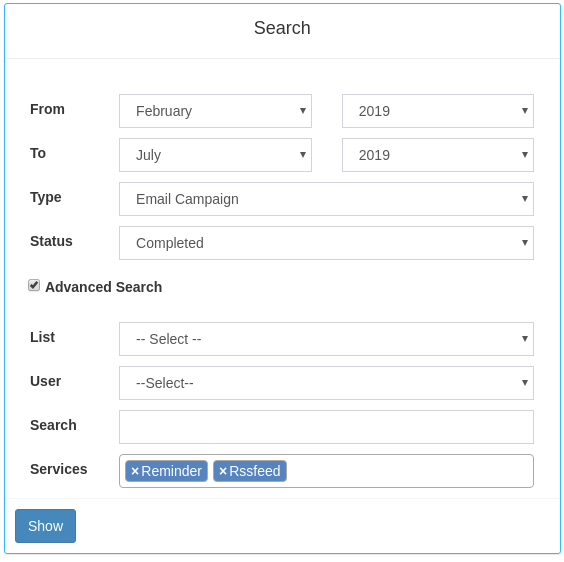
Figure : Email Statistics - Display based on Advanced Search
Table : Email Statistics - Display based on Advanced Search
|
Email Statistics - Search Option |
|
|
List |
It display the campaign Statistics based on the lists mapped to the campaign . |
|
User |
Display the user who has created the Campaign. |
|
Search |
Search based on Campaign Name or ID or Message Subject or From Email or From Name. |
|
Services |
Search based on Campaign Services. Services are Engager, Reminder, Rssfeed, Group Campaign, View Engager, Click Responder and Monthly Campaign. |
Table : Email Statistics List Display Details
|
Email Statistics - Completed/Active/Abandoned/Stopped/Discarded Email Campaigns |
|
|
Campaign Name |
This section displays the name of the campaign. Click the name, which is a link, to view the details about the corresponding email campaign. |
|
Status |
This section displays the Status of the email campaign. |
|
Type |
This section displays the Type of Email file of the email campaign. |
|
Rcpts (Recipients) |
This section displays the total recipients mapped to the email campaign. |
|
Views |
This section displays the number of recipients who have viewed the email Campaign. Total: This section displays the total number of recipients who have viewed the email campaign. Unique: This section displays the total number of unique recipients who have viewed the email campaign. %: This section displays the Average (ratio) recipients who have viewed the email campaign. |
|
Clicks |
This section displays the number of recipients who have clicked the links in the email campaign (if any link has been sent). Total: - This section displays the Total number of recipients who have clicked the links in the email campaign (if any link has been sent). Unique: - This section displays the Unique number of recipients who have clicked the links in the email campaign (if any link has been sent). %:- This section displays the Average (ratio) number of recipients who have clicked the links in the email campaign (if any link has been sent). |
|
Bounces |
This section displays the number of email addresses from which the campaign has bounced.
%: This section displays the Average (ratio) of hard bounces. Soft: Soft bounce is happened due to Server down or if mail box is full, it will keep sending campaign for certain time period, after some time period it will bounce as soft bounce. %:- This section displays the Average (ratio) of hard bounces. |
|
Fwd. (Forward) |
This section displays the total number of times email campaign forwarded by user. |
|
DT (Data Transfer) |
This section displays the data transferred for the corresponding campaign, in MB. |
|
Start On |
This section displays the date on which the corresponding campaign was Started/created. |
- Click the name of the campaign to view details for the corresponding Statistics Details of the campaign.