 MailDirect Help
SMS Campaign Wizard – Select List
SMS Campaign Wizard – Select List
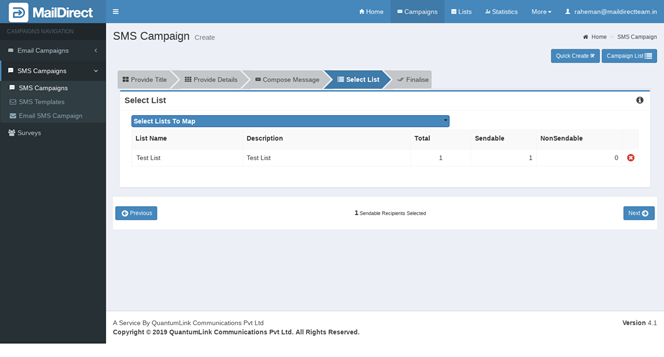
Figure : Creating New SMS Campaign - List Map
The mapped lists can be added by clicking Select List to Map and the required lists can be selected. Search/Filter Option is available to search by List Name. Option for Check All and Uncheck All is provided to select and unselect all lists. Clicking Add link maps the list to the Sms Campaign.
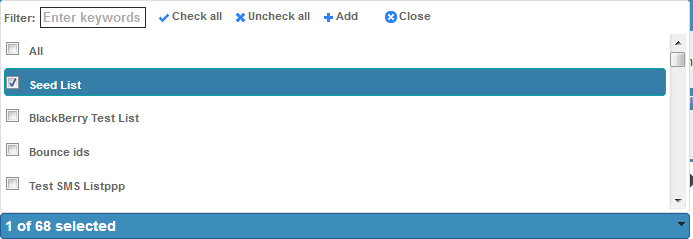
Figure : Creating New SMS Campaign - List Map - Mapping Lists
Table : Creating New SMS Campaign -List Map
|
Field |
Description |
|
Select Lists To Map |
Select the check boxes corresponding to the appropriate contact list/s to be mapped to the campaign. The campaign will be sent to all those who are included in these lists |
|
List Name |
This section displays the name of the contact list |
|
Description |
This section displays the description about the contact list |
|
Total |
This section displays total number of recipients in selected list |
|
Send able |
This section displays total number of Send able recipients in selected list |
|
Non Send able |
This section displays total number of Not Send able recipients in selected list |
Clicking  will remove the list mapped to the SMS Campaign.
- Click on
 next button
 - If want to made some changes or edit current campaign Click on
 next Back
 - This is display brief detail of created SMS campaign and action buttons