 MailDirect Help
Survey Statistics For the Survey
Survey Statistics For the Survey
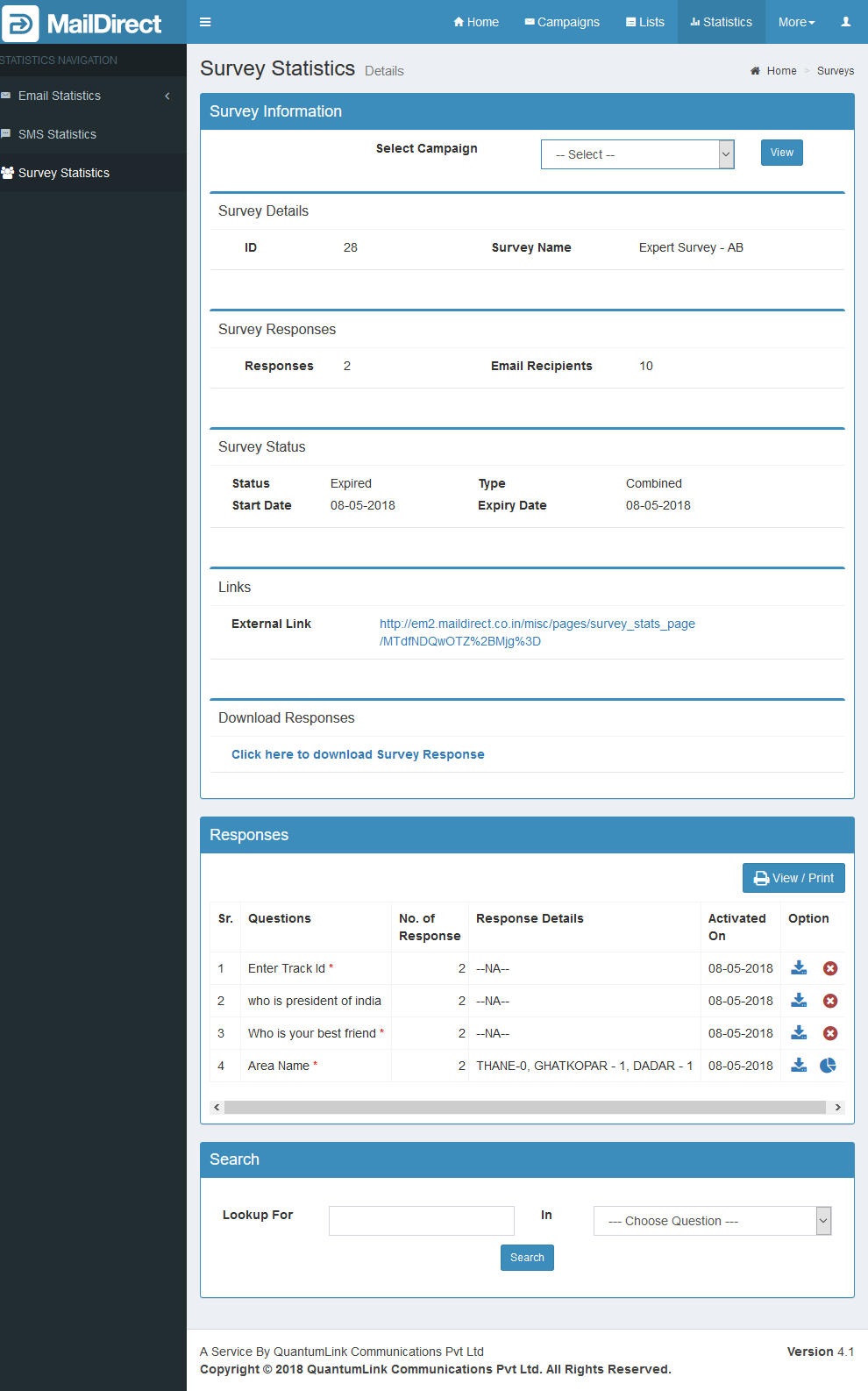
Figure : Survey Statistics - Details
Survey Information
Table : Survey Statistics - Details
|
Field |
Description |
|
|
Select Campaign |
This field displays drop-down of campaigns which had a link for this survey. When user select a campaign and click on view button MailDirect will display campaign statistics details screen |
|
|
Survey Details |
||
|
ID |
This field displays ID of the survey |
|
|
Survey Name |
This field displays Survey name |
|
|
Survey Responses |
||
|
Responses |
This field displays total number of responses of the survey |
|
|
Email Recipients |
This field displays total number of recipients invited of the survey via email campaign |
|
|
Survey Status |
||
|
Status |
This field displays status of the survey i.e. Active or Expired |
|
|
Type |
This field displays type of the survey. i.e. Invite Via Email or Public Link on Website or Combined |
|
|
Start Date |
This field displays start date of the survey campaign. |
|
|
Expiry Date |
This field displays expiry date of the survey campaign. |
|
|
Links |
||
|
External Link |
This field displays link of the survey Statistics, when user clicks on this link MailDirect will displays Survey Statistics screen which do not requires to log in. |
|
|
Download Responses |
||
|
Download Response Link |
Clicking on Click here to download Survey Response will download the Survey Responses |
|
Responses
The responses section displays the option to View/Print the Survey Responses. Clicking on  will display the popup - Survey View/Print Response:
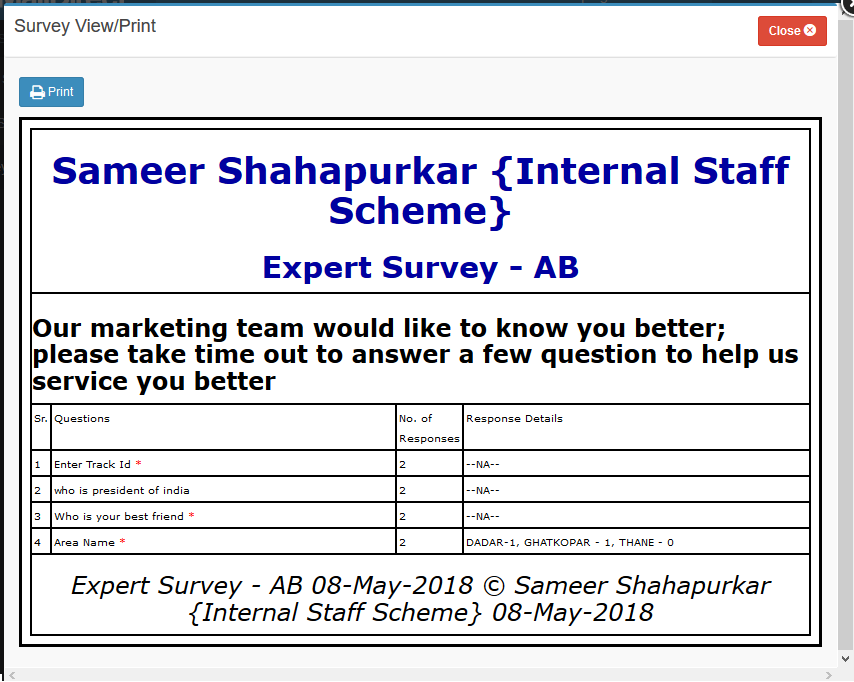
Figure : Survey Response - Print/View
The popup displays the details of the Questions, Number of Responses and Response Details for Radio Button, Drop Down and Check Box Fields. The option is not applicable for Text, Text Box and Date Fields. The page in displayed in the format set to display the Survey Form i.e. the Design Page which includes Header, Page Instructions, Layout and Footer.
The Response section, displays the Response details in table format which contains the following Fields:
Table : Response Details
|
Field |
Description |
|
Questions |
This field displays questions of the survey. |
|
No. of Responses |
This field displays Number of Responses for the questions. |
|
Response Details |
This field displays Response Details for Radio Button, Drop Down and Check Box Fields. The option is not applicable for Text, Text Box and Date Fields. |
|
Activated On |
Displays the Date, when the Question was activated |
|
Option |
The Download link The Graph link If Graph link is not applicable i.e. for Text, Text Box and Date Fields or the Count of Response is 0, then |


Clicking on the Download link  will download the Responses for the Question in the row .
Clicking on the Graph link  will display the Responses for the Question:
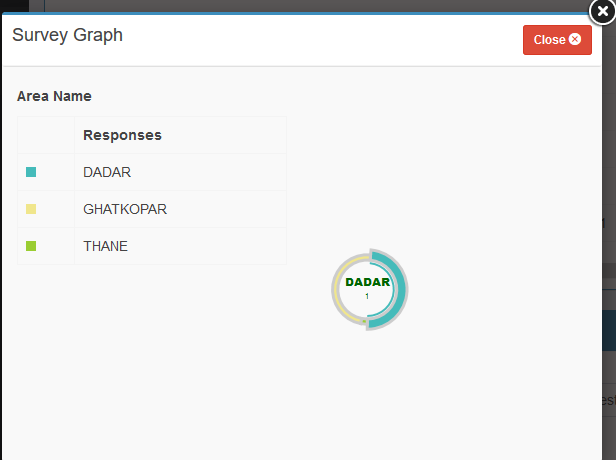
Figure : Graphical Response for the Question
Search
The Search Section provides option to search the response from a Question.
Enter the Search text in Lookup For Field and select the Question in In Field and click Submit.
The search results are displayed in the table with Fields Serial No., Field Name and View Link.
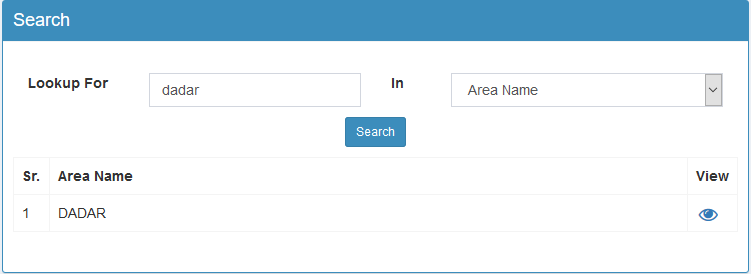
Figure : Search Response from a Question
Clicking on  will display the Response of the Visitor based on the search.
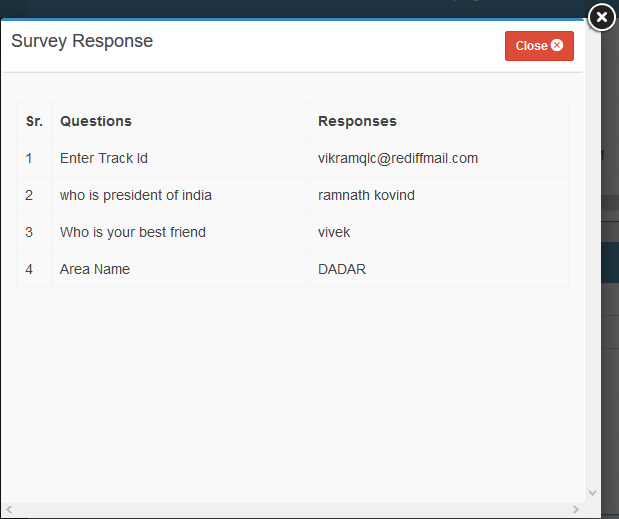
Figure : Response of the Visitor based on the search